

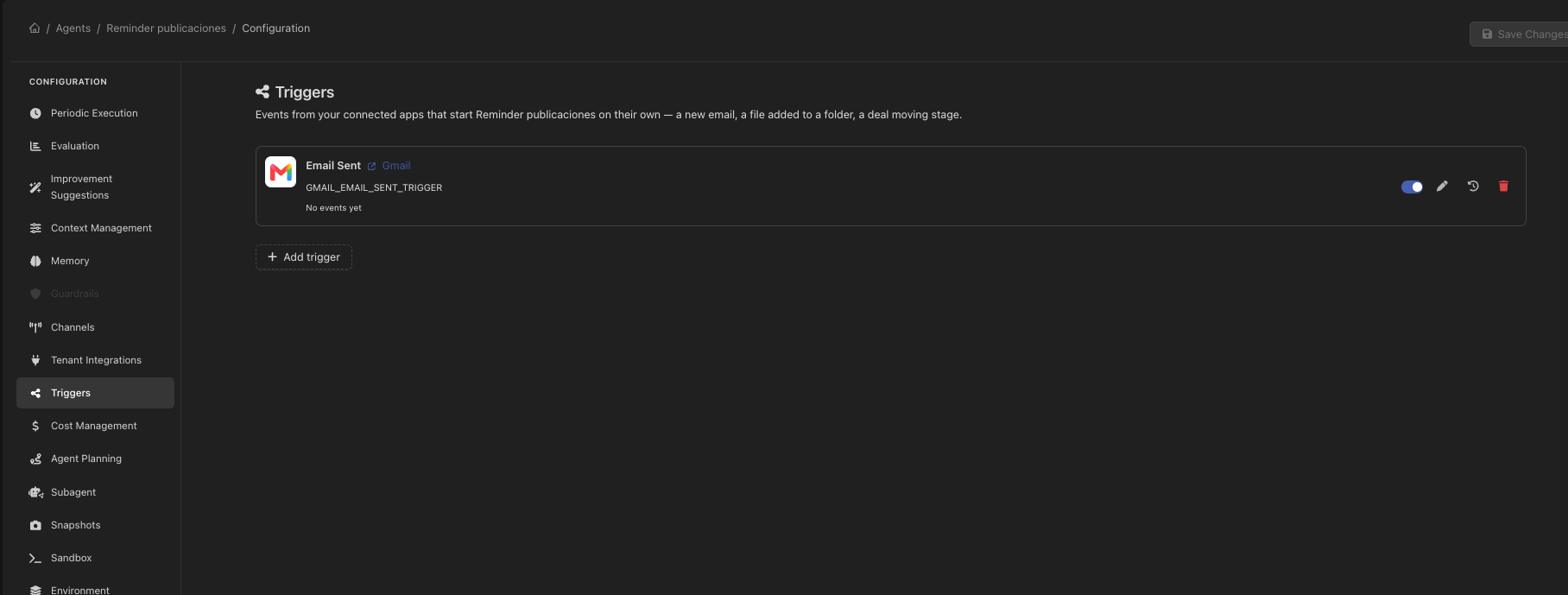
Setting one up
A trigger is configured in the Triggers section of the agent or assistant it starts. That is where it lives, and where its message template belongs.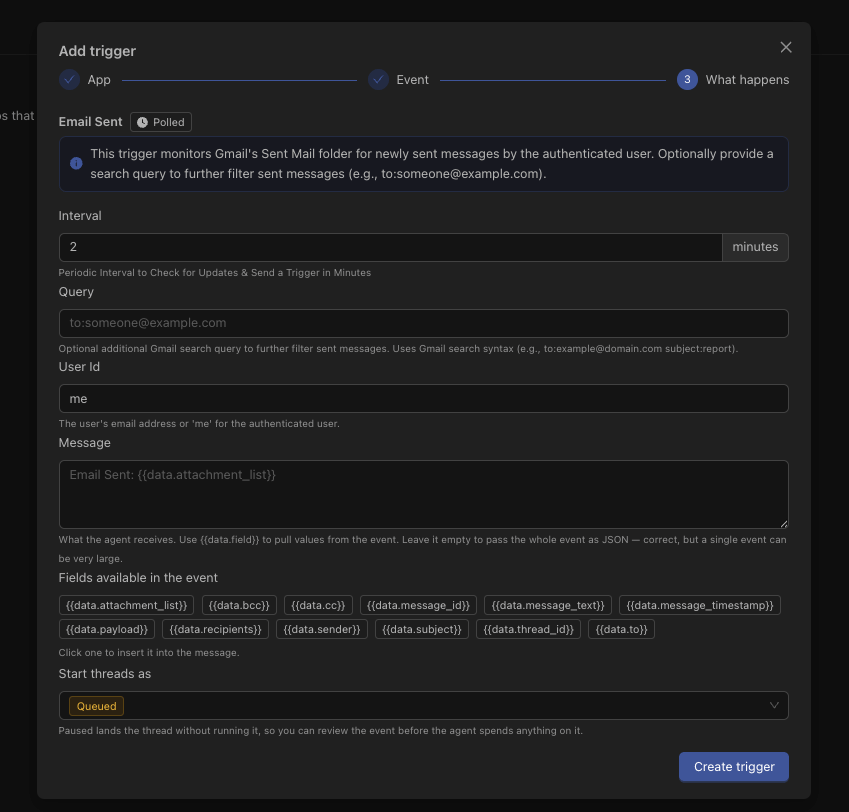
1
Pick the app and the event
From a connected integration, choose one of its event types — a new message, a record created, a file changed.
2
Configure the event
Most event types take settings of their own: which label to watch, which folder, which pipeline.
3
Write the message
A template turns the event into the message the agent receives. Leave it empty and the agent gets the raw event as JSON.
4
Choose how it starts
For an agent, whether new runs start queued (run immediately) or paused (wait for a person to release them).
The message template
The template is what turns a webhook payload into an instruction. Fields from the event are referenced by name:Assistants: one conversation or many
An agent run is independent. An assistant conversation usually should not be: forty emails from the same customer belong in one thread, not forty. A chat id template gives the conversation a stable identity built from the event — the sender’s address, a ticket number — so related events land in the same conversation.When two events arrive for a conversation that is already busy, the second is parked rather than run in parallel, and drained afterwards into a single run. Two completions writing to one conversation would otherwise overwrite each other’s history.
Keeping a trigger from running away
A misconfigured trigger on a busy mailbox can fire hundreds of times. Three things stand in the way:Seeing what fired
Every delivery is recorded: what arrived, whether it ran, and what it ran. The same list appears in three places, all showing the same data:- On the agent or assistant, for the triggers it owns.
- On the integration, for everything that app fires.
- In Configuration → App Integrations, for the whole workspace — the answer to “what runs on its own in here”.