

Overview
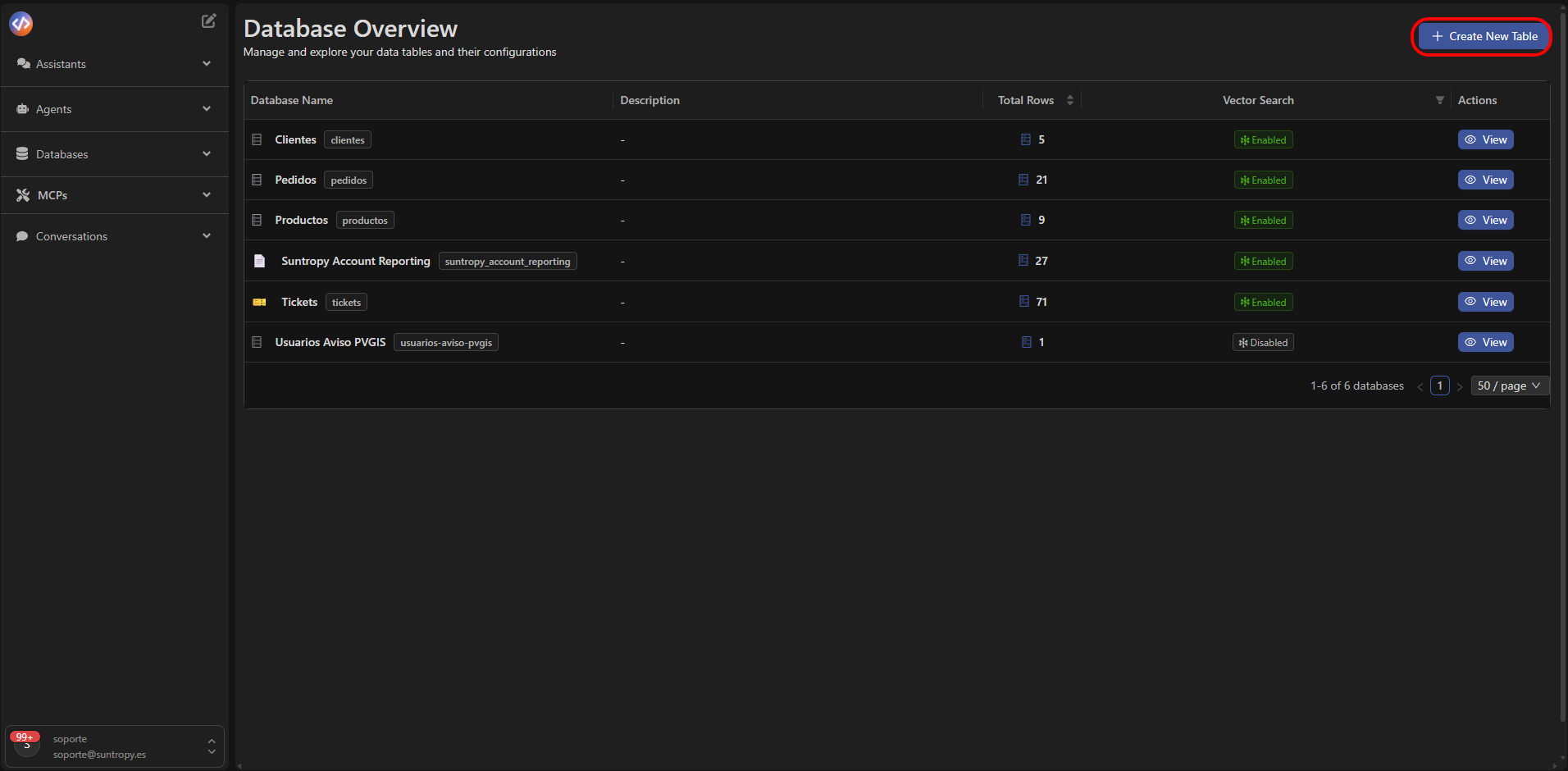
Native databases in Devic allow you to structure and manage information flexibly, without depending on external systems.From the main Databases view, you can create a new database in just a few steps and define its initial structure — name, entities, and custom fields.
Create a New Database
- Click the + Create New Table button in the upper-right corner of the panel.
- In the Create New Table dialog, fill in the following fields:
- Table Name (required): the visible name of the database, such as
ClientsorOrders. - Description (optional): a brief summary of the purpose of the database.
- Entity Name (Singular) (required): the name of the individual entity (e.g.,
client). - Entity Name (Plural) (required): the plural name representing the collection of records (e.g.,
clients).
- Table Name (required): the visible name of the database, such as
- Select Create Table to confirm.
Configure the Created Database
Once created, the table configuration view will open, where you can customize all its elements.Basic Information
- Table Name: edit the main name of the database.
- Color: assign a reference color to identify it visually in the panel.
- Entity Name (singular/plural): modify the names defined during creation.
- Include table in smart search: enable or disable inclusion of the table in global semantic searches.

Access Control
At the bottom of the page, you’ll find the Access Control section, used to configure permissions for each database.Note: This functionality is currently under development (coming soon).
Next step
Learn how to view and edit records inside an existing database.