

Without code: the hosted widget
Every assistant has a Chat Widget section in its configuration: appearance, welcome message, suggested messages, file uploads, language and access — with a live preview beside it and a Get Code button that hands you the snippet to paste into your page.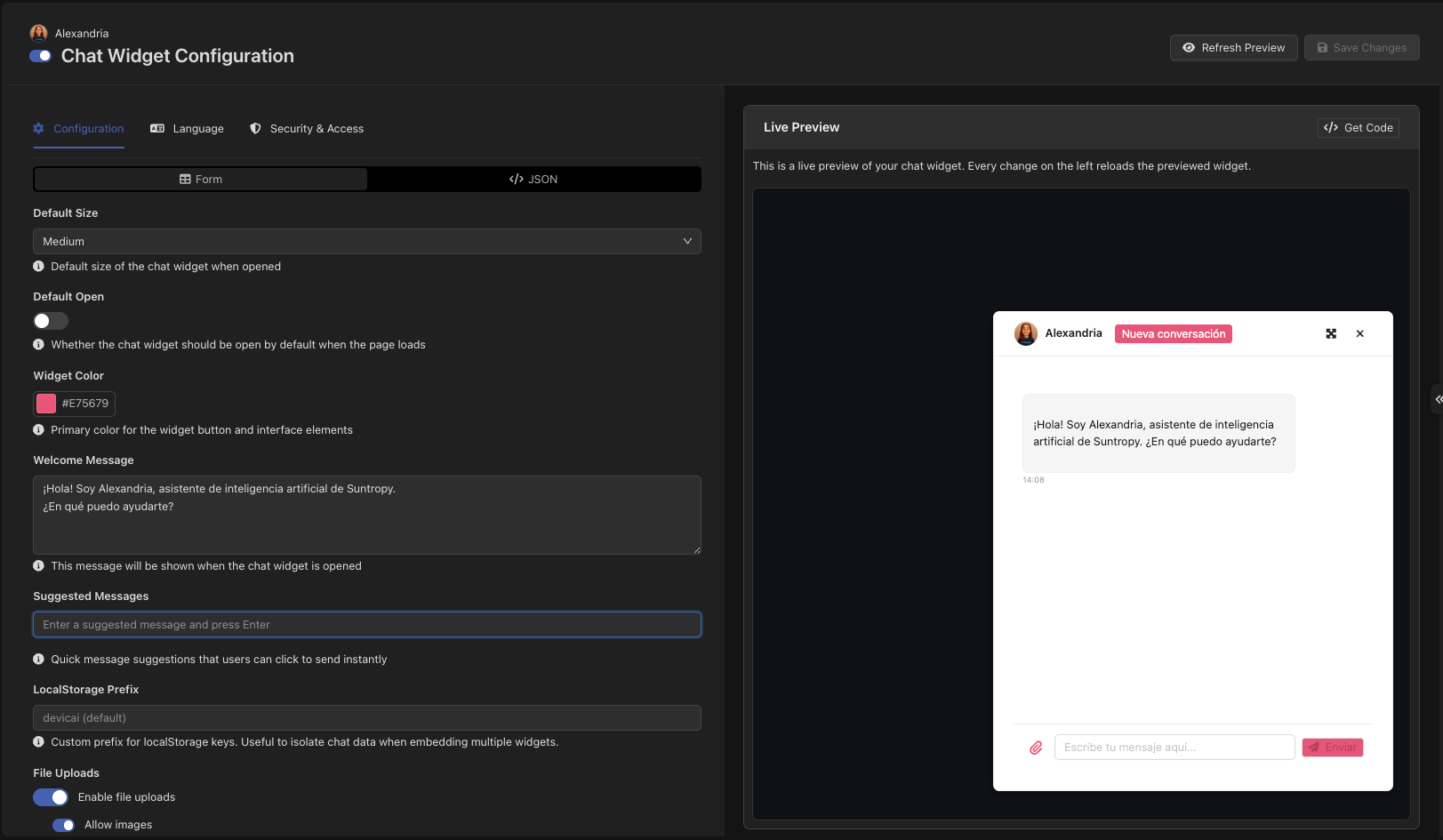
With React: @devicai/ui
When the assistant needs to be part of your interface rather than sitting on it — reading the form the user is filling in, writing into a field, or looking like the rest of your product — use the library.
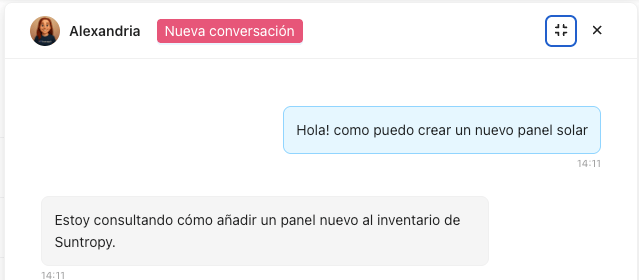
@devicai/ui is a React library that puts a Devic assistant inside your product: a chat drawer, a command bar, a generation button — connected to the public API, styled to your application.
What is in the box
ChatDrawer
A complete chat panel: history, attachments, voice input, tool timeline, feedback.
AICommandBar
A spotlight-style bar bound to a keyboard shortcut, with slash commands and history.
AIGenerationButton
A button that generates into a field — directly, through a modal, or in a tooltip.
useDevicChat
The hook underneath, for when you want your own interface entirely.
CoreMemoryModal for what the assistant remembers and IntegrationsModal for the apps each user connects.
Authenticate properly
Client-side tools
Some things only the browser knows: where the user is, what is selected on screen, what is in the form they are filling in. The Model Interface Protocol lets the assistant call a function in your page as if it were any other tool.Making it look like yours
Every component is themed with CSS variables, so it inherits your product rather than announcing itself:options={{ color: '#4764e6' }} is enough.
Next steps
Configuring the chat drawer
Options, callbacks, memory and connected apps.
Tenant sessions
Proving which user is calling.
API reference
Everything the components call, callable yourself.
CLI
The same API from a terminal.