

Create a new MCP
To begin creating your own MCP, go to MCPs → My MCPs in the sidebar menu and click the Add custom MCP button.Add a custom MCP
From this button you can import your existing API or define a new MCP from scratch.
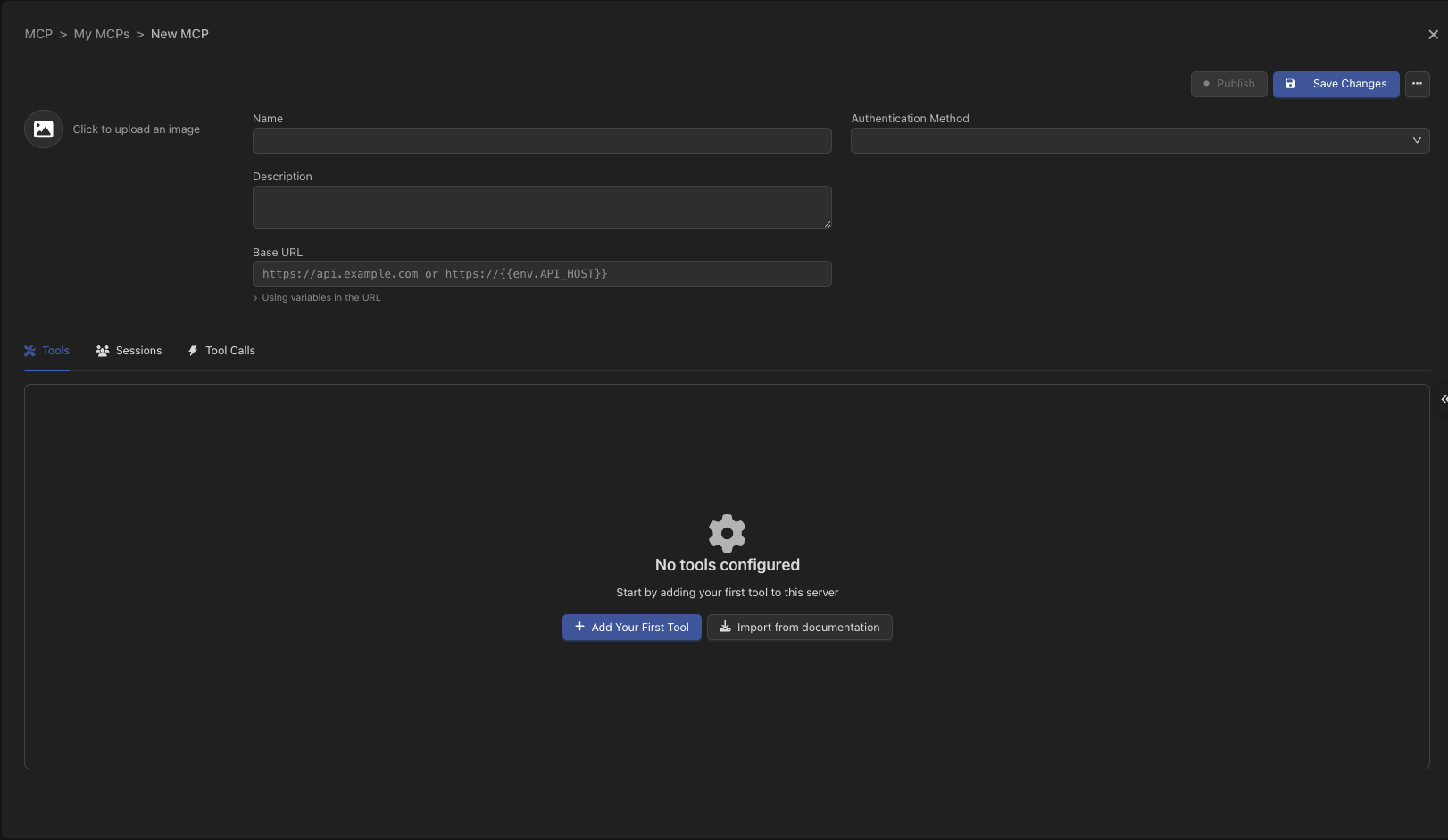
Select import mode
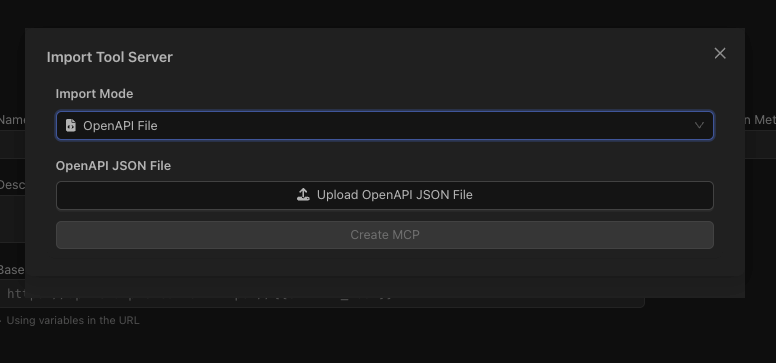
Once the creation wizard opens, the Import Tool Server window appears, where you can choose the import method. The available options are:- OpenAPI URL: directly import the public specification of your API via its URL.
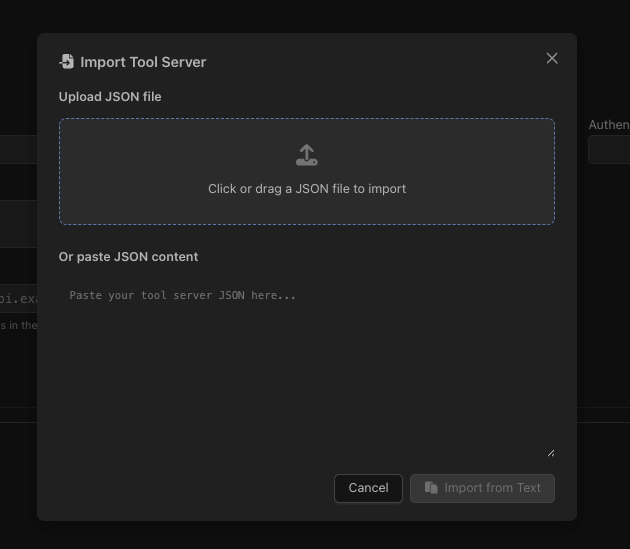
- OpenAPI JSON: upload a local file containing your API specification.
- Start from scratch: create an empty MCP to manually define your tools and endpoints.
Import from OpenAPI
If your API already has an OpenAPI definition, simply paste the URL or upload the JSON file.
Devic will automatically generate the corresponding tools and endpoints, immediately spinning up the MCP server so agents can consume it.
Devic will automatically generate the corresponding tools and endpoints, immediately spinning up the MCP server so agents can consume it.
Automatic maintenance
Once the service is imported, Devic takes care of the rest.The platform transforms your API into a ready-to-use set of tools and keeps everything synchronized automatically.
Whenever you update your API, the MCP tools will update as well — with no manual adjustments required.
Continuous synchronization
You only need to maintain your API. Devic will transparently keep your tools and MCP server up to date.
Next step
Learn how to access your MCP’s tools menu and manage each available endpoint.