

Its purpose is to prevent the assistant from processing instructions that include toxic, harmful, explicit, or discriminatory language, or anything that could compromise system or user safety. This guardrail uses specialized classifiers to determine whether the user’s input falls into any restricted category.
If a violation is detected, the message is stopped and not sent to the model.
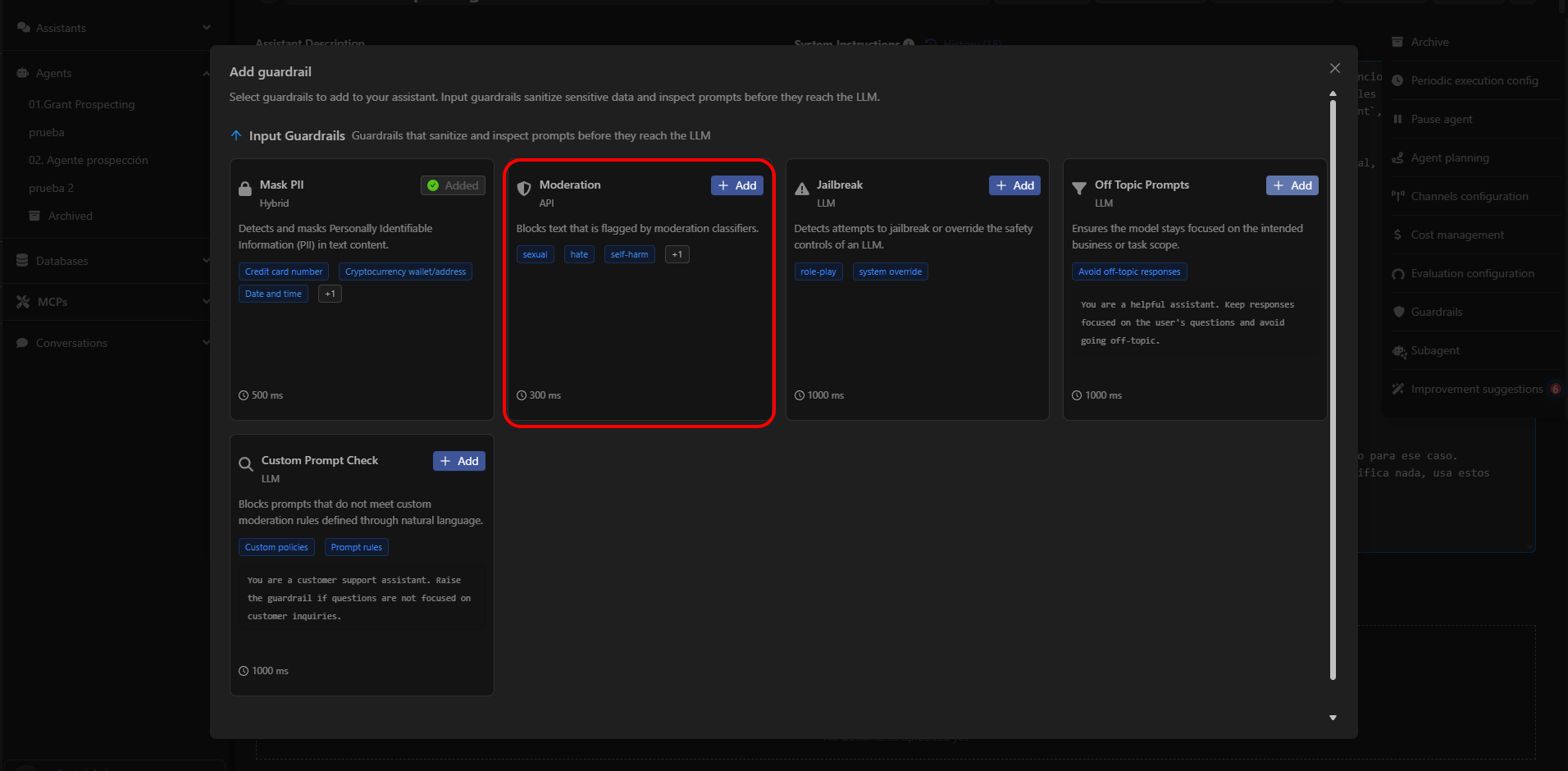
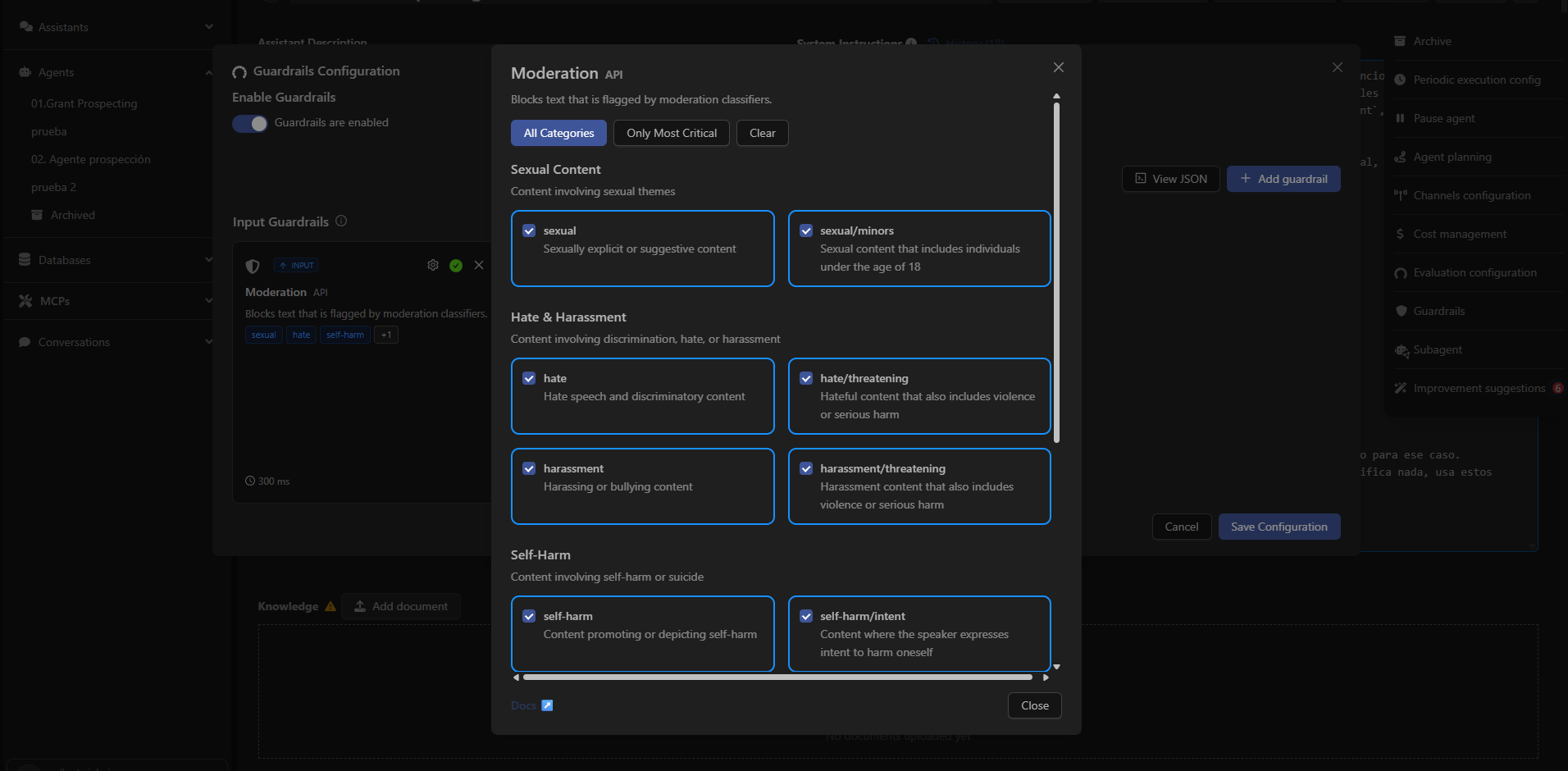
What Moderation Detects
Moderation classifies and filters content across multiple risk categories.You can activate only the categories that are relevant to your use case.
Main Categories
Sexual Content
Content involving sexual topics. Includes:- sexual → Explicit or suggestive sexual content.
- sexual/minors → Sexual content involving individuals under 18.
Hate & Harassment
Content involving hate, discrimination, or harassment. Includes:- hate → Hate speech or discriminatory content.
- hate/threatening → Language combining hate with violence or severe harm.
- harassment → Intimidation or harassment content.
- harassment/threatening → Harassment that includes threats or violence.
Self-Harm
Content involving self-harm or suicide. Includes:- self-harm → Content that promotes or depicts self-harm.
- self-harm/intent → Expressions indicating the user intends to harm themselves.
How to Configure It in Devic
- Open an assistant from the sidebar.
- Go to the options menu (⋮) in the top-right corner.
- Select Guardrails.
- Click Add guardrail.
- Choose Moderation from the list and activate it.
- Select the categories you want to block or use the quick actions:
- All Categories → activate everything.
- Only Most Critical → activate only the most severe risks.
- Clear → deactivate all categories.
Next: Jailbreak
Learn how to protect your assistants from attempts to break their security boundaries.