

Its purpose is to block instructions that do not meet your defined criteria, ensuring the assistant operates within the intended scope. This guardrail uses an LLM to evaluate each input and determine whether it matches the conditions described in your control prompt.
What Custom Prompt Check Detects
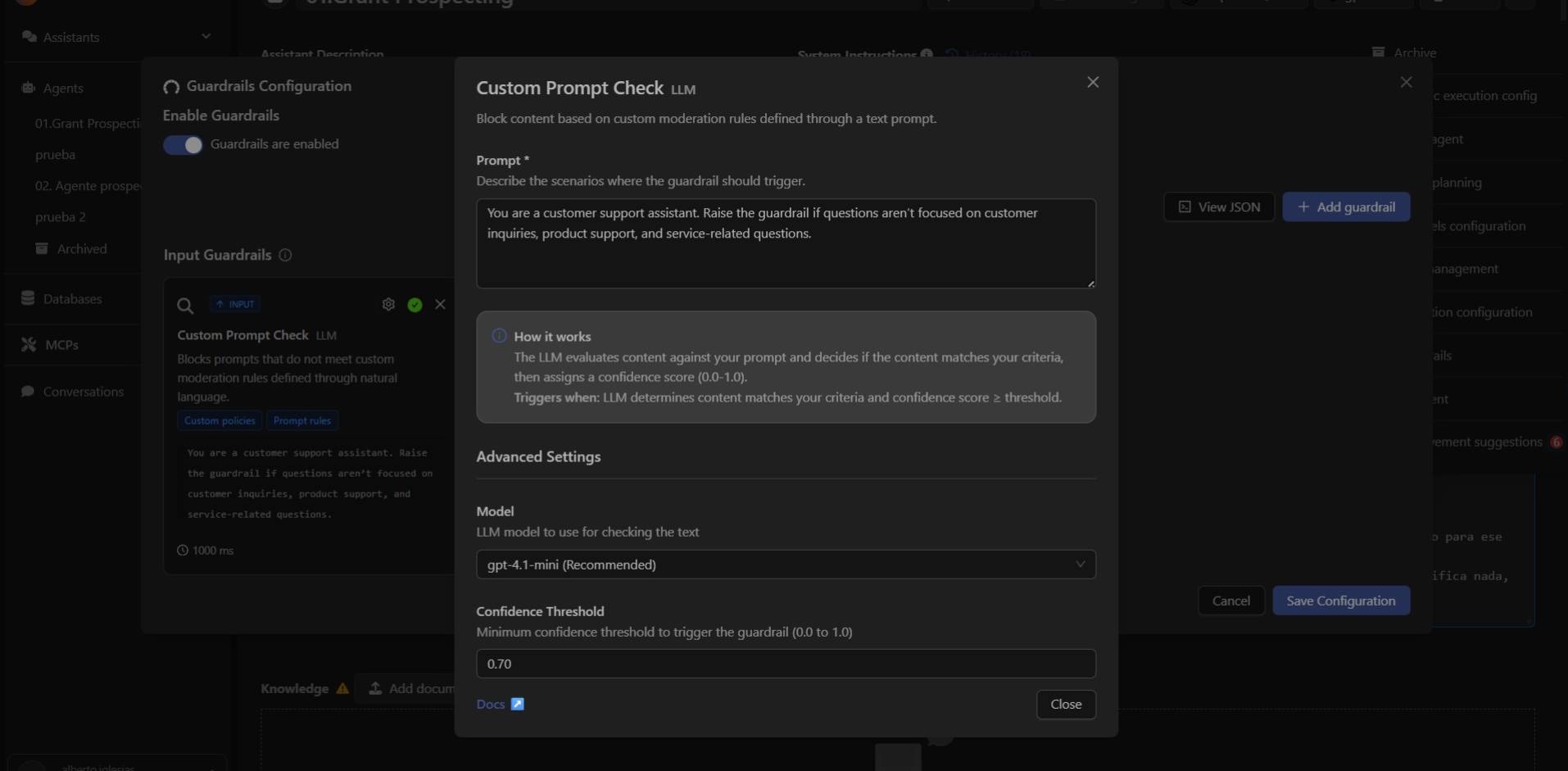
Custom Prompt Check compares the user’s message with the rule prompt you define.If the message does not meet the rules or falls outside the allowed context, the guardrail blocks it before it reaches the model.
Example Use Cases
- Support assistants: prevent questions outside the technical scope.
- Sales assistants: block inquiries unrelated to products or sales.
- Internal assistants: restrict instructions that attempt to trigger unauthorized workflows.
- Specialized chatbots: ensure they only respond within their professional domain.
How to Configure It in Devic
To enable Custom Prompt Check:- Open your assistant in Devic.
- Go to the ⋮ menu in the top-right corner.
- Select Guardrails.
- Click Add guardrail.
- Choose Custom Prompt Check.
- Write your rules in the Prompt field.
- Adjust advanced settings if needed.
- Save your changes.
Example Prompt
You can define the conditions in which the guardrail should be triggered: You are a customer support assistant. Raise the guardrail if questions aren’t focused on customer inquiries, product support, and service-related questions.Advanced Configuration
Model
Allows selecting the LLM responsible for analyzing inputs.Devic recommends using gpt-4.1-mini, which offers good accuracy at low cost.
Confidence Threshold
Defines the minimum confidence level (0.0 to 1.0) required to activate the guardrail.A typical value is 0.70:
- ≥ 0.70 → the message violates the rule and is blocked.
- < 0.70 → the message is allowed to pass to the assistant.
Next Step
Learn how to launch and manage your assistants’ executions directly through Devic’s public API.