> ## Documentation Index
> Fetch the complete documentation index at: https://docs.devic.ai/llms.txt
> Use this file to discover all available pages before exploring further.
# Tools Menu
> Define the endpoints and tools that make up your MCP from the Tools Configuration panel.
## Overview
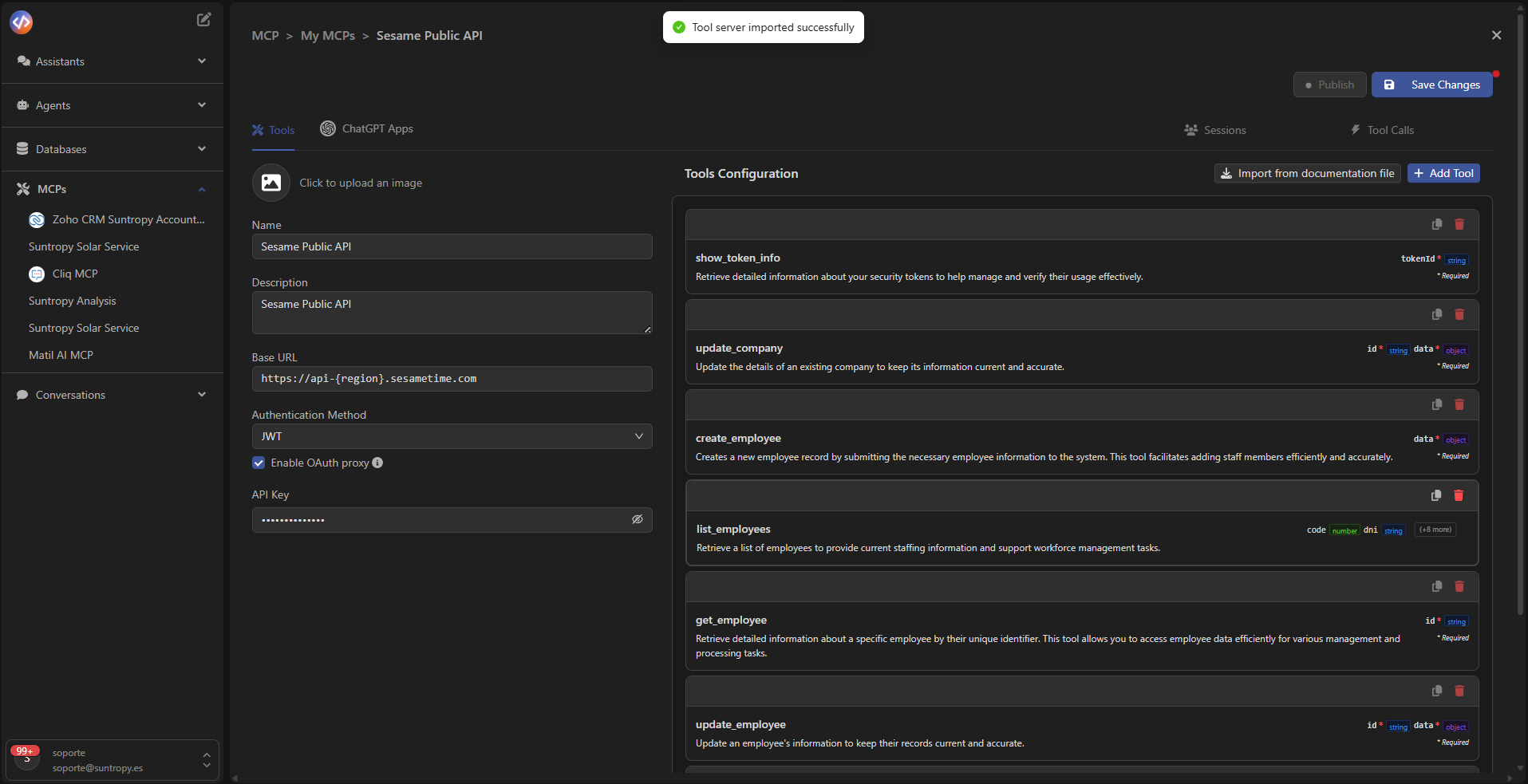
After creating or importing an MCP, you will access its main panel, where you can adjust the general server settings and manage the tools that compose it.
 ***
## Server Configuration
On the left column, you’ll find the base configuration of the MCP.\
Each field determines how the server will communicate with your services or APIs:
* **Name:** identifier of the MCP within the platform.
* **Description:** summary of the service’s purpose or function.
* **Server URL:** root endpoint of the API used to invoke the tools.
* **Authentication Method:** compatible authentication method (Basic, Bearer, or JWT).
* **API Key / Token:** credential required to authorize requests.
* **Template parameters:** dynamic variables (e.g., `{tenantToken}`) that can be used inside requests.
After updating the MCP parameters, click Save Changes to apply the configuration.
***
## Tools Configuration
The right column displays the **tools menu**, showing all available or manually created endpoints within the MCP.\
Each item represents a tool that agents or assistants can invoke.
Each tool displays:
* **Function name:** technical name or endpoint (`get_study_counts_by_type`, `get_login_register_metrics`, etc.).
* **HTTP Method** (GET, POST, PUT, DELETE).
* **Body type** or required parameters.
* **Functional description** explaining its purpose or returned data.
Import tools from your API documentation (Import from documentation) or create new ones manually using Add Tool.
***
## Server Configuration
On the left column, you’ll find the base configuration of the MCP.\
Each field determines how the server will communicate with your services or APIs:
* **Name:** identifier of the MCP within the platform.
* **Description:** summary of the service’s purpose or function.
* **Server URL:** root endpoint of the API used to invoke the tools.
* **Authentication Method:** compatible authentication method (Basic, Bearer, or JWT).
* **API Key / Token:** credential required to authorize requests.
* **Template parameters:** dynamic variables (e.g., `{tenantToken}`) that can be used inside requests.
After updating the MCP parameters, click Save Changes to apply the configuration.
***
## Tools Configuration
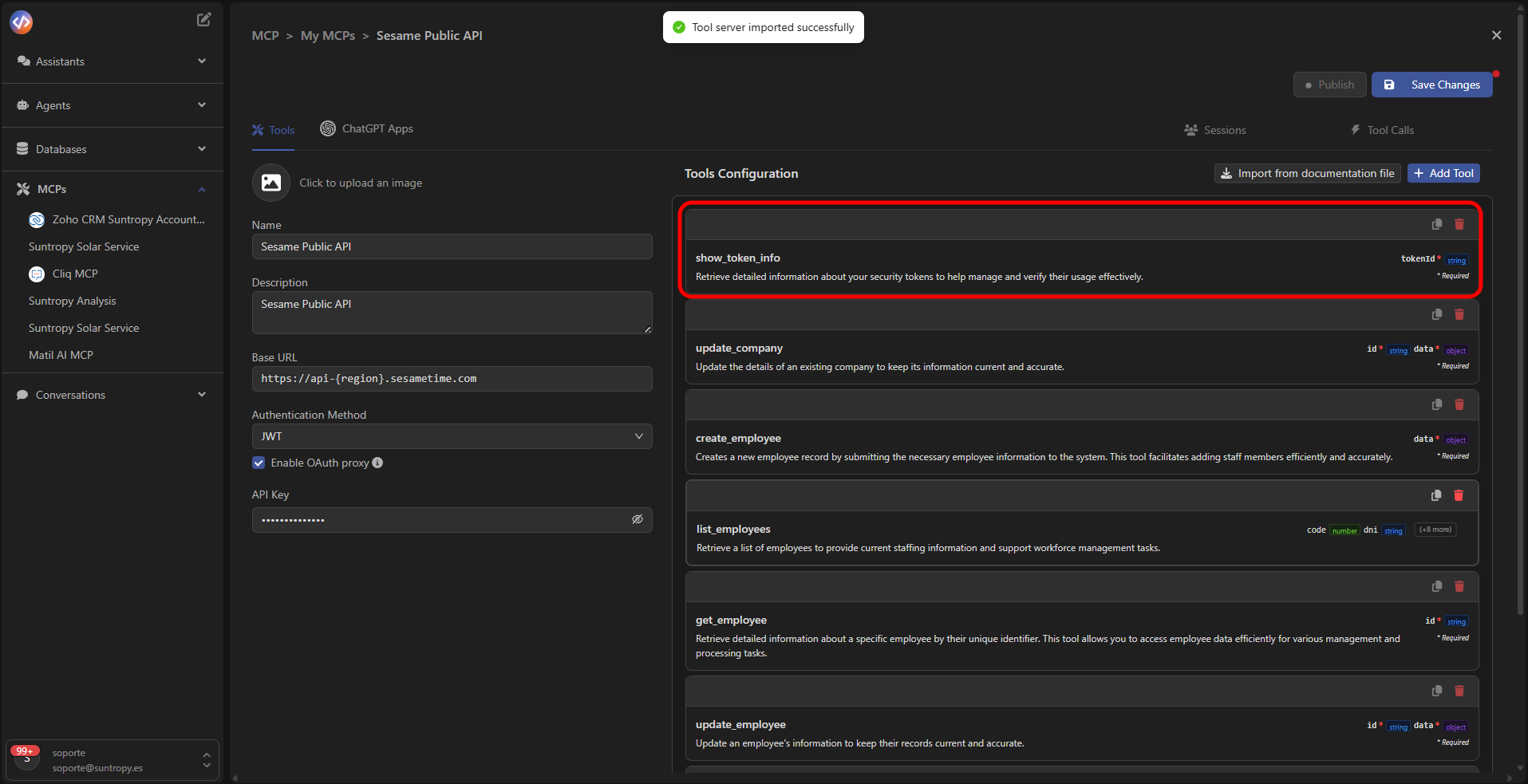
The right column displays the **tools menu**, showing all available or manually created endpoints within the MCP.\
Each item represents a tool that agents or assistants can invoke.
Each tool displays:
* **Function name:** technical name or endpoint (`get_study_counts_by_type`, `get_login_register_metrics`, etc.).
* **HTTP Method** (GET, POST, PUT, DELETE).
* **Body type** or required parameters.
* **Functional description** explaining its purpose or returned data.
Import tools from your API documentation (Import from documentation) or create new ones manually using Add Tool.
 ***
## Operational MCP
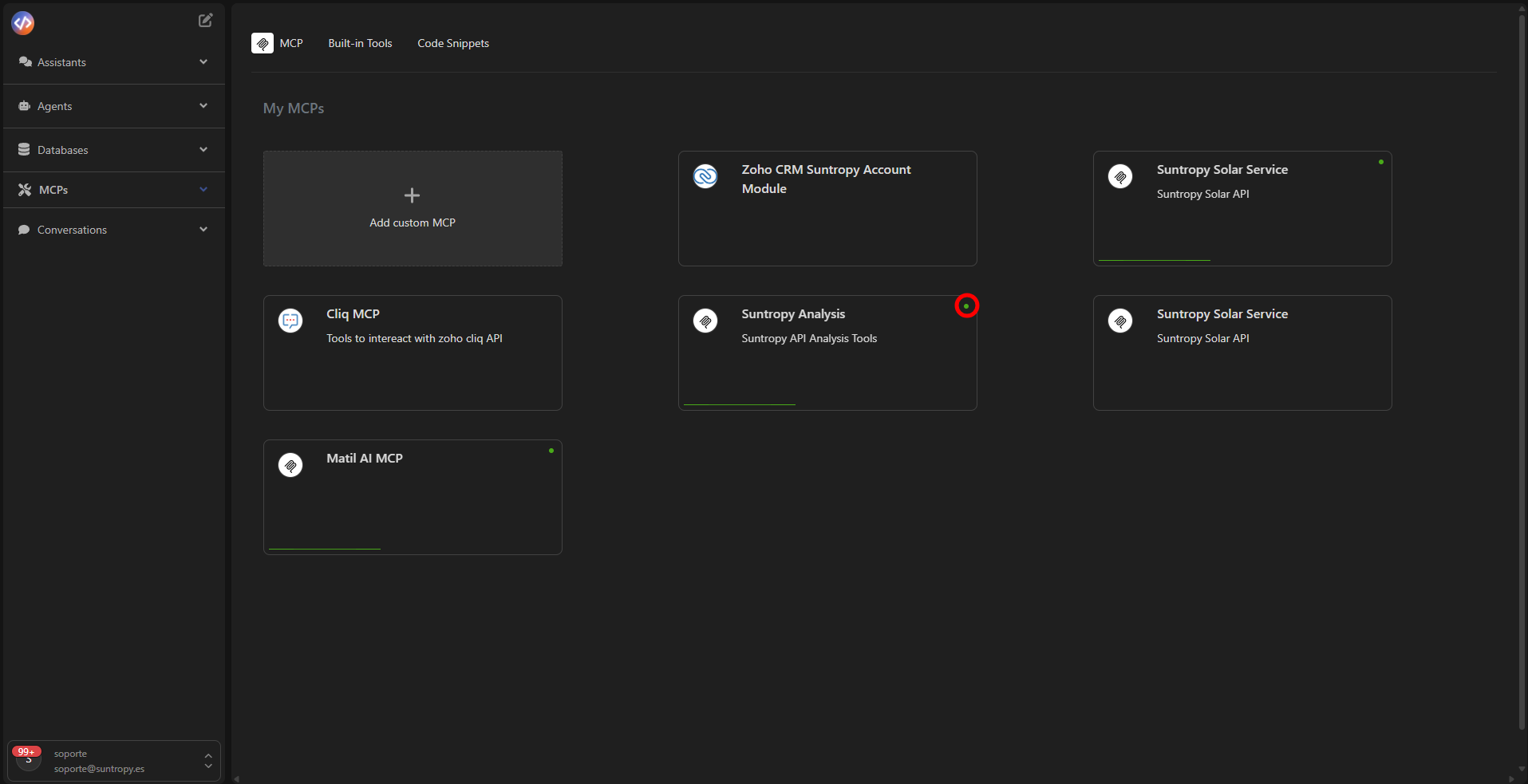
Once changes are saved, the MCP becomes ready for use.\
The configured tools will be available to any agents or assistants using the connector.
Each active MCP can:
* Execute real requests against the associated API.
* Be invoked through natural language by an agent or assistant.
* Be published as an external endpoint accessible from environments like ChatGPT or SaaS applications.
***
## Operational MCP
Once changes are saved, the MCP becomes ready for use.\
The configured tools will be available to any agents or assistants using the connector.
Each active MCP can:
* Execute real requests against the associated API.
* Be invoked through natural language by an agent or assistant.
* Be published as an external endpoint accessible from environments like ChatGPT or SaaS applications.
 ***
Learn how to customize the behavior of each tool and define execution parameters.
***
Learn how to customize the behavior of each tool and define execution parameters.