> ## Documentation Index
> Fetch the complete documentation index at: https://docs.devic.ai/llms.txt
> Use this file to discover all available pages before exploring further.
# SDKs and Widgets
> Render custom SaaS components inside ChatGPT conversations using integrated widgets.
## Introduction
**Widgets** allow you to **render visual or interactive content directly inside ChatGPT conversations** whenever an MCP tool is invoked.\
They are based on OpenAI’s [ChatKit Widgets](https://platform.openai.com/docs/guides/chatkit-widgets), which enable the display of rich components such as charts, tables, forms, or dashboards within a conversational flow.
 ## Devic Abstraction Layer
**Devic** provides an abstraction layer that allows technical teams to **easily define and deploy widgets that visually represent your SaaS** whenever a user interacts with ChatGPT through your MCP.
In other words:
* Your SaaS can define its own interface components (widgets).
* When a customer uses ChatGPT and invokes a *tool* from your MCP, the widget you designed will be displayed using your **branding and customized visual experience**.
* Devic handles the infrastructure, the link between tools and widgets, and automatic publishing for ChatGPT.
***
## Create a New Widget
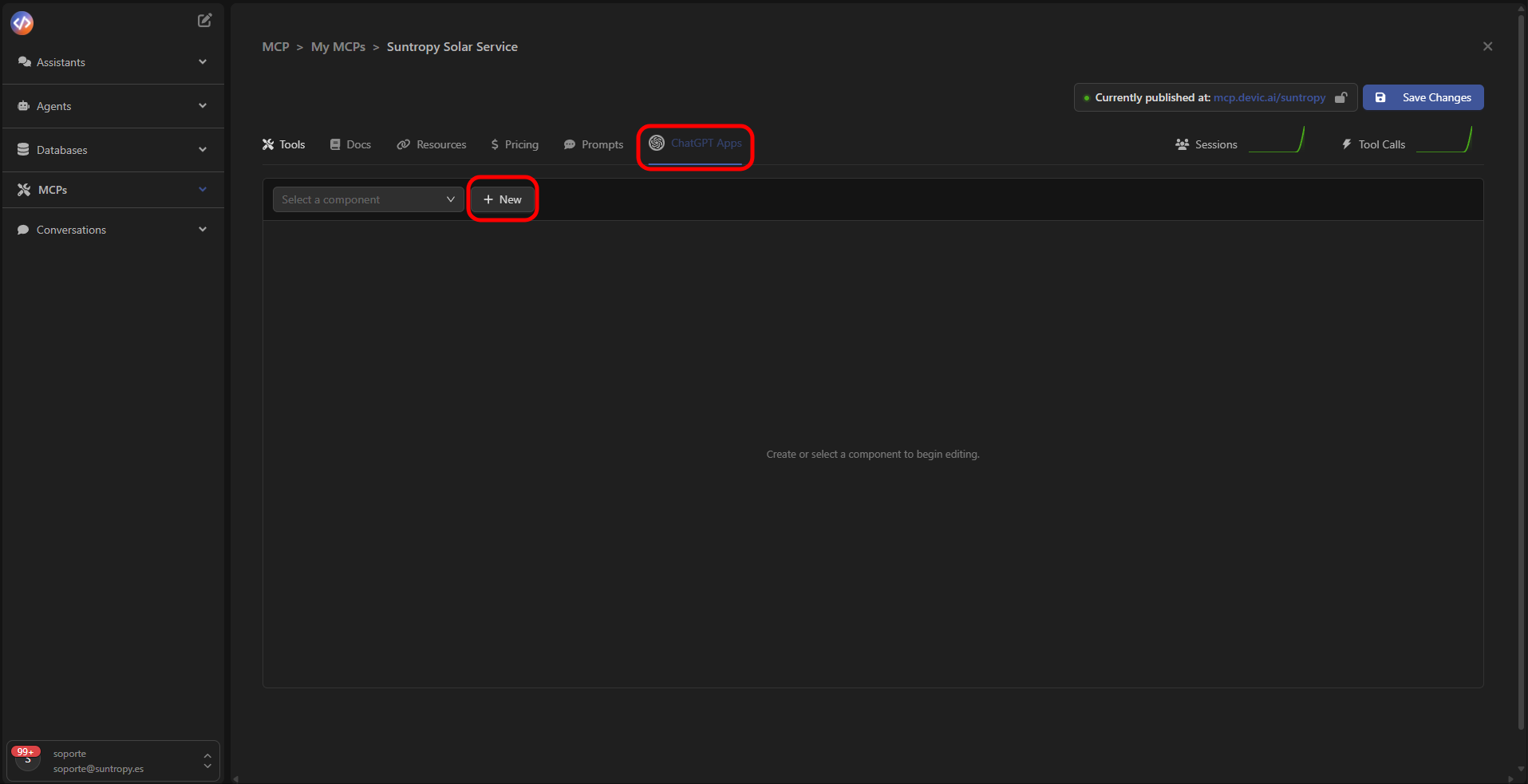
To create a widget, go to the **ChatGPT Apps** tab inside your MCP and click **New**.
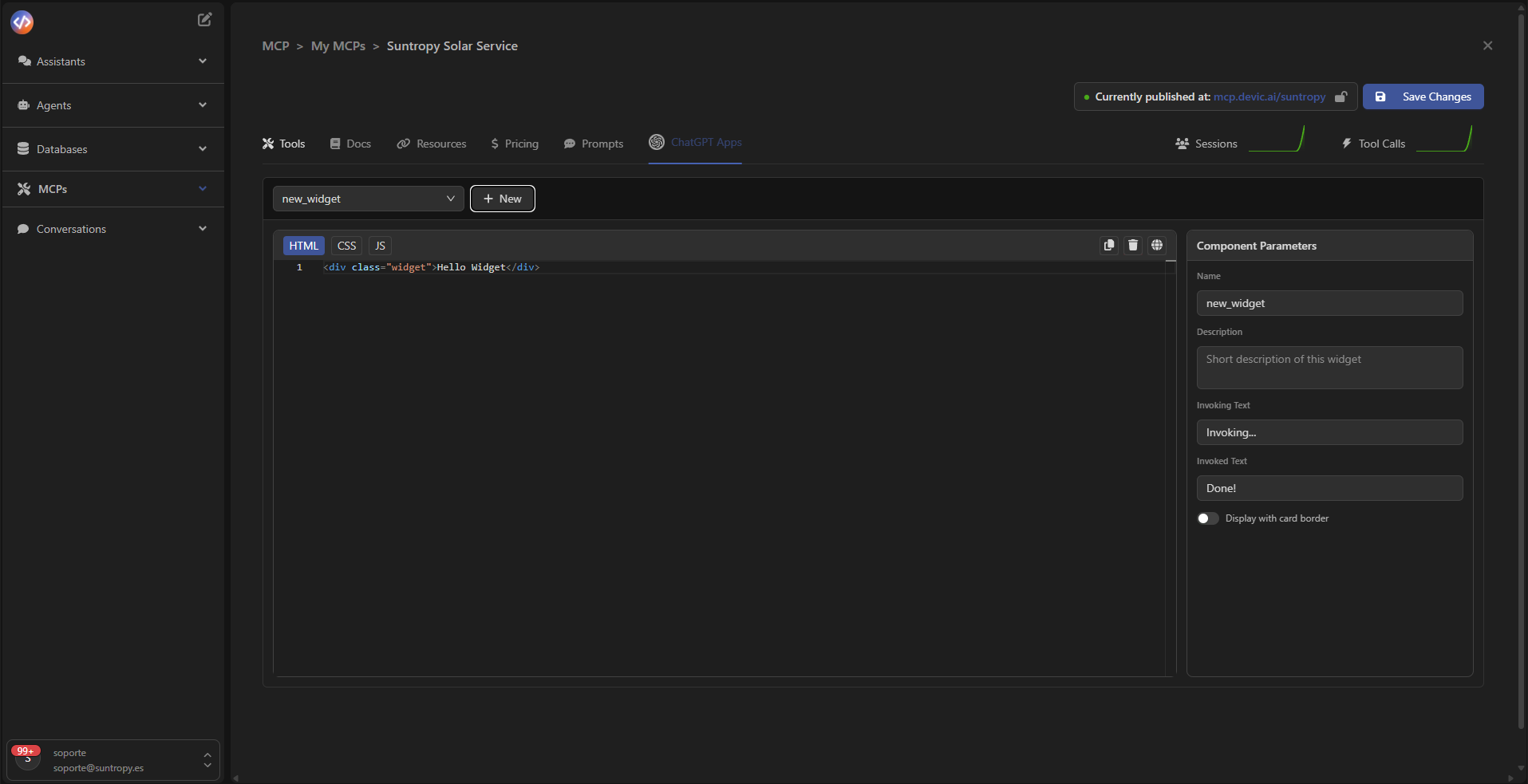
The component editor will open, where you can define the widget content using three main tabs:
* **HTML** — component structure
* **CSS** — visual styling
* **JS** — dynamic behavior or scripting
## Devic Abstraction Layer
**Devic** provides an abstraction layer that allows technical teams to **easily define and deploy widgets that visually represent your SaaS** whenever a user interacts with ChatGPT through your MCP.
In other words:
* Your SaaS can define its own interface components (widgets).
* When a customer uses ChatGPT and invokes a *tool* from your MCP, the widget you designed will be displayed using your **branding and customized visual experience**.
* Devic handles the infrastructure, the link between tools and widgets, and automatic publishing for ChatGPT.
***
## Create a New Widget
To create a widget, go to the **ChatGPT Apps** tab inside your MCP and click **New**.
The component editor will open, where you can define the widget content using three main tabs:
* **HTML** — component structure
* **CSS** — visual styling
* **JS** — dynamic behavior or scripting
 ***
### Example of a Simple Widget
**HTML**
```html theme={null}
***
### Example of a Simple Widget
**HTML**
```html theme={null}
Hello Widget
```
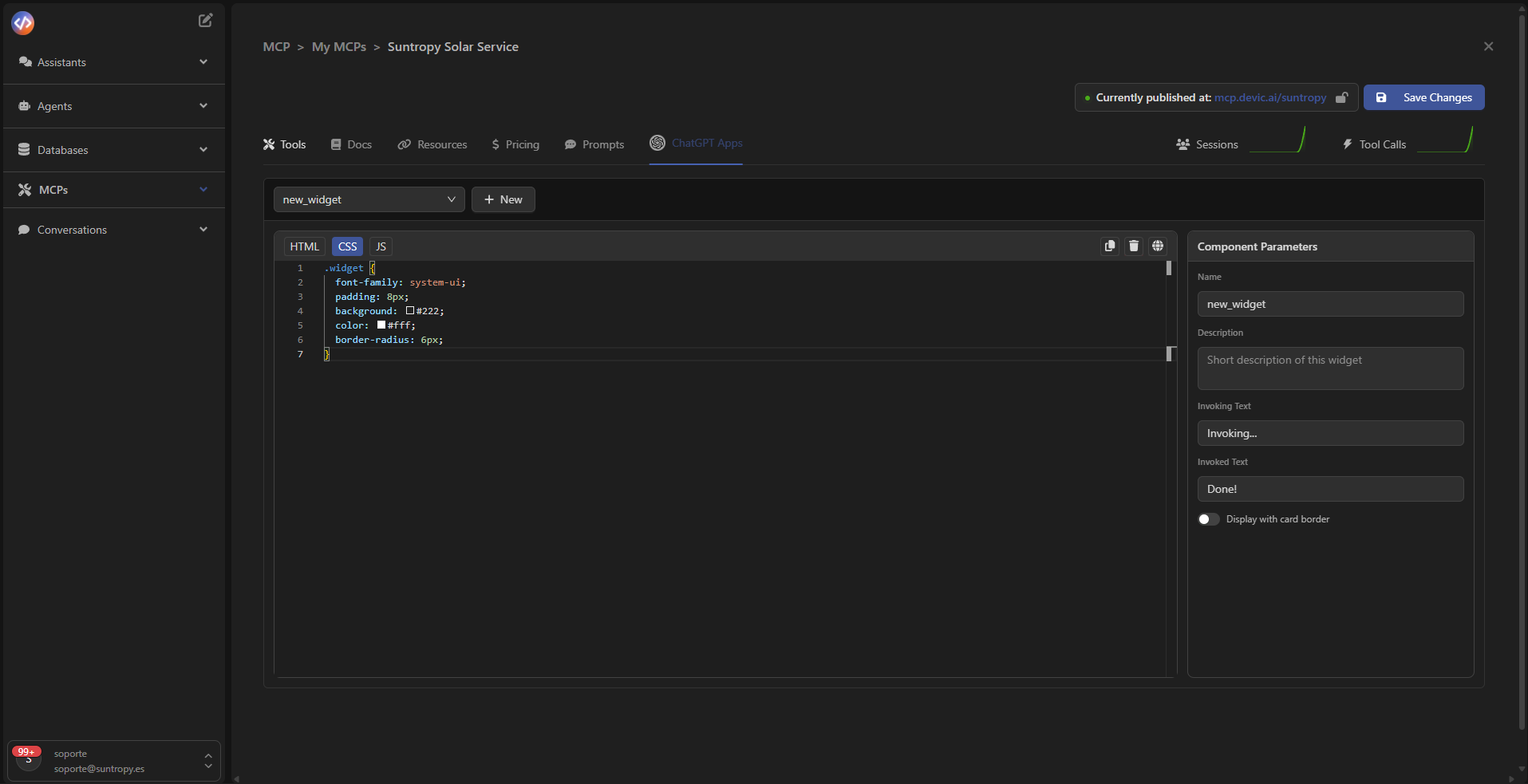
**CSS**
```css theme={null}
.widget {
font-family: system-ui;
padding: 8px;
background: #222;
color: #fff;
border-radius: 6px;
}
```
**JS**
```js theme={null}
// You can access the root element with document.currentScript?.parentElement
console.log('widget loaded');
```
 ***
## Component Parameters
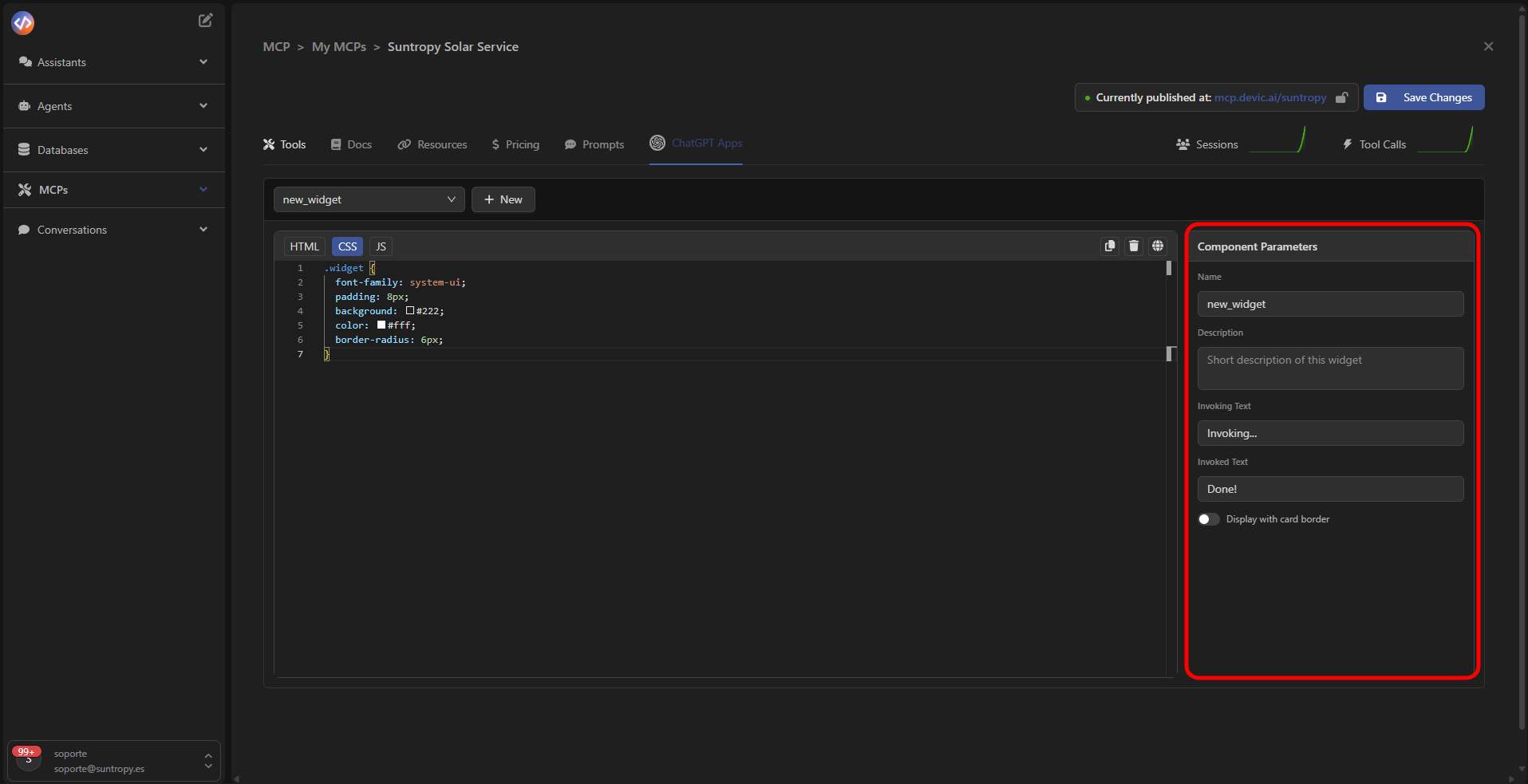
On the right side of the editor, you can configure the widget’s properties:
* **Name** — unique name of the component.
* **Description** — short description of the widget’s purpose.
* **Invoking Text / Invoked Text** — text displayed while the widget is running.
* **Display with card border** — option to show the widget inside a visual card.
***
## Component Parameters
On the right side of the editor, you can configure the widget’s properties:
* **Name** — unique name of the component.
* **Description** — short description of the widget’s purpose.
* **Invoking Text / Invoked Text** — text displayed while the widget is running.
* **Display with card border** — option to show the widget inside a visual card.
 ***
## Bind a Widget to a Tool
For a widget to be automatically invoked from a **Tool**, it must be associated with that tool using the **Widget Binding** field found in the **More Options** section of the tool configurator.
This allows Devic to render the linked widget with the data returned when the tool is executed inside a ChatGPT conversation.
***
## Bind a Widget to a Tool
For a widget to be automatically invoked from a **Tool**, it must be associated with that tool using the **Widget Binding** field found in the **More Options** section of the tool configurator.
This allows Devic to render the linked widget with the data returned when the tool is executed inside a ChatGPT conversation.
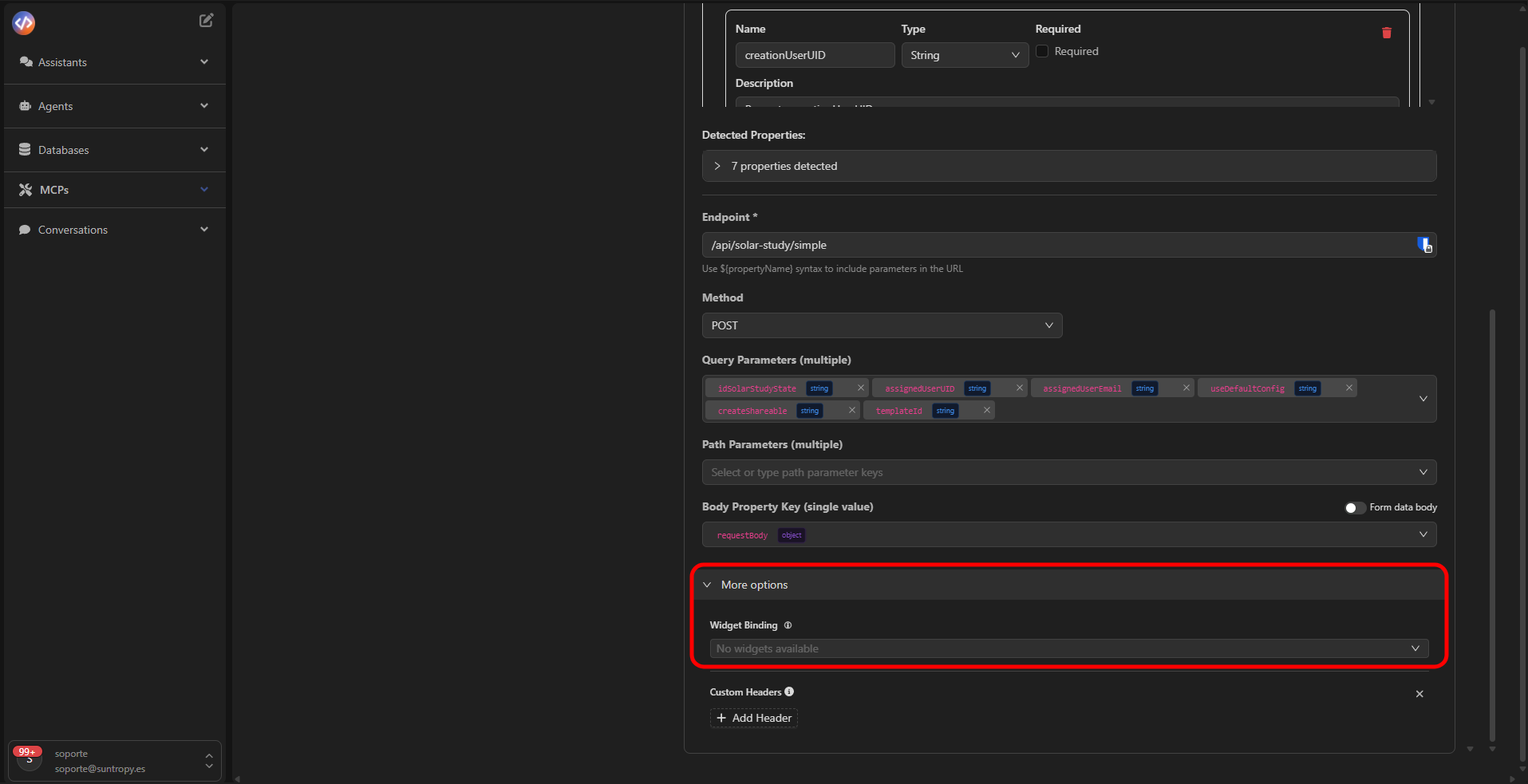 > ⚙️ **Important:** The name provided in *Widget Binding* must match the widget’s name **exactly**.\
> If they do not match, the component will not be invoked from the tool.
***
## Additional Resources
To learn more about how to build and use ChatGPT-compatible widgets, check out the official OpenAI documentation for ChatKit Widgets:\
👉 [https://platform.openai.com/docs/guides/chatkit-widgets](https://platform.openai.com/docs/guides/chatkit-widgets)
Learn how to integrate your MCPs and widgets into external applications using Devic’s SDKs.
> ⚙️ **Important:** The name provided in *Widget Binding* must match the widget’s name **exactly**.\
> If they do not match, the component will not be invoked from the tool.
***
## Additional Resources
To learn more about how to build and use ChatGPT-compatible widgets, check out the official OpenAI documentation for ChatKit Widgets:\
👉 [https://platform.openai.com/docs/guides/chatkit-widgets](https://platform.openai.com/docs/guides/chatkit-widgets)
Learn how to integrate your MCPs and widgets into external applications using Devic’s SDKs.