> ## Documentation Index
> Fetch the complete documentation index at: https://docs.devic.ai/llms.txt
> Use this file to discover all available pages before exploring further.
# Configure the tools
> Edit and test the tools that make up your MCP: parameters, authentication, methods, and endpoints.
## Overview
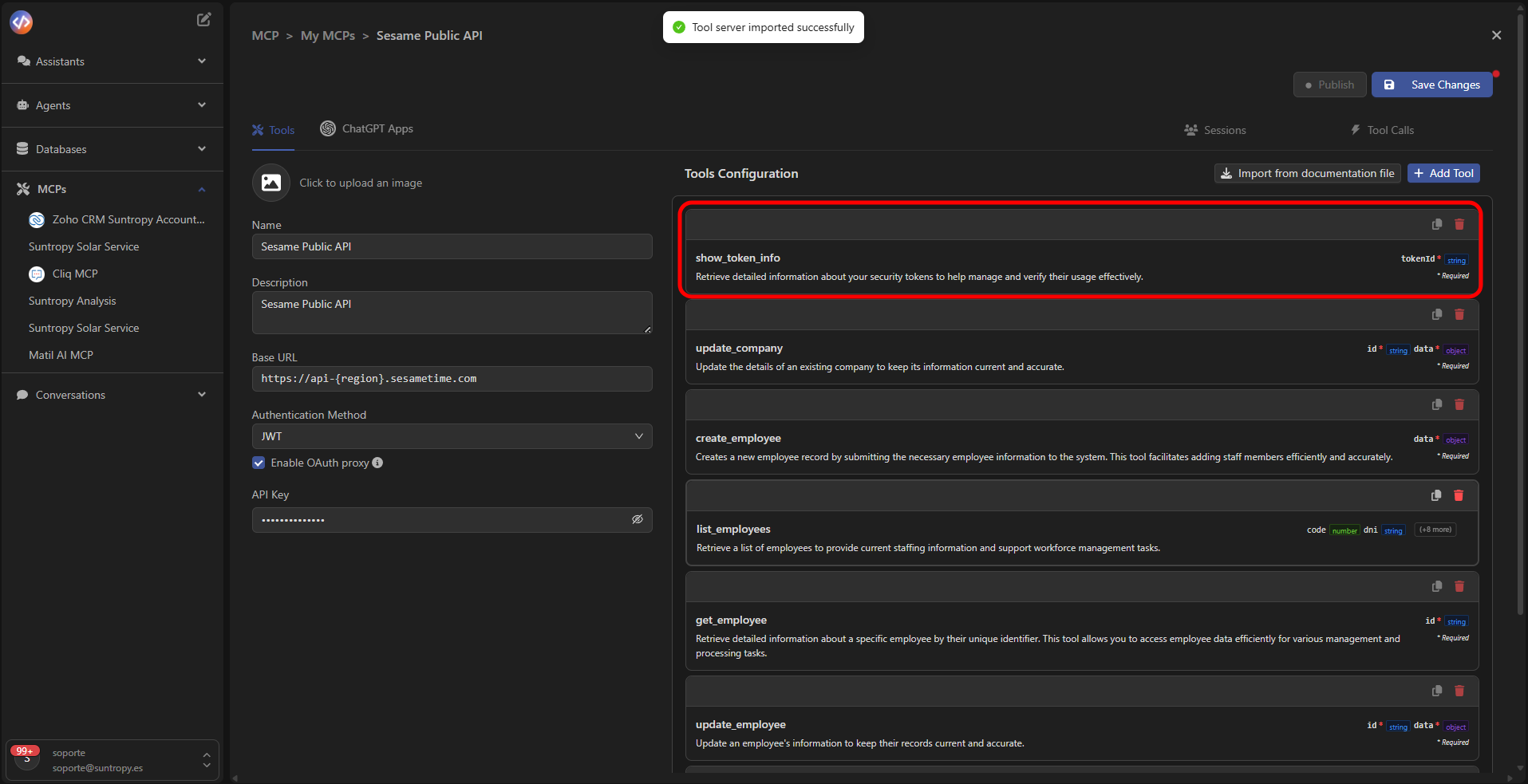
Once your MCP has been created or imported, you can adjust the behavior of each **tool** from the configuration panel.\
Each tool represents an endpoint of your API and defines how the model will interact with it.
 ***
## Configuration Editor
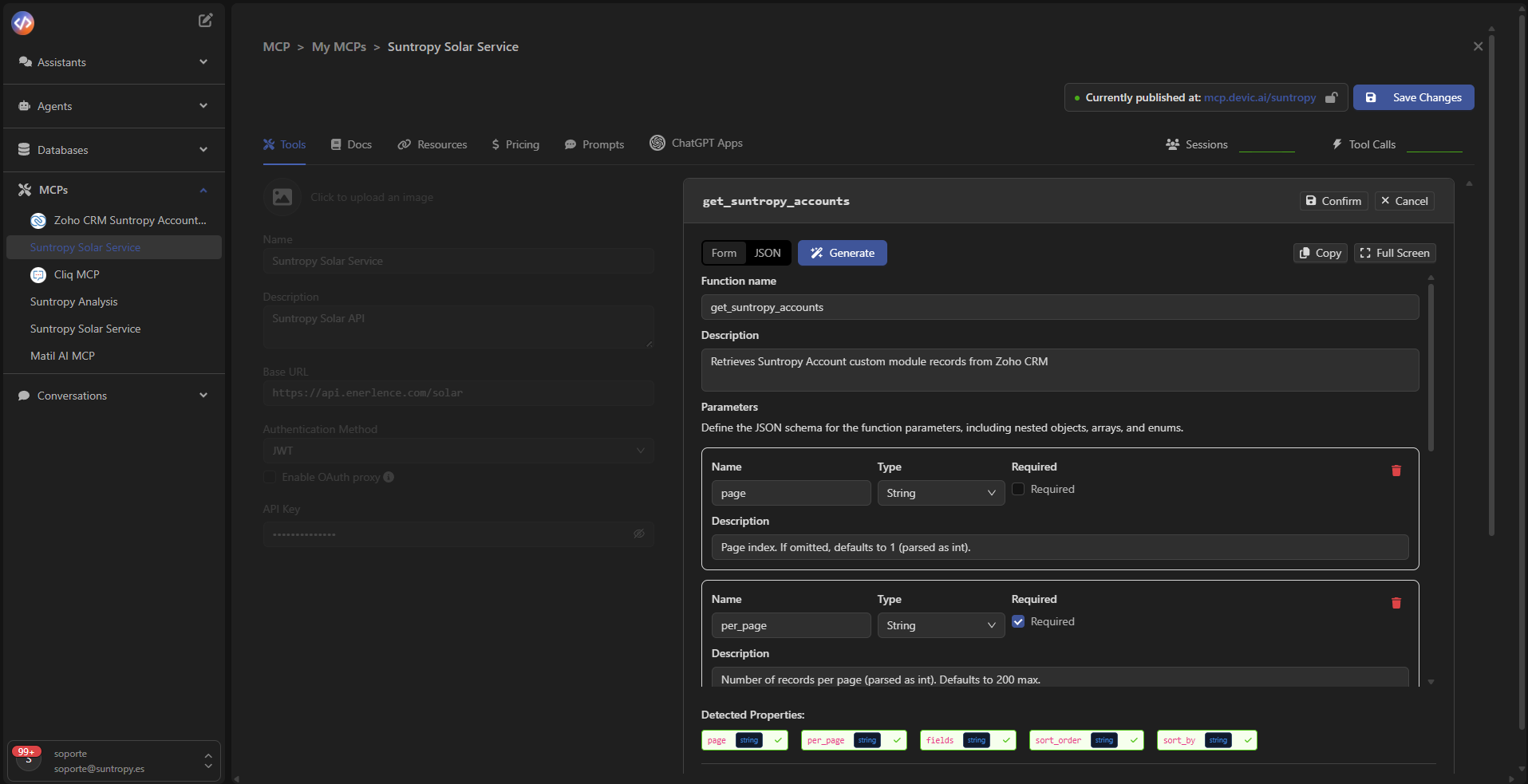
When selecting a tool, the **editor** opens, where you can define the following fields:
* **Function name:** internal function name.
* **Description:** brief explanation of the tool’s purpose (example: “Retrieves studies categorized by type within a date range”).
* **Parameters:** parameters required by the API (name, type, and description).
* **Endpoint:** service path (`/api/analytics/studies/counts-by-type`, for example).
* **Method:** HTTP method used (GET, POST, PUT, DELETE).
Devic automatically detects parameters defined in the JSON and displays them as Detected Properties,
ready to bind with the body or endpoint path.
***
## Configuration Editor
When selecting a tool, the **editor** opens, where you can define the following fields:
* **Function name:** internal function name.
* **Description:** brief explanation of the tool’s purpose (example: “Retrieves studies categorized by type within a date range”).
* **Parameters:** parameters required by the API (name, type, and description).
* **Endpoint:** service path (`/api/analytics/studies/counts-by-type`, for example).
* **Method:** HTTP method used (GET, POST, PUT, DELETE).
Devic automatically detects parameters defined in the JSON and displays them as Detected Properties,
ready to bind with the body or endpoint path.
 ***
## Editing modes
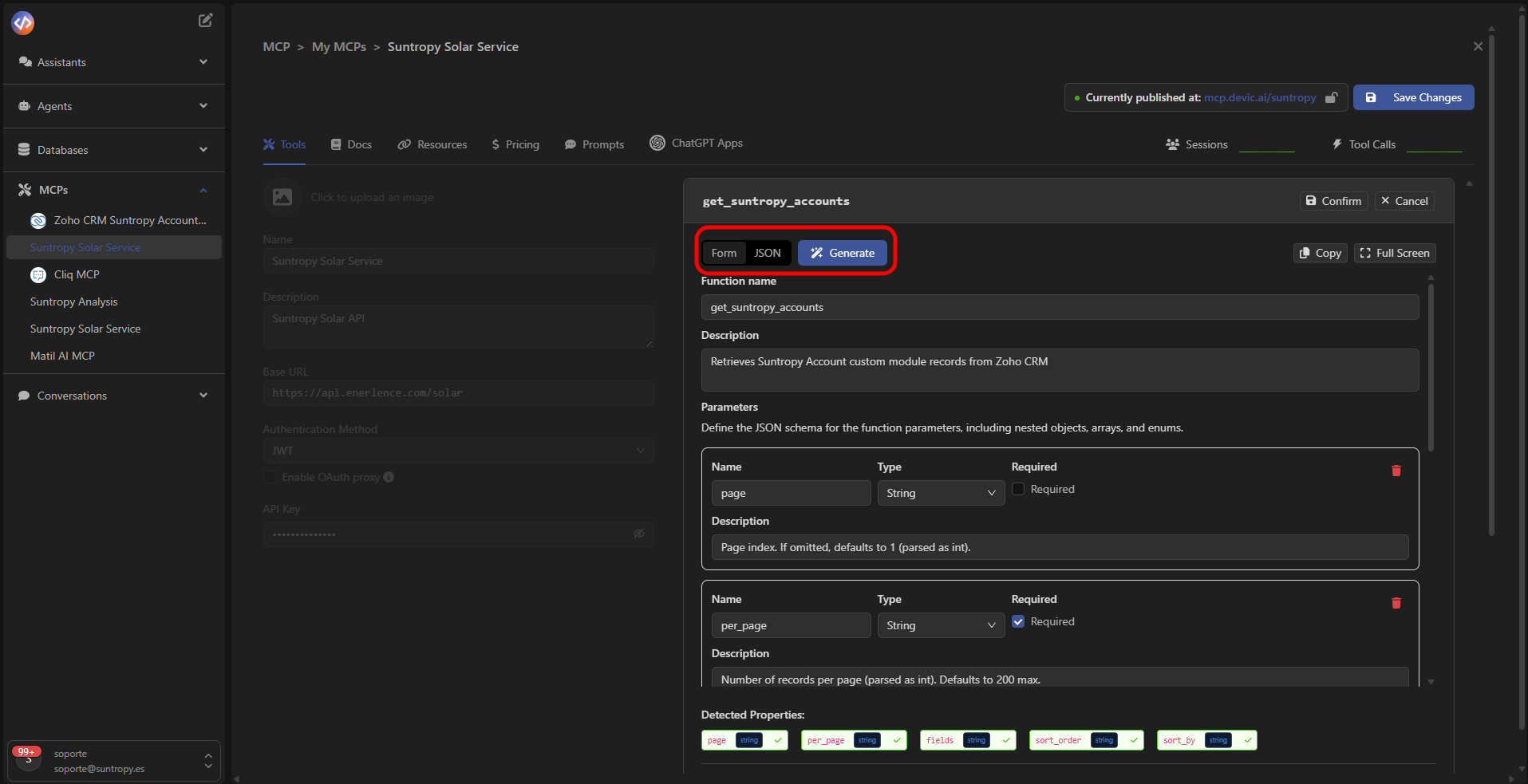
You can define a tool in two ways:
* **Form:** visual interface with editable fields for each property.
* **JSON:** structured view of the full schema, compatible with OpenAPI.
The **Generate** button converts the parameters defined in Form mode into their JSON equivalent.
***
## Editing modes
You can define a tool in two ways:
* **Form:** visual interface with editable fields for each property.
* **JSON:** structured view of the full schema, compatible with OpenAPI.
The **Generate** button converts the parameters defined in Form mode into their JSON equivalent.
 ***
## Advanced options
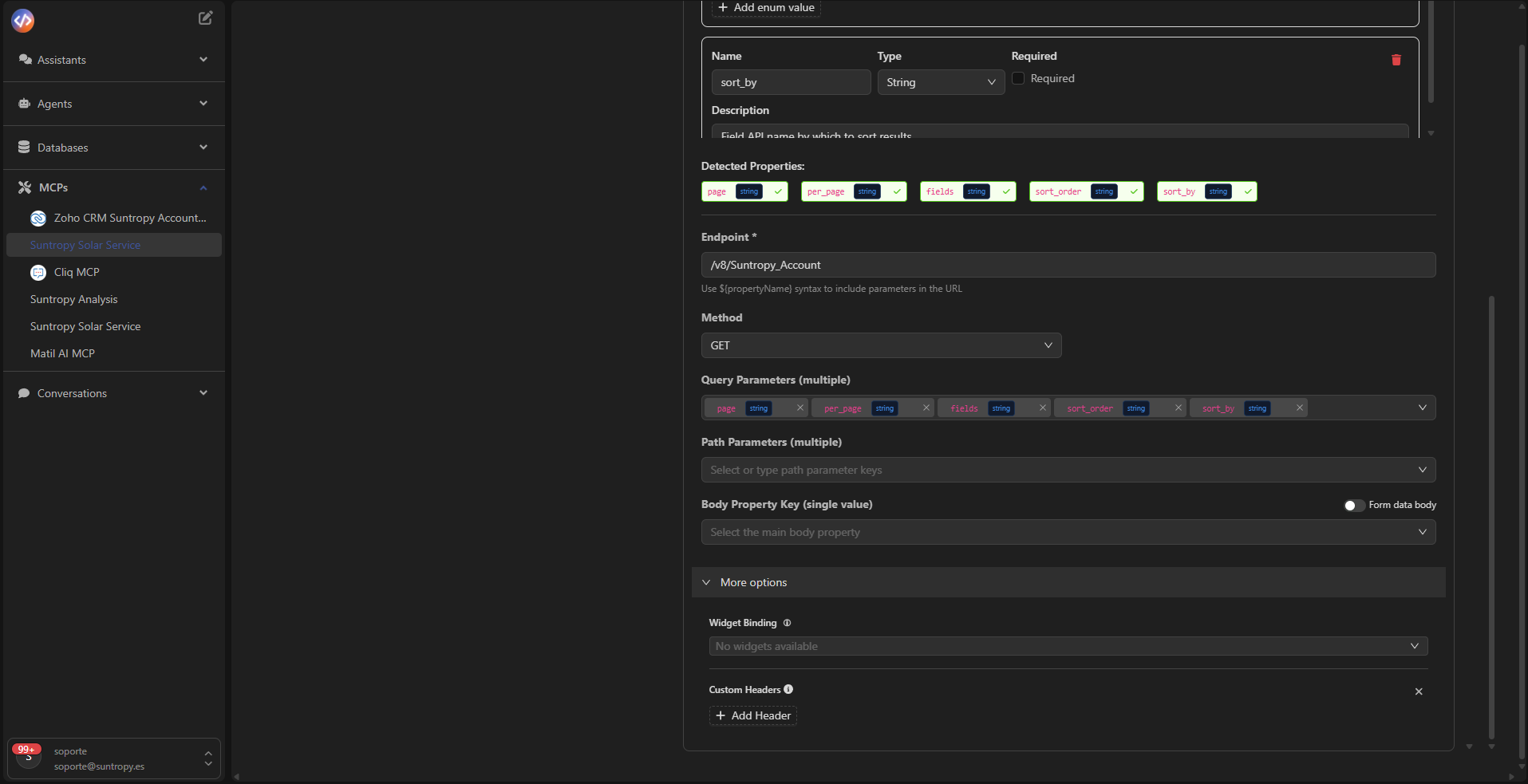
At the bottom of the panel, you’ll find additional settings:
* **Query Parameters:** parameters sent via URL (`?param=value`).
* **Path Parameters:** variables included in the route (`/api/{id}/data`).
* **Body Property Key:** main property of the JSON body.
* **Custom Headers:** custom headers for authentication or context.
* **Widget Binding:** links the tool with embedded widgets or SDKs.
Click Confirm to validate the changes and Save Changes to apply them to the MCP.
***
## Advanced options
At the bottom of the panel, you’ll find additional settings:
* **Query Parameters:** parameters sent via URL (`?param=value`).
* **Path Parameters:** variables included in the route (`/api/{id}/data`).
* **Body Property Key:** main property of the JSON body.
* **Custom Headers:** custom headers for authentication or context.
* **Widget Binding:** links the tool with embedded widgets or SDKs.
Click Confirm to validate the changes and Save Changes to apply them to the MCP.
 ***
## Validation and testing
Once the tool is configured, the MCP will be ready for use.\
You can test its execution from agents or assistants, or verify it in the **Tool Calls** tab, where all invocations are recorded.
***
Learn how to publish your MCP so it becomes available to internal agents or external environments.
***
## Validation and testing
Once the tool is configured, the MCP will be ready for use.\
You can test its execution from agents or assistants, or verify it in the **Tool Calls** tab, where all invocations are recorded.
***
Learn how to publish your MCP so it becomes available to internal agents or external environments.