> ## Documentation Index
> Fetch the complete documentation index at: https://docs.devic.ai/llms.txt
> Use this file to discover all available pages before exploring further.
# Embedding Devic in your product
> Two ways to put an assistant inside your product: a hosted widget you paste in, or React components you build with.
There are two ways to put a Devic assistant inside your product, and which one you want depends on whether you are writing React.
***
## Without code: the hosted widget
Every assistant has a **Chat Widget** section in its configuration: appearance, welcome message, suggested messages, file uploads, language and access — with a live preview beside it and a **Get Code** button that hands you the snippet to paste into your page.
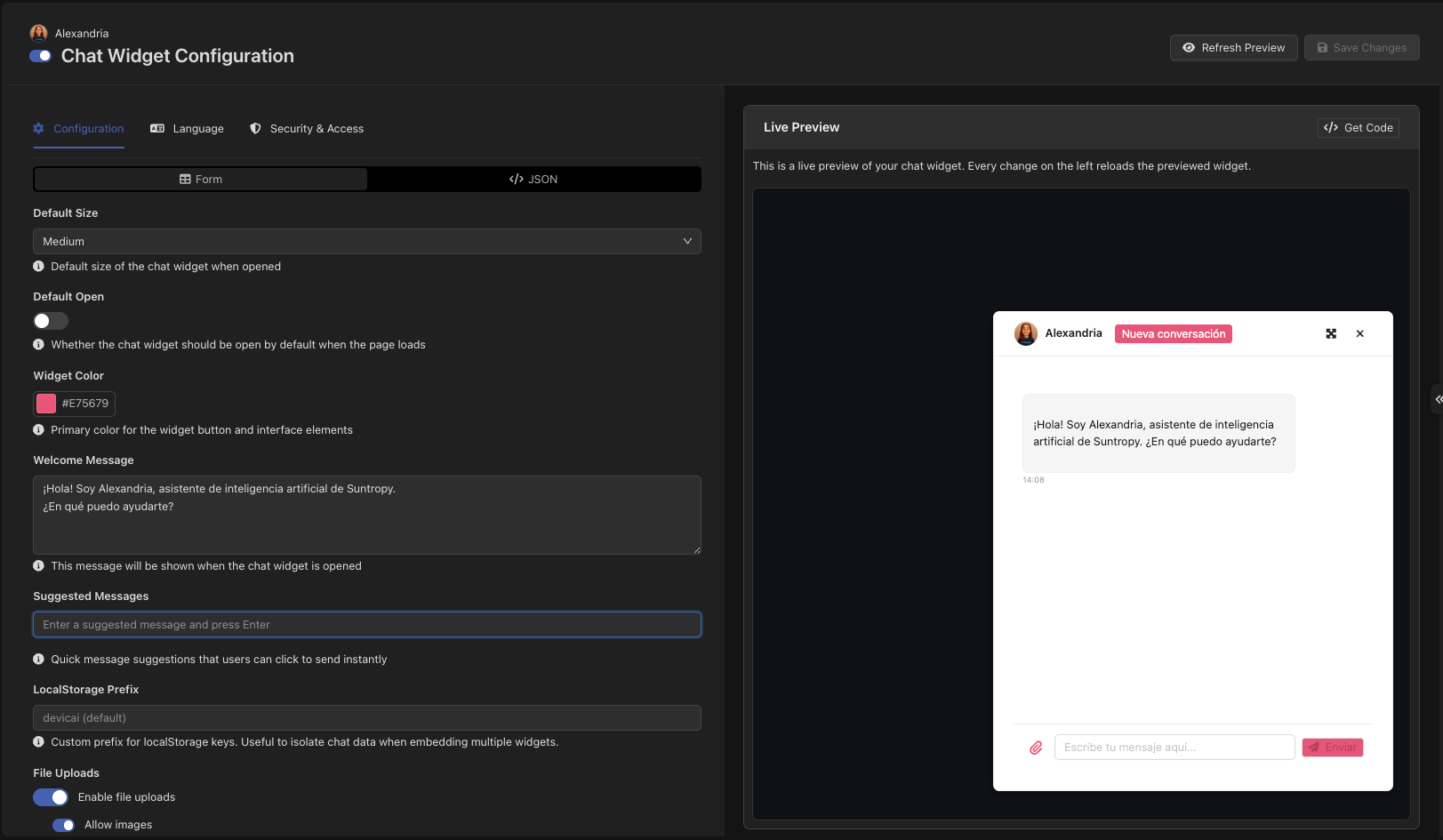 Nothing to install and nothing to build. It is the right choice for a marketing site, a help centre, or anywhere the chat is a self-contained thing sitting on top of the page.
 ***
## With React: `@devicai/ui`
When the assistant needs to be *part of* your interface rather than sitting on it — reading the form the user is filling in, writing into a field, or looking like the rest of your product — use the library.
`@devicai/ui` is a React library that puts a Devic assistant inside your product: a chat drawer, a command bar, a generation button — connected to the public API, styled to your application.
```bash theme={null}
npm install @devicai/ui
```
```jsx theme={null}
import { DevicProvider, ChatDrawer } from '@devicai/ui';
import '@devicai/ui/styles.css';
export default function App() {
return (
);
}
```
***
## What is in the box
A complete chat panel: history, attachments, voice input, tool timeline, feedback.
A spotlight-style bar bound to a keyboard shortcut, with slash commands and history.
A button that generates into a field — directly, through a modal, or in a tooltip.
The hook underneath, for when you want your own interface entirely.
Plus `CoreMemoryModal` for [what the assistant remembers](/devic/memory/core-memory) and `IntegrationsModal` for [the apps each user connects](/devic/integrations/for-end-users).
***
## Authenticate properly
An `apiKey` prop puts that key in your bundle, where anyone can read it. That is acceptable while you are building and **not** acceptable in production for a multi-customer product: with the key alone, someone can claim to be any of your tenants.
Use [tenant sessions](/devic/multi-tenant/tenant-sessions) instead. The provider takes a function that fetches a session from *your* backend and renews it on its own — and the page then carries no key at all.
```jsx theme={null}
{
const r = await fetch('/api/devic-session', { credentials: 'include' });
return r.json();
}}
onSessionExpired={() => location.assign('/login')}
>
```
If you restrict the key that ships in the browser, Devic offers a ready-made scope for exactly this case — see [API keys](/devic/administration/api-keys).
***
## Client-side tools
Some things only the browser knows: where the user is, what is selected on screen, what is in the form they are filling in. The **Model Interface Protocol** lets the assistant call a function *in your page* as if it were any other tool.
```jsx theme={null}
const locationTool = {
toolName: 'get_user_location',
schema: {
type: 'function',
function: {
name: 'get_user_location',
description: 'Get the user current geographic location',
parameters: { type: 'object', properties: {} },
},
},
callback: async () => {
const pos = await new Promise((ok, err) =>
navigator.geolocation.getCurrentPosition(ok, err),
);
return { latitude: pos.coords.latitude, longitude: pos.coords.longitude };
},
};
```
The assistant asks, your page answers, the conversation carries on. Nothing about the user's browser has to reach your server first.
***
## Making it look like yours
Every component is themed with CSS variables, so it inherits your product rather than announcing itself:
```css theme={null}
.devic-chat-drawer {
--devic-primary: #4764e6;
--devic-bg: #ffffff;
--devic-text: #1a1a1a;
--devic-radius: 12px;
}
```
For a single accent colour, `options={{ color: '#4764e6' }}` is enough.
***
## Next steps
Options, callbacks, memory and connected apps.
Proving which user is calling.
Everything the components call, callable yourself.
The same API from a terminal.
***
## With React: `@devicai/ui`
When the assistant needs to be *part of* your interface rather than sitting on it — reading the form the user is filling in, writing into a field, or looking like the rest of your product — use the library.
`@devicai/ui` is a React library that puts a Devic assistant inside your product: a chat drawer, a command bar, a generation button — connected to the public API, styled to your application.
```bash theme={null}
npm install @devicai/ui
```
```jsx theme={null}
import { DevicProvider, ChatDrawer } from '@devicai/ui';
import '@devicai/ui/styles.css';
export default function App() {
return (
);
}
```
***
## What is in the box
A complete chat panel: history, attachments, voice input, tool timeline, feedback.
A spotlight-style bar bound to a keyboard shortcut, with slash commands and history.
A button that generates into a field — directly, through a modal, or in a tooltip.
The hook underneath, for when you want your own interface entirely.
Plus `CoreMemoryModal` for [what the assistant remembers](/devic/memory/core-memory) and `IntegrationsModal` for [the apps each user connects](/devic/integrations/for-end-users).
***
## Authenticate properly
An `apiKey` prop puts that key in your bundle, where anyone can read it. That is acceptable while you are building and **not** acceptable in production for a multi-customer product: with the key alone, someone can claim to be any of your tenants.
Use [tenant sessions](/devic/multi-tenant/tenant-sessions) instead. The provider takes a function that fetches a session from *your* backend and renews it on its own — and the page then carries no key at all.
```jsx theme={null}
{
const r = await fetch('/api/devic-session', { credentials: 'include' });
return r.json();
}}
onSessionExpired={() => location.assign('/login')}
>
```
If you restrict the key that ships in the browser, Devic offers a ready-made scope for exactly this case — see [API keys](/devic/administration/api-keys).
***
## Client-side tools
Some things only the browser knows: where the user is, what is selected on screen, what is in the form they are filling in. The **Model Interface Protocol** lets the assistant call a function *in your page* as if it were any other tool.
```jsx theme={null}
const locationTool = {
toolName: 'get_user_location',
schema: {
type: 'function',
function: {
name: 'get_user_location',
description: 'Get the user current geographic location',
parameters: { type: 'object', properties: {} },
},
},
callback: async () => {
const pos = await new Promise((ok, err) =>
navigator.geolocation.getCurrentPosition(ok, err),
);
return { latitude: pos.coords.latitude, longitude: pos.coords.longitude };
},
};
```
The assistant asks, your page answers, the conversation carries on. Nothing about the user's browser has to reach your server first.
***
## Making it look like yours
Every component is themed with CSS variables, so it inherits your product rather than announcing itself:
```css theme={null}
.devic-chat-drawer {
--devic-primary: #4764e6;
--devic-bg: #ffffff;
--devic-text: #1a1a1a;
--devic-radius: 12px;
}
```
For a single accent colour, `options={{ color: '#4764e6' }}` is enough.
***
## Next steps
Options, callbacks, memory and connected apps.
Proving which user is calling.
Everything the components call, callable yourself.
The same API from a terminal.