> ## Documentation Index
> Fetch the complete documentation index at: https://docs.devic.ai/llms.txt
> Use this file to discover all available pages before exploring further.
# View and Edit Database
> Explore, filter, and update your database records in Devic. Access semantic search, advanced filters, and structure editing from a single panel.
## Overview
Each database in Devic includes a dedicated view where you can **browse, filter, and modify records** in real time.\
This interface centralizes all stored information and allows you to maintain data consistency without leaving the platform.
***
## Main Navigation
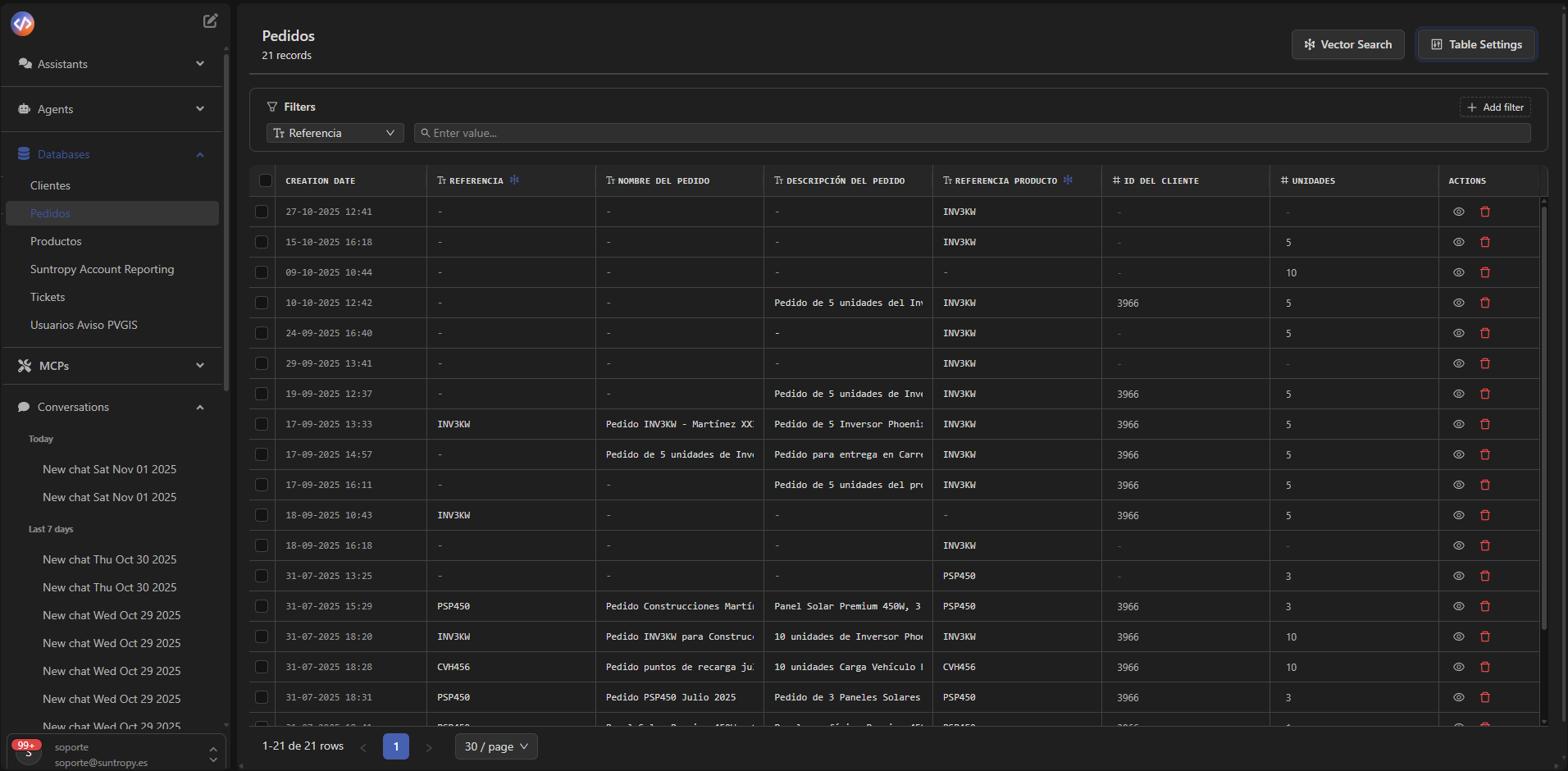
When accessing a database, you will see a table containing all available records.\
At the top, several key tools are displayed:
* **Vector Search:** perform semantic searches based on meaning instead of exact matches.
* **Table Settings:** opens the side configuration panel for the database (structure, fields, colors, etc.).
 ***
## Filters and Advanced Search
Use the **Filters** module to narrow down the displayed information:
1. Select a field from the dropdown menu (for example, *Reference* or *Client ID*).
2. Enter the value you want to search for.
3. Add multiple filters at once using the **Add another filter** button.
This allows you to segment data without complex queries, making record exploration fast and intuitive.
***
## Filters and Advanced Search
Use the **Filters** module to narrow down the displayed information:
1. Select a field from the dropdown menu (for example, *Reference* or *Client ID*).
2. Enter the value you want to search for.
3. Add multiple filters at once using the **Add another filter** button.
This allows you to segment data without complex queries, making record exploration fast and intuitive.
 ***
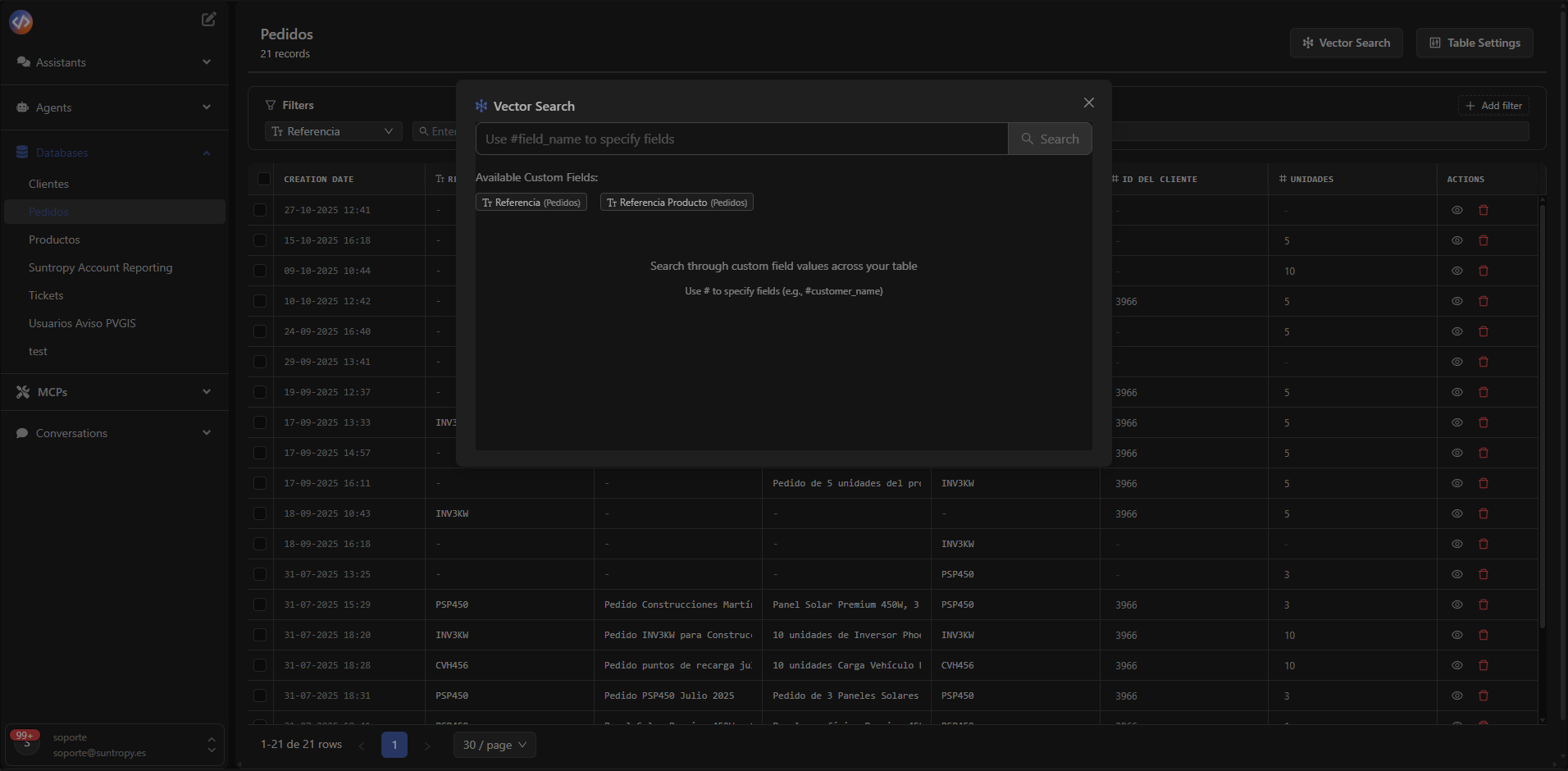
## Semantic Search (Vector Search)
The **Vector Search** engine allows you to run natural language queries across custom fields.\
It is ideal for context-based or meaning-based searches.
1. Click **Vector Search**.
2. Type your query, for example:
How many orders have been placed?
3. The platform will interpret the intent and return the most relevant results based on the record content.
***
## Semantic Search (Vector Search)
The **Vector Search** engine allows you to run natural language queries across custom fields.\
It is ideal for context-based or meaning-based searches.
1. Click **Vector Search**.
2. Type your query, for example:
How many orders have been placed?
3. The platform will interpret the intent and return the most relevant results based on the record content.
 ***
## Table Configuration
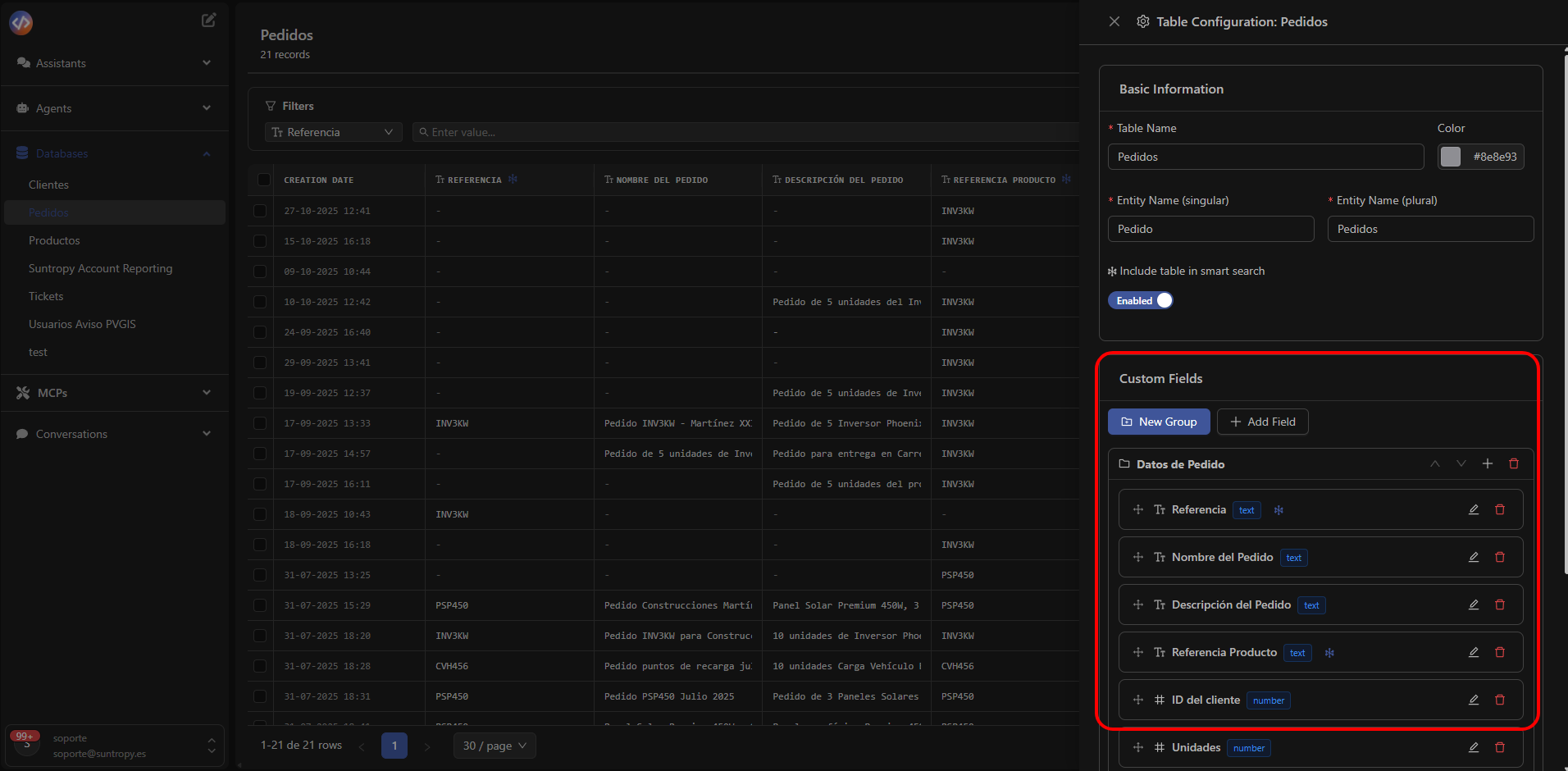
The side configuration panel — called **Table Settings** — lets you modify the structure or behavior of the database:
* **Table Name & Color:** adjust the database's name and identifying color.
* **Entity Name (singular/plural):** edit entity names.
* **Include table in smart search:** enable or disable inclusion in global semantic search.
* **Custom Fields:** add, edit, or group existing fields.
***
## Table Configuration
The side configuration panel — called **Table Settings** — lets you modify the structure or behavior of the database:
* **Table Name & Color:** adjust the database's name and identifying color.
* **Entity Name (singular/plural):** edit entity names.
* **Include table in smart search:** enable or disable inclusion in global semantic search.
* **Custom Fields:** add, edit, or group existing fields.
 ***
### Custom Fields
The **Custom Fields** section defines the internal structure of the database.\
You can group fields and add as many as needed depending on the type of information you will manage.
* **New Group:** create a group to organize fields by category (e.g., *General Data*, *Tax Information*, etc.).
* **Add Field:** add a new field inside the selected group.
Each field includes:
* **Field name**
* **Data type** (e.g., *text*, *number*, *date*, *boolean*, etc.)
* **Quick actions** to edit ✏️ or delete 🗑️ the field.
***
### Custom Fields
The **Custom Fields** section defines the internal structure of the database.\
You can group fields and add as many as needed depending on the type of information you will manage.
* **New Group:** create a group to organize fields by category (e.g., *General Data*, *Tax Information*, etc.).
* **Add Field:** add a new field inside the selected group.
Each field includes:
* **Field name**
* **Data type** (e.g., *text*, *number*, *date*, *boolean*, etc.)
* **Quick actions** to edit ✏️ or delete 🗑️ the field.
 ***
## Next Steps
Set up your environment and launch your first agents or assistants in minutes with the quickstart guide.
Learn how to build and automate intelligent processes through autonomous agents in Devic.
Discover how to create conversational assistants with access to your data and tools.
Explore how to build and connect your own custom tools using the MCP standard.
***
## Next Steps
Set up your environment and launch your first agents or assistants in minutes with the quickstart guide.
Learn how to build and automate intelligent processes through autonomous agents in Devic.
Discover how to create conversational assistants with access to your data and tools.
Explore how to build and connect your own custom tools using the MCP standard.