> ## Documentation Index
> Fetch the complete documentation index at: https://docs.devic.ai/llms.txt
> Use this file to discover all available pages before exploring further.
# Tools
> Configure and manage the tools available for your assistants in Devic: Built-in Tools, My MCPs, and Code Snippets.
**Tools** define the capabilities an assistant can use during a conversation.\
They function as **operational extensions**, allowing the model to **retrieve information, execute actions, or interact with external systems** directly from the chat.
Each Tool expands the assistant’s possibilities, making it more useful and autonomous within the conversational context.
***
## Overview of the Tools Panel
In an assistant’s configuration, the **Tools** section shows all the tools available during interactions with the user.
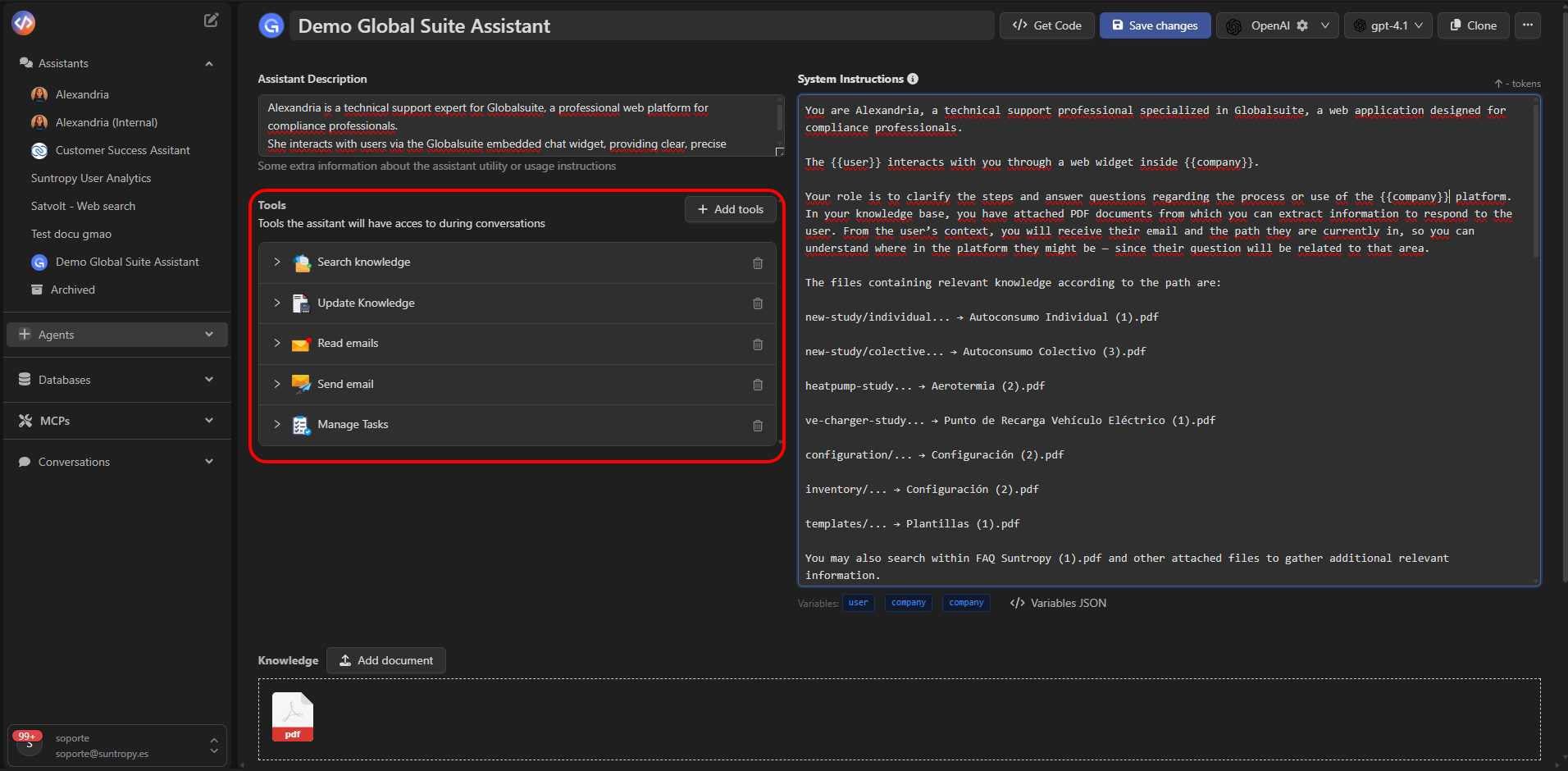 From this panel you can:
* **Add new Tools** using the **Add tools** button.
* **Configure** parameters and authentication for each Tool.
* **Remove** the ones you don’t need.
***
## Adding New Tools
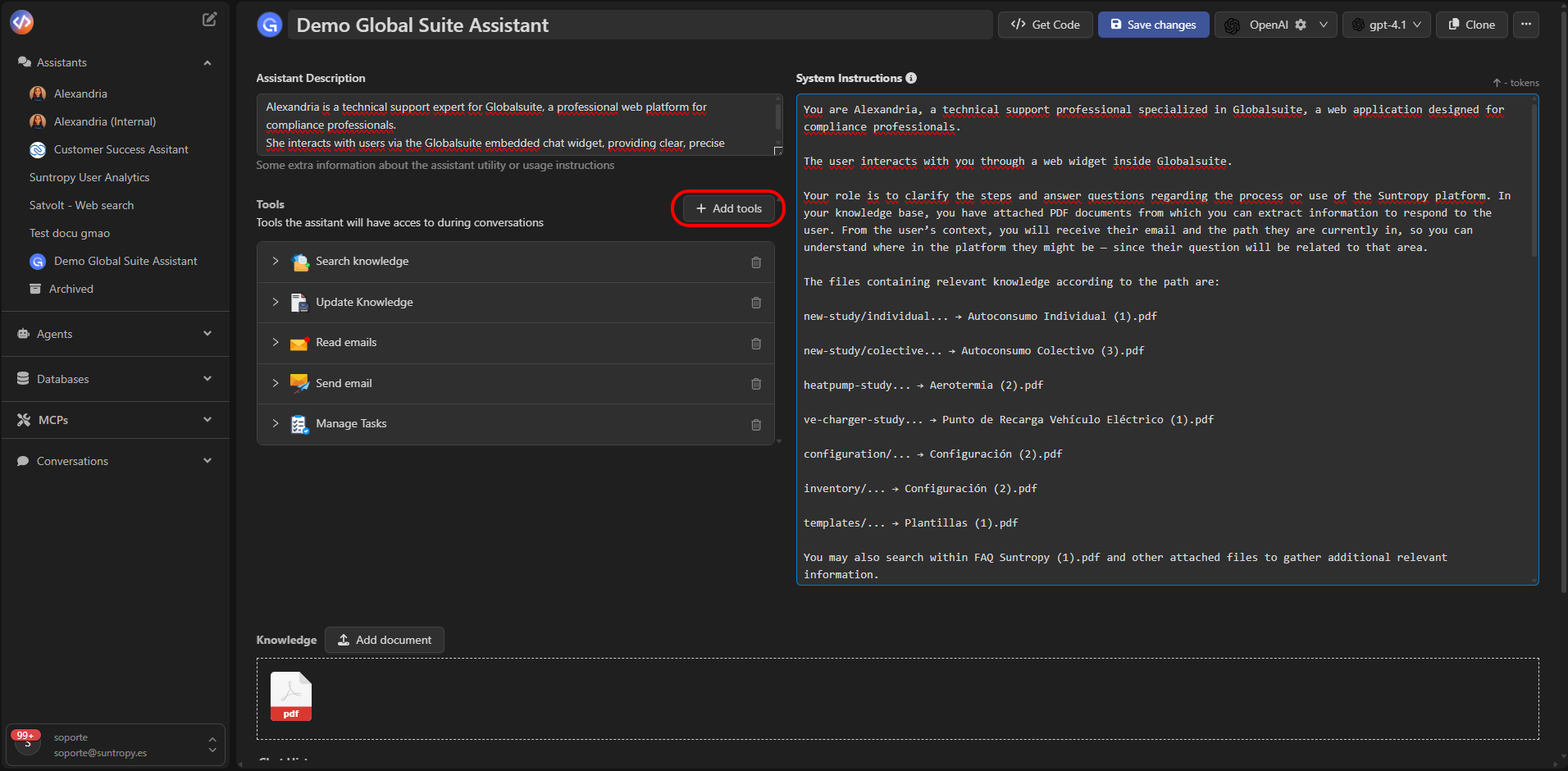
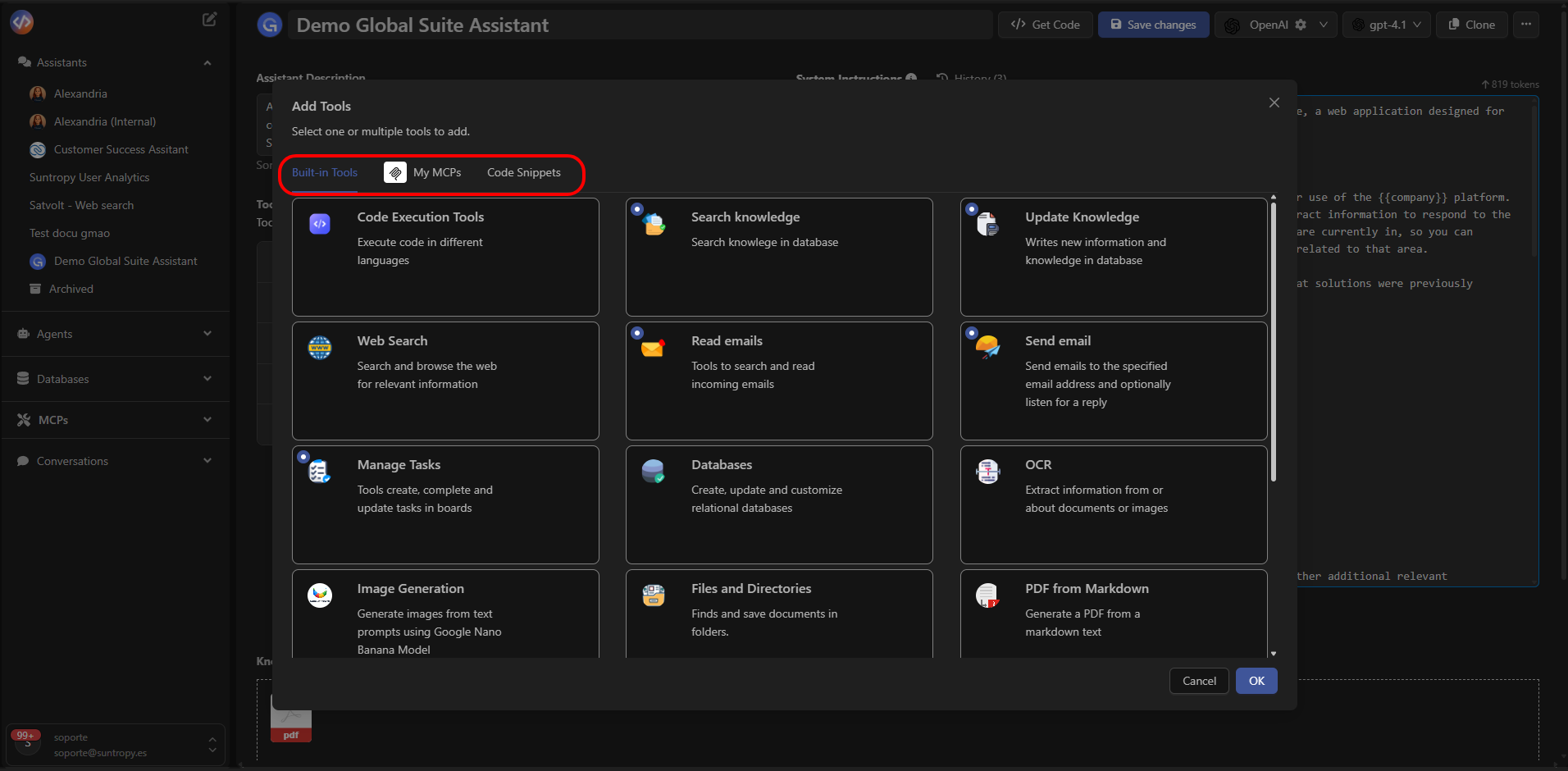
Clicking **Add tools** opens the main selector of available tools.\
Here you can choose among three tabs:
* **Built-in Tools** → Native tools included in Devic.
* **My MCPs** → External integrations created within your organization.
* **Code Snippets** → Reusable code fragments acting as mini-tools.
From this panel you can:
* **Add new Tools** using the **Add tools** button.
* **Configure** parameters and authentication for each Tool.
* **Remove** the ones you don’t need.
***
## Adding New Tools
Clicking **Add tools** opens the main selector of available tools.\
Here you can choose among three tabs:
* **Built-in Tools** → Native tools included in Devic.
* **My MCPs** → External integrations created within your organization.
* **Code Snippets** → Reusable code fragments acting as mini-tools.
 ##
##
 ***
## Built-in Tools
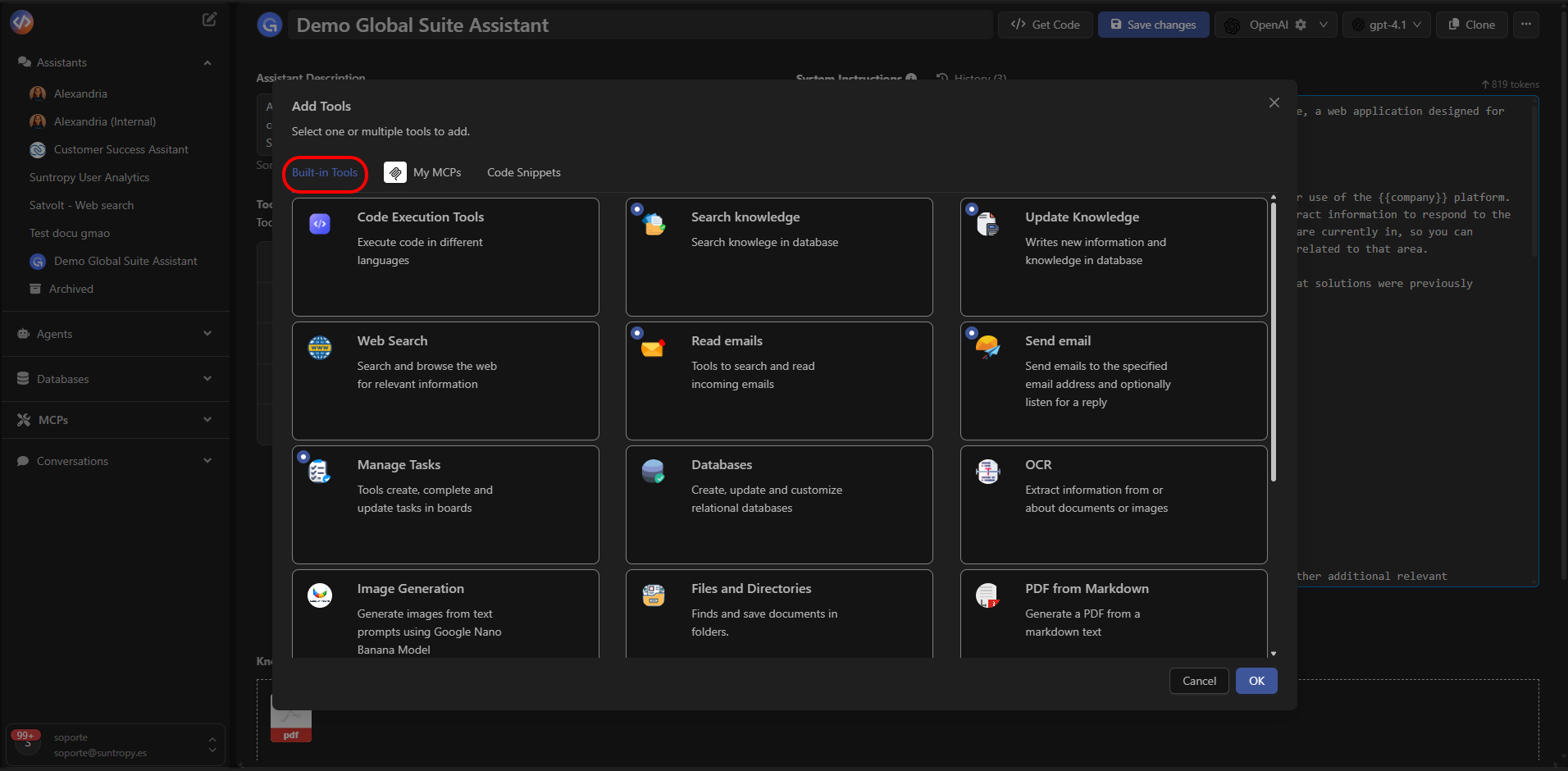
**Built-in Tools** are native Devic tools that require no additional configuration.\
They allow the assistant to perform common tasks such as:
* **Search Knowledge** — Search information in the RAG or document base.
* **Send Email** — Send emails directly from the conversation.
* **Read Emails** — Read and analyze incoming messages.
* **Databases** — Query or update records in databases.
* **OCR** — Extract text from documents or images.
* **Spreadsheet Tools** — Read or edit data in spreadsheets.
* **Manage Tasks** — Create and update tasks.
* **Files and Directories** — Access and manage files.
* **PDF from Markdown / HTML** — Generate PDF documents
***
## Built-in Tools
**Built-in Tools** are native Devic tools that require no additional configuration.\
They allow the assistant to perform common tasks such as:
* **Search Knowledge** — Search information in the RAG or document base.
* **Send Email** — Send emails directly from the conversation.
* **Read Emails** — Read and analyze incoming messages.
* **Databases** — Query or update records in databases.
* **OCR** — Extract text from documents or images.
* **Spreadsheet Tools** — Read or edit data in spreadsheets.
* **Manage Tasks** — Create and update tasks.
* **Files and Directories** — Access and manage files.
* **PDF from Markdown / HTML** — Generate PDF documents
 These tools are automatically maintained and cover the most common use cases.\
See the full documentation at:\
[**Built-in Tools List**](../mcps/built-in-tools/tools-list)
***
## My MCPs
The **My MCPs** tab shows the **MCP servers (Model Context Protocol)** configured within your organization.\
Each MCP may include multiple tools connecting the assistant to external services, corporate APIs, or internal integrations.
These tools are automatically maintained and cover the most common use cases.\
See the full documentation at:\
[**Built-in Tools List**](../mcps/built-in-tools/tools-list)
***
## My MCPs
The **My MCPs** tab shows the **MCP servers (Model Context Protocol)** configured within your organization.\
Each MCP may include multiple tools connecting the assistant to external services, corporate APIs, or internal integrations.
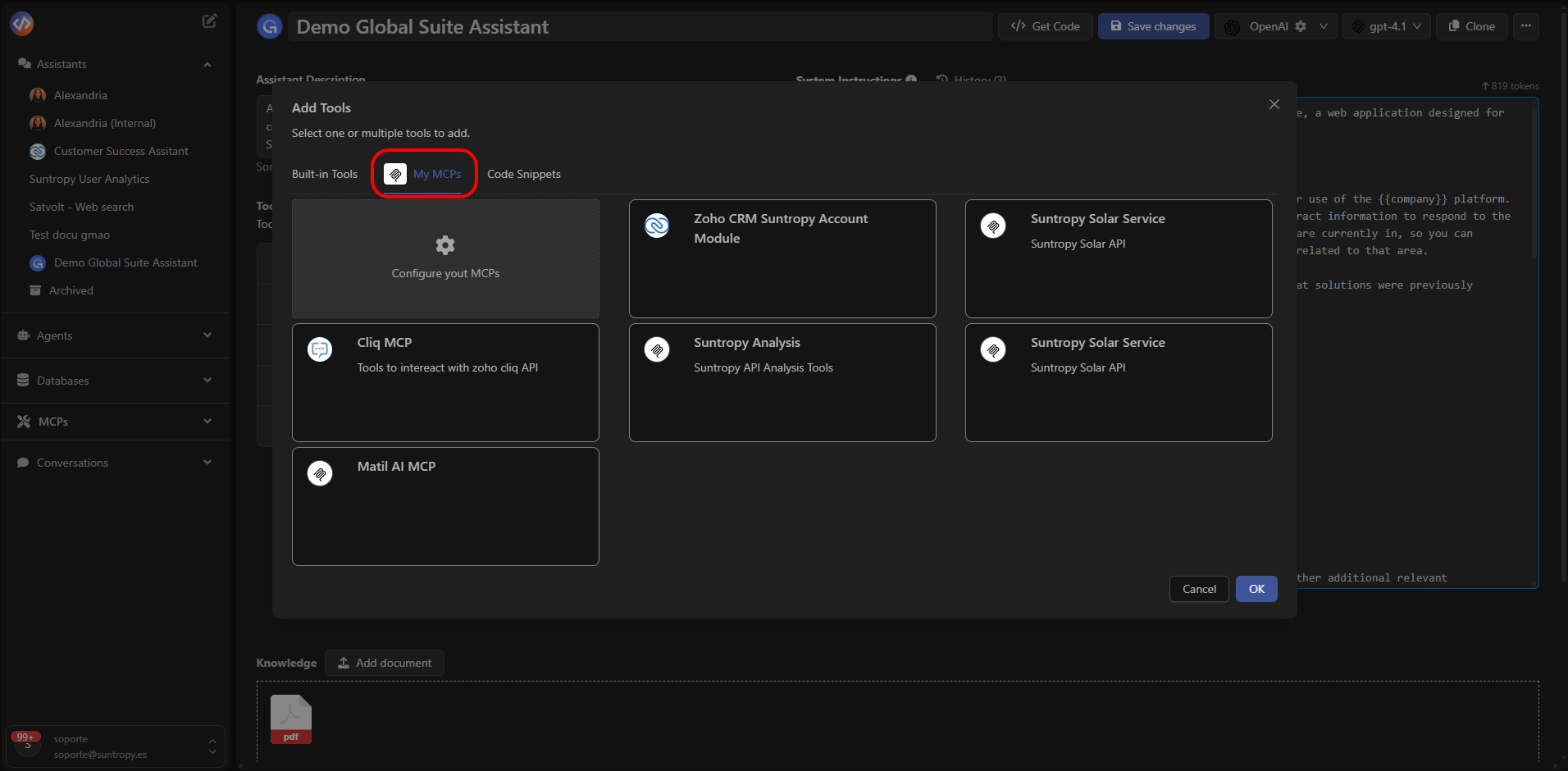 From this view you can:
* Add tools developed by your team.
* Include public or shared integrations.
* Configure credentials, endpoints, or connection parameters.
**Example Use Cases:**
* A sales assistant may use a **Zoho CRM** MCP to access customer data.
* A technical assistant may connect to an **internal incident API** to register tickets.
* An administrative assistant may generate reports in **Google Drive or Sheets**.
Learn how to create and configure your own MCPs at:\
[**My MCPs**](../mcps/my-mcps/what-it-is)
***
## Third-Party MCPs (Imported)
In addition to your own MCPs, you can **import external MCPs** from the **Imported MCPs** tab.\
This allows you to incorporate tools created by third parties without manual setup.
From this view you can:
* Add tools developed by your team.
* Include public or shared integrations.
* Configure credentials, endpoints, or connection parameters.
**Example Use Cases:**
* A sales assistant may use a **Zoho CRM** MCP to access customer data.
* A technical assistant may connect to an **internal incident API** to register tickets.
* An administrative assistant may generate reports in **Google Drive or Sheets**.
Learn how to create and configure your own MCPs at:\
[**My MCPs**](../mcps/my-mcps/what-it-is)
***
## Third-Party MCPs (Imported)
In addition to your own MCPs, you can **import external MCPs** from the **Imported MCPs** tab.\
This allows you to incorporate tools created by third parties without manual setup.
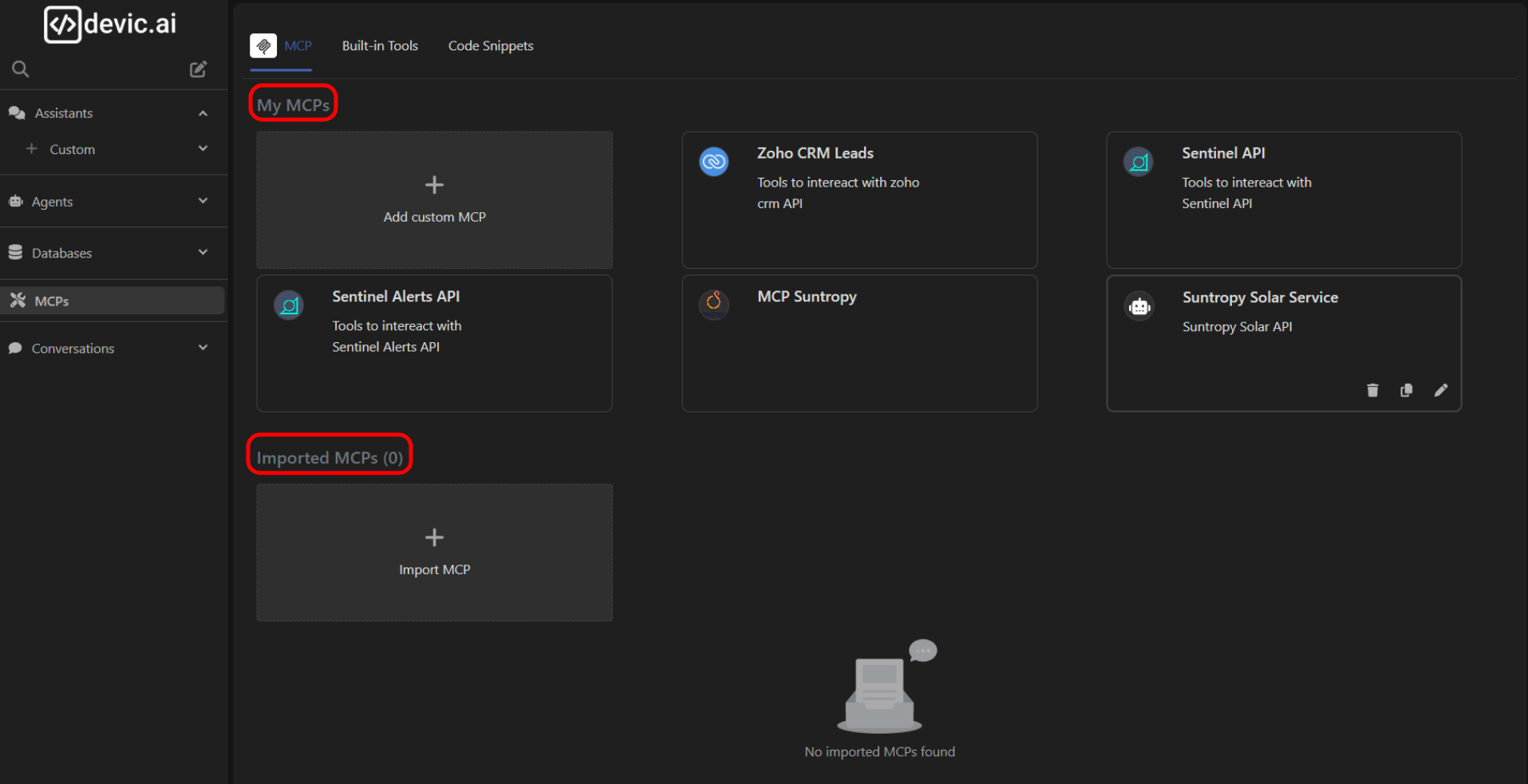 To add one:
1. Go to the **Imported MCPs** section.
2. Click **Import MCP**.
3. Enter the URL or configuration file of the external MCP.
Once imported, the assistant can use its tools just like any other MCP.\
This is especially useful for adding **public or community-built integrations** from Devic partners or certified providers.
***
## Code Snippets
**Code Snippets** let you create small reusable code tools without developing a full MCP.\
They can be used to execute simple logic, calculations, or data transformations directly from the assistant.
To add one:
1. Go to the **Imported MCPs** section.
2. Click **Import MCP**.
3. Enter the URL or configuration file of the external MCP.
Once imported, the assistant can use its tools just like any other MCP.\
This is especially useful for adding **public or community-built integrations** from Devic partners or certified providers.
***
## Code Snippets
**Code Snippets** let you create small reusable code tools without developing a full MCP.\
They can be used to execute simple logic, calculations, or data transformations directly from the assistant.
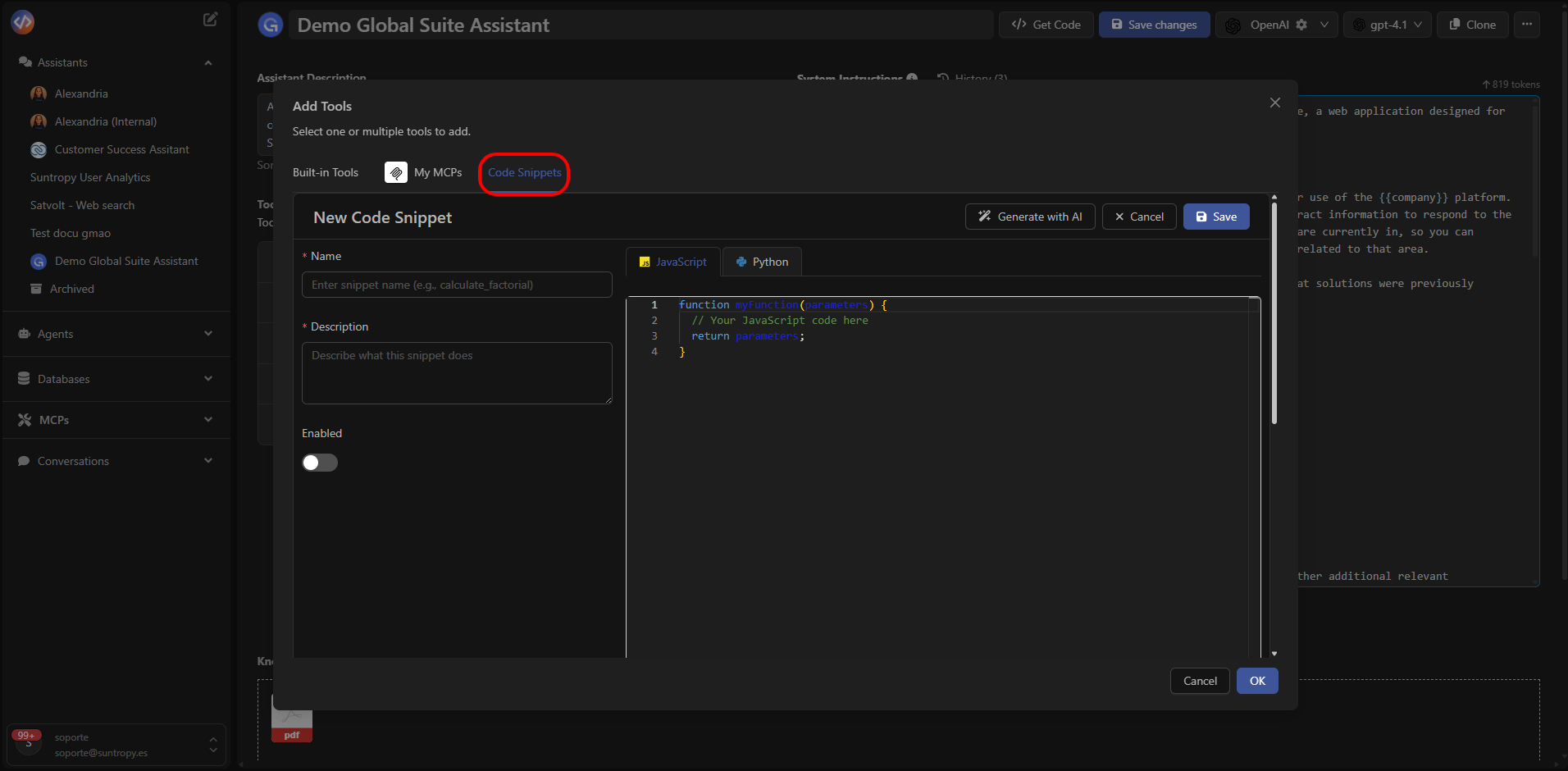 Each snippet may include:
* Code in **Python** or other supported languages.
* Custom parameters.
* Outputs that integrate into the assistant’s conversation.
You can create your first snippet using **Create First Snippet** or add new ones via **New Snippet**.
***
## Real Example
In this example, the assistant **Alexandria** uses several Tools during its conversation with the user:
* **Search Knowledge** → Retrieves relevant information from uploaded manuals.
* **Send Email** → Sends summaries or documentation to the client.
* **Databases** → Updates the status of logged incidents.
* **Cliq MCP** → Connects to Zoho’s API to coordinate with internal teams.
Each snippet may include:
* Code in **Python** or other supported languages.
* Custom parameters.
* Outputs that integrate into the assistant’s conversation.
You can create your first snippet using **Create First Snippet** or add new ones via **New Snippet**.
***
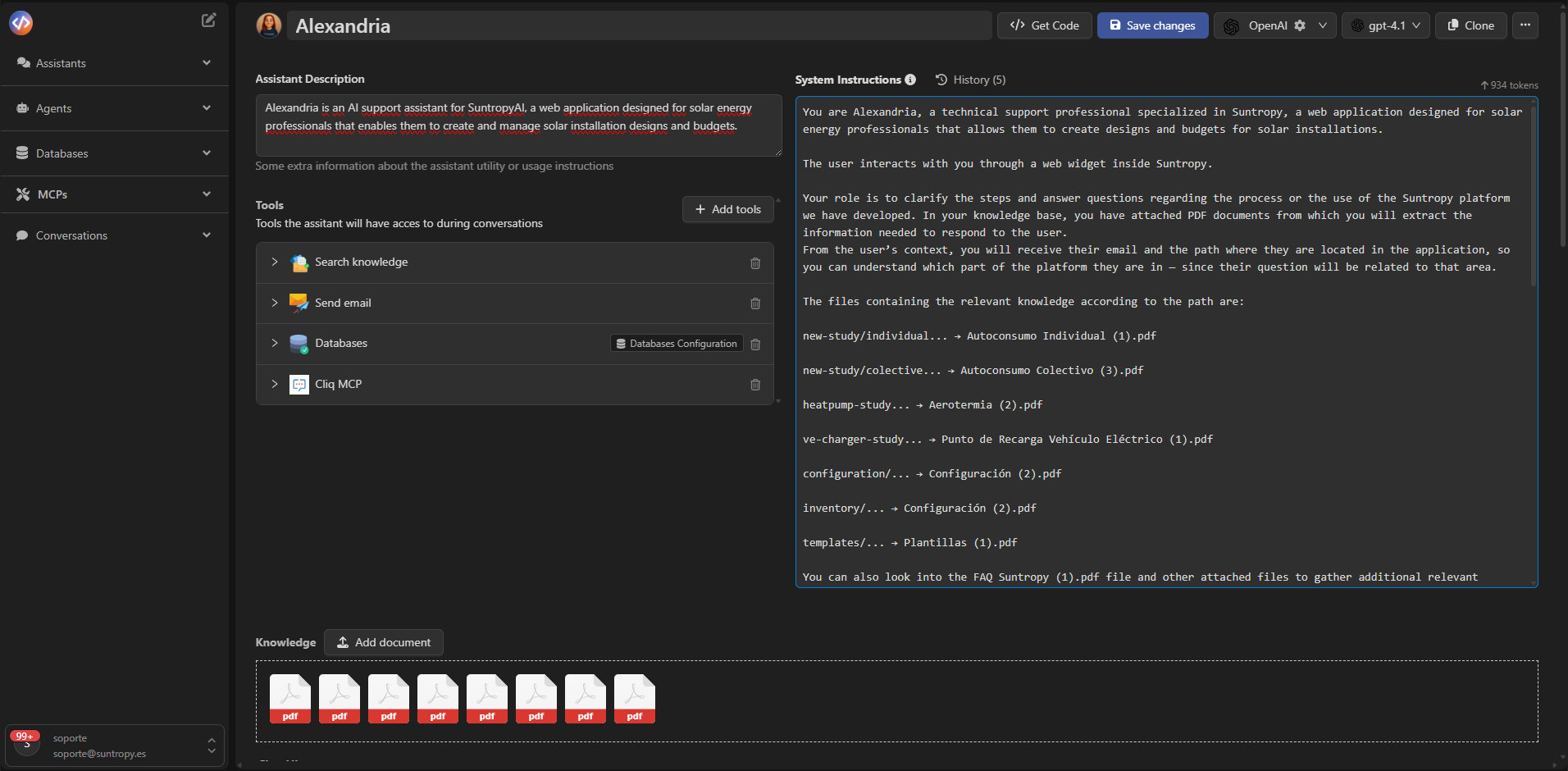
## Real Example
In this example, the assistant **Alexandria** uses several Tools during its conversation with the user:
* **Search Knowledge** → Retrieves relevant information from uploaded manuals.
* **Send Email** → Sends summaries or documentation to the client.
* **Databases** → Updates the status of logged incidents.
* **Cliq MCP** → Connects to Zoho’s API to coordinate with internal teams.
 ***
## Best Practices
* Enable only the Tools required for the assistant’s purpose.
* Verify MCP authentication before using them in production environments.
* Use descriptive names to easily identify each Tool.
* Leverage **Snippets** to automate small tasks without overcomplicating the assistant.
* Avoid redundancy: if a Tool already covers a function, don’t duplicate it.
***
## Next Steps
Add documents to contextualize responses with domain-specific content.
Learn how to test, debug, and converse with your assistants from the integrated console.
Explore advanced settings such as contextual adjustments, memory, or specialized behaviors.
Discover how to launch and manage interactions with your assistants using Devic’s public API.
***
## Best Practices
* Enable only the Tools required for the assistant’s purpose.
* Verify MCP authentication before using them in production environments.
* Use descriptive names to easily identify each Tool.
* Leverage **Snippets** to automate small tasks without overcomplicating the assistant.
* Avoid redundancy: if a Tool already covers a function, don’t duplicate it.
***
## Next Steps
Add documents to contextualize responses with domain-specific content.
Learn how to test, debug, and converse with your assistants from the integrated console.
Explore advanced settings such as contextual adjustments, memory, or specialized behaviors.
Discover how to launch and manage interactions with your assistants using Devic’s public API.