> ## Documentation Index
> Fetch the complete documentation index at: https://docs.devic.ai/llms.txt
> Use this file to discover all available pages before exploring further.
# RAG
> Enhance your assistants in Devic by using RAG to retrieve documentation and contextualize their responses.
**RAG (Retrieval Augmented Generation)** enables **Devic assistants** to access documentation and use it in real time during conversations.\
Thanks to this capability, assistants can provide **more accurate, grounded, and up-to-date** responses, without relying solely on the model’s pretrained knowledge.
***
## How It Works
Devic’s RAG system is fully integrated with assistants and does not require complex configuration.\
When documents are added to an assistant’s knowledge base:
1. **The platform automatically analyzes** the content.
2. **It splits the text into fragments** (“chunks”) to improve contextual retrieval.
3. **It generates summaries** that are injected into the model’s context.
4. During the conversation, the assistant **decides when to consult these documents** and uses the most relevant fragments to build its response.
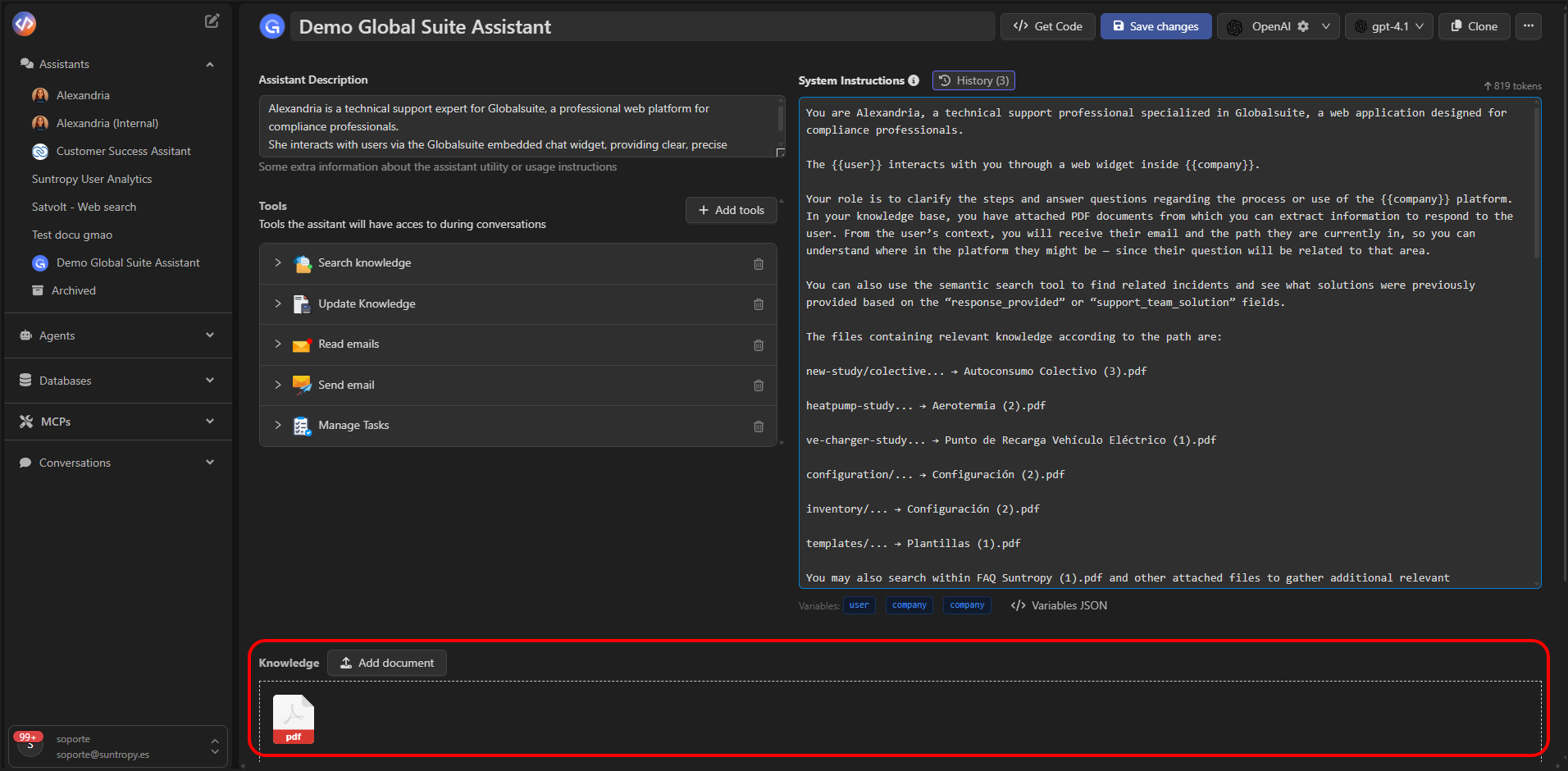 This approach provides the assistant with **extended memory**, allowing it to contextualize answers using user-uploaded materials—such as manuals, reports, or internal guides.
***
## Configuring RAG in an Assistant
To add knowledge to an assistant:
1. Open the assistant from Devic’s sidebar.
2. Navigate to the **Knowledge** section.
3. Click **Add document** and select the files you want to upload
Supported formats:
* `.pdf`
* `.docx`
* `.txt`
* `.csv`
Each document is processed automatically and displayed in the interface with its name and file type.
This approach provides the assistant with **extended memory**, allowing it to contextualize answers using user-uploaded materials—such as manuals, reports, or internal guides.
***
## Configuring RAG in an Assistant
To add knowledge to an assistant:
1. Open the assistant from Devic’s sidebar.
2. Navigate to the **Knowledge** section.
3. Click **Add document** and select the files you want to upload
Supported formats:
* `.pdf`
* `.docx`
* `.txt`
* `.csv`
Each document is processed automatically and displayed in the interface with its name and file type.
 For the assistant to retrieve the uploaded documents, you must enable the **Search Knowledge** tool in its configuration.
***
## Document Details and Metadata
You can access each document’s details by clicking on it.\
The side panel will display its key information and metadata:
| Field | Description |
| ---------------------- | ------------------------------------------- |
| **Name** | File name. |
| **Size** | Document size. |
| **Created / Modified** | Creation and modification dates. |
| **Summary** | Automatic or custom summary of the content. |
For the assistant to retrieve the uploaded documents, you must enable the **Search Knowledge** tool in its configuration.
***
## Document Details and Metadata
You can access each document’s details by clicking on it.\
The side panel will display its key information and metadata:
| Field | Description |
| ---------------------- | ------------------------------------------- |
| **Name** | File name. |
| **Size** | Document size. |
| **Created / Modified** | Creation and modification dates. |
| **Summary** | Automatic or custom summary of the content. |
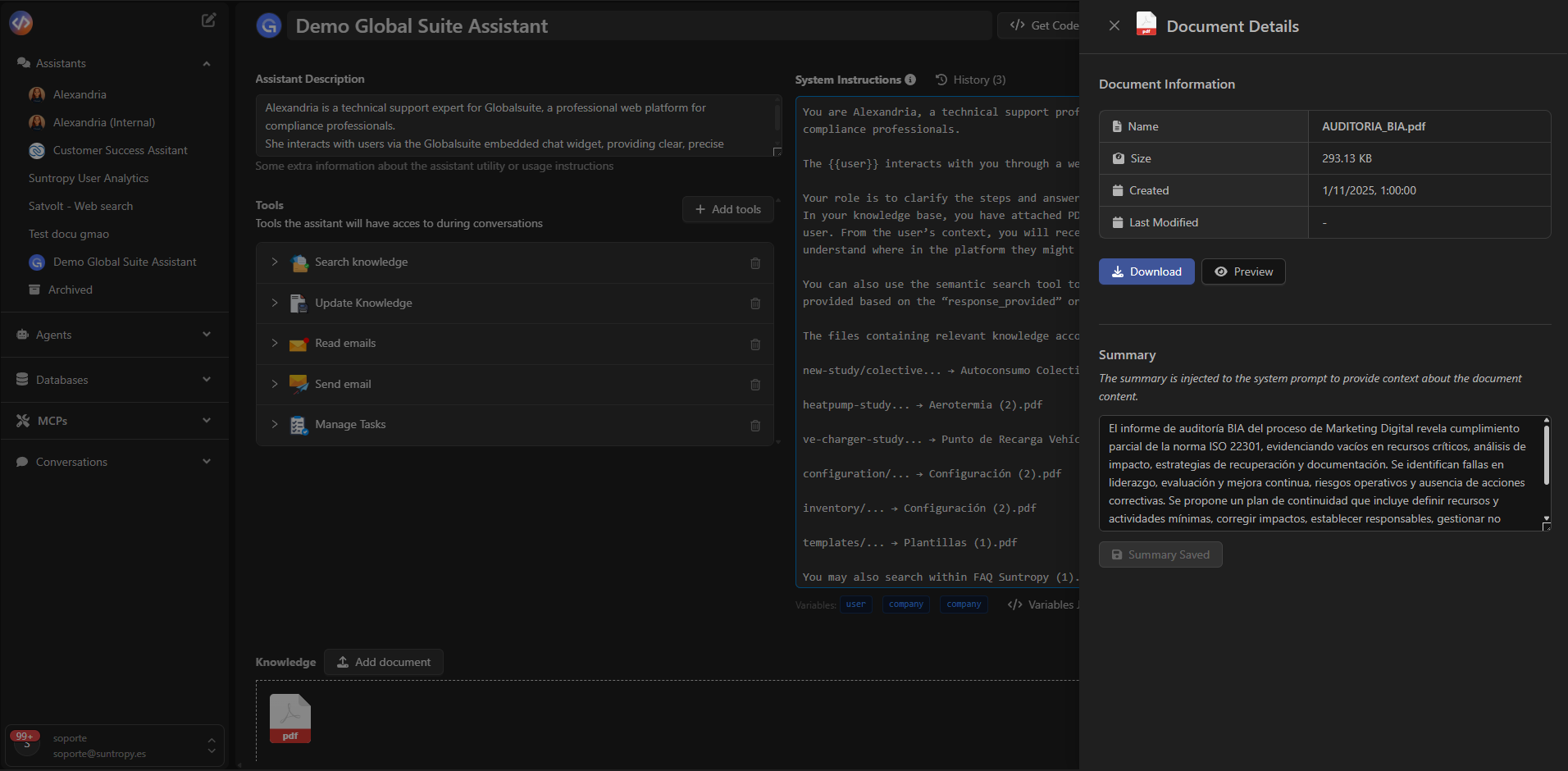 The **Summary** field is used internally to inject contextual information into the assistant’s prompt.\
You can edit it to highlight the most relevant data for your use case.
***
## Document Preview
From the same detail panel, you can **preview the full content** of the document directly in Devic—no download required.
The **Summary** field is used internally to inject contextual information into the assistant’s prompt.\
You can edit it to highlight the most relevant data for your use case.
***
## Document Preview
From the same detail panel, you can **preview the full content** of the document directly in Devic—no download required.
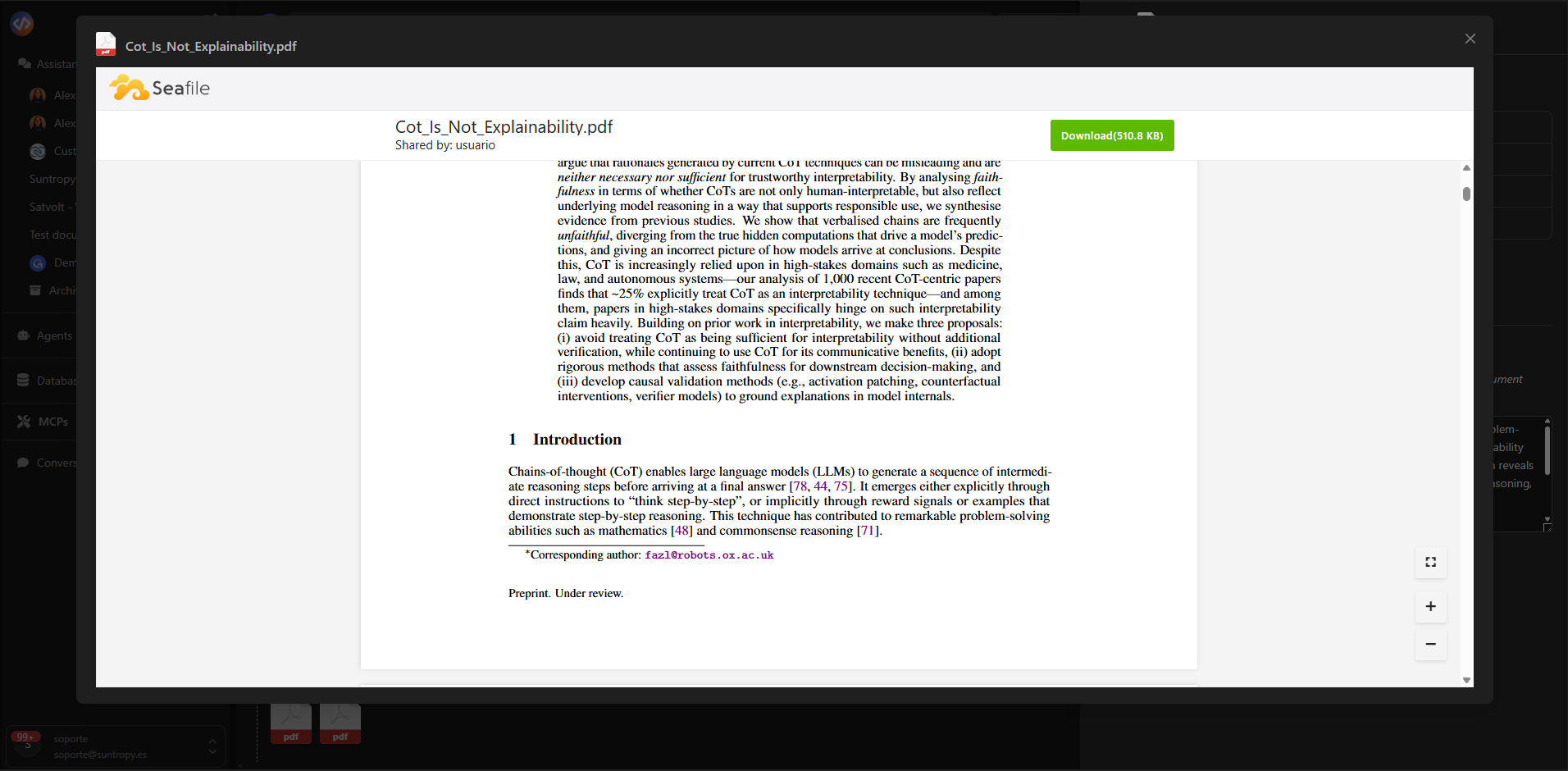 This feature is useful for reviewing information before starting a conversation or refining document summaries.
***
## Best Practices
* Ensure the **Search Knowledge** tool is enabled if the assistant needs to use RAG.
* Upload only documents that are relevant to the assistant’s scope.
* Review automatically generated summaries and edit them if needed.
* Use descriptive file names.
* Keep documents updated to ensure coherent responses.
* Avoid uploading excessively large or unstructured files.
***
## Use Cases
| Assistant Type | How RAG Helps |
| --------------------- | ----------------------------------------------------------------- |
| **Technical Support** | Retrieves manuals, installation guides, or product documentation. |
| **Customer Support** | Accesses FAQs or service sheets for accurate responses. |
| **Sales** | Looks up catalogs or updated pricing. |
| **Internal Training** | Answers questions based on manuals or training materials. |
***
## Practical Example
In this example, the assistant **Alexandria** has several technical documents loaded and can answer questions related to user manuals:
1. The user uploads `4011690_Manual Operador_e.pdf`.
2. Devic automatically generates a summary with key points.
3. During the conversation, Alexandria uses RAG to retrieve relevant fragments from the manual and provide precise instructions.
***
## Summary
| Element | Function |
| ------------------------- | -------------------------------------------------- |
| **Knowledge (RAG)** | Assistant’s document base. |
| **Search Knowledge Tool** | Allows retrieval of uploaded documents. |
| **Summary** | Contextual text that improves model understanding. |
| **Preview** | Quick visualization of uploaded documents. |
***
## Next Steps
Learn how to test, debug, and interact directly with your assistants through the integrated console.
Explore advanced configurations such as contextual settings, memory, or specialized behaviors.
Discover how to launch and manage interactions with your assistants using Devic’s public API.
This feature is useful for reviewing information before starting a conversation or refining document summaries.
***
## Best Practices
* Ensure the **Search Knowledge** tool is enabled if the assistant needs to use RAG.
* Upload only documents that are relevant to the assistant’s scope.
* Review automatically generated summaries and edit them if needed.
* Use descriptive file names.
* Keep documents updated to ensure coherent responses.
* Avoid uploading excessively large or unstructured files.
***
## Use Cases
| Assistant Type | How RAG Helps |
| --------------------- | ----------------------------------------------------------------- |
| **Technical Support** | Retrieves manuals, installation guides, or product documentation. |
| **Customer Support** | Accesses FAQs or service sheets for accurate responses. |
| **Sales** | Looks up catalogs or updated pricing. |
| **Internal Training** | Answers questions based on manuals or training materials. |
***
## Practical Example
In this example, the assistant **Alexandria** has several technical documents loaded and can answer questions related to user manuals:
1. The user uploads `4011690_Manual Operador_e.pdf`.
2. Devic automatically generates a summary with key points.
3. During the conversation, Alexandria uses RAG to retrieve relevant fragments from the manual and provide precise instructions.
***
## Summary
| Element | Function |
| ------------------------- | -------------------------------------------------- |
| **Knowledge (RAG)** | Assistant’s document base. |
| **Search Knowledge Tool** | Allows retrieval of uploaded documents. |
| **Summary** | Contextual text that improves model understanding. |
| **Preview** | Quick visualization of uploaded documents. |
***
## Next Steps
Learn how to test, debug, and interact directly with your assistants through the integrated console.
Explore advanced configurations such as contextual settings, memory, or specialized behaviors.
Discover how to launch and manage interactions with your assistants using Devic’s public API.