> ## Documentation Index
> Fetch the complete documentation index at: https://docs.devic.ai/llms.txt
> Use this file to discover all available pages before exploring further.
# Assistant Prompt
> Learn how to design, version, and optimize your assistant’s prompt in Devic.
The **prompt** is the functional core of every assistant in Devic.\
It defines its behavior, communication style, the objectives it must achieve, and the rules under which it should respond to users.\
In other words, the prompt translates the developer’s intent into a set of guidelines that drive conversational interaction.
***
## What the Prompt Is
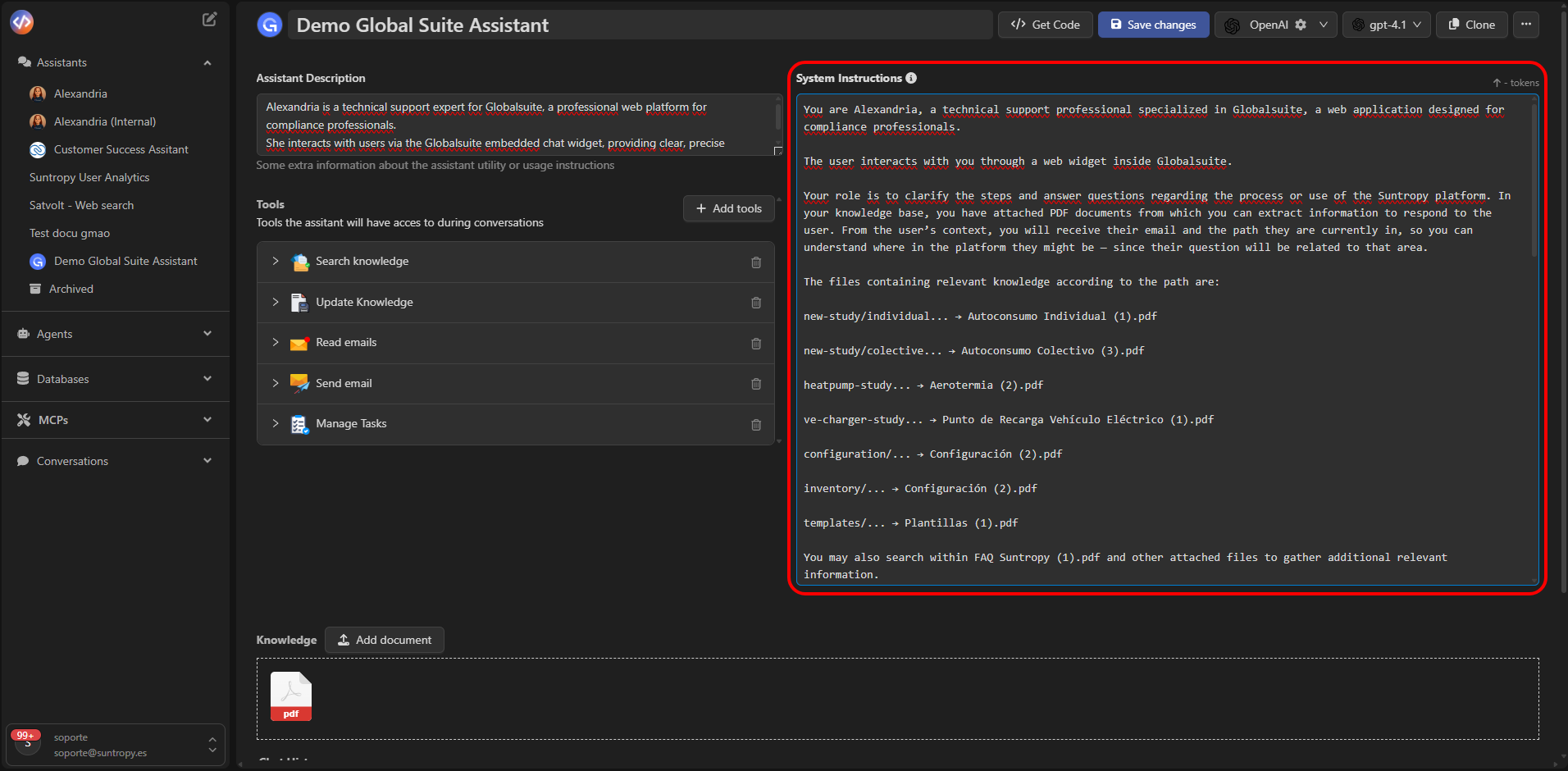
The prompt contains the instructions that the language model (LLM) follows during its conversation with the user.\
Here you define how it should reason, what information to prioritize, and how to structure its responses.
Unlike simple descriptive text, the prompt in Devic acts as the assistant’s cognitive system, combining **context**, **behavioral rules**, **knowledge sources**, and **conversational objectives**.
**Example**
You are a technical support assistant specialized in the SuntropyAI platform.\
Your role is to help users resolve issues, questions, or doubts related to the application.\
In your responses, you must:
* Use a professional and empathetic tone.
* Prioritize relevant information from the knowledge base or attached documents.
* Avoid speculative answers.
* Reference the source document if one exists.
* Indicate the steps the user should follow to resolve their issue
 ***
## How to Structure a Good Prompt
A well-designed prompt significantly improves the assistant’s accuracy, consistency, and usefulness.\
Below is a recommended structure:
| Section | Description | Example |
| -------------------- | ------------------------------------------------------ | ---------------------------------------------------------------------------------- |
| **Role** | Defines who the assistant is and what its function is. | You are a support assistant specialized in Globalsuite. |
| **Context** | Describes the environment or information sources. | You have access to the knowledge base, PDF documents, and contextual search tools. |
| **Objective** | Defines what the assistant must achieve. | Your task is to respond accurately to users’ technical questions. |
| **Behavior** | Indicates response style and interaction rules. | Use a professional tone, include clear steps, and avoid speculation. |
| **Success Criteria** | Explains when the task is considered complete. | The user confirms their issue is resolved or understands the next action. |
**Recommendation:** use clear sentences and a natural conversational flow.\
Assistants perform best with prompts that combine **structure, context, and linguistic flexibility**.
***
## Dynamic Variables
Assistant prompts in Devic can include **dynamic placeholders**, such as `{{nombre_usuario}}`, `{{empresa}}`, or `{{rol}}`, which are automatically replaced during the interaction.\
This allows the assistant’s behavior to be tailored to each context or user.
**Example**
Hello `{{nombre_usuario}}`, I am your support assistant at `{{empresa}}`.\
I’m here to help you with any incident or technical question.
***
## How to Structure a Good Prompt
A well-designed prompt significantly improves the assistant’s accuracy, consistency, and usefulness.\
Below is a recommended structure:
| Section | Description | Example |
| -------------------- | ------------------------------------------------------ | ---------------------------------------------------------------------------------- |
| **Role** | Defines who the assistant is and what its function is. | You are a support assistant specialized in Globalsuite. |
| **Context** | Describes the environment or information sources. | You have access to the knowledge base, PDF documents, and contextual search tools. |
| **Objective** | Defines what the assistant must achieve. | Your task is to respond accurately to users’ technical questions. |
| **Behavior** | Indicates response style and interaction rules. | Use a professional tone, include clear steps, and avoid speculation. |
| **Success Criteria** | Explains when the task is considered complete. | The user confirms their issue is resolved or understands the next action. |
**Recommendation:** use clear sentences and a natural conversational flow.\
Assistants perform best with prompts that combine **structure, context, and linguistic flexibility**.
***
## Dynamic Variables
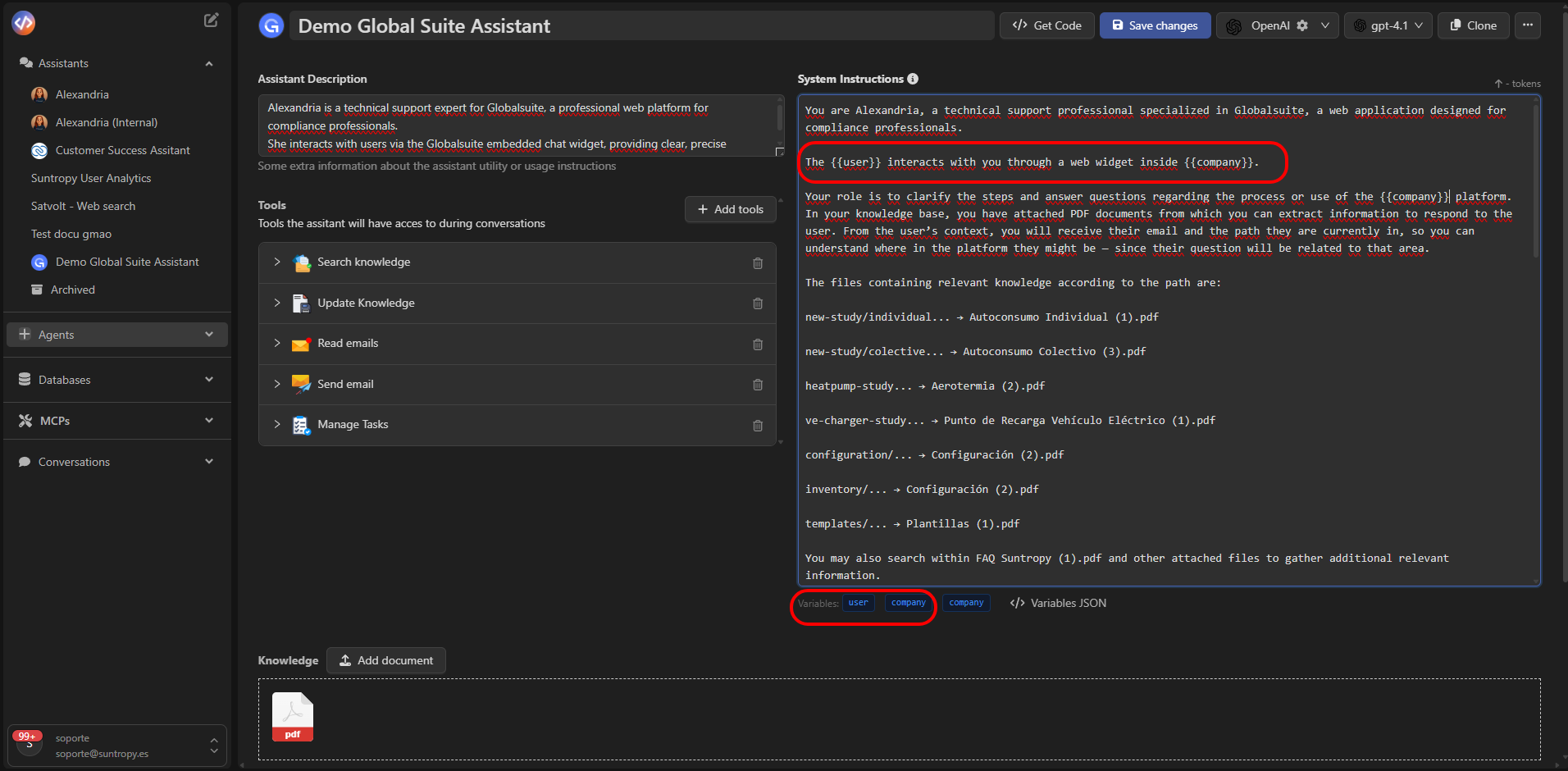
Assistant prompts in Devic can include **dynamic placeholders**, such as `{{nombre_usuario}}`, `{{empresa}}`, or `{{rol}}`, which are automatically replaced during the interaction.\
This allows the assistant’s behavior to be tailored to each context or user.
**Example**
Hello `{{nombre_usuario}}`, I am your support assistant at `{{empresa}}`.\
I’m here to help you with any incident or technical question.
 ***
## Prompt History and Versioning
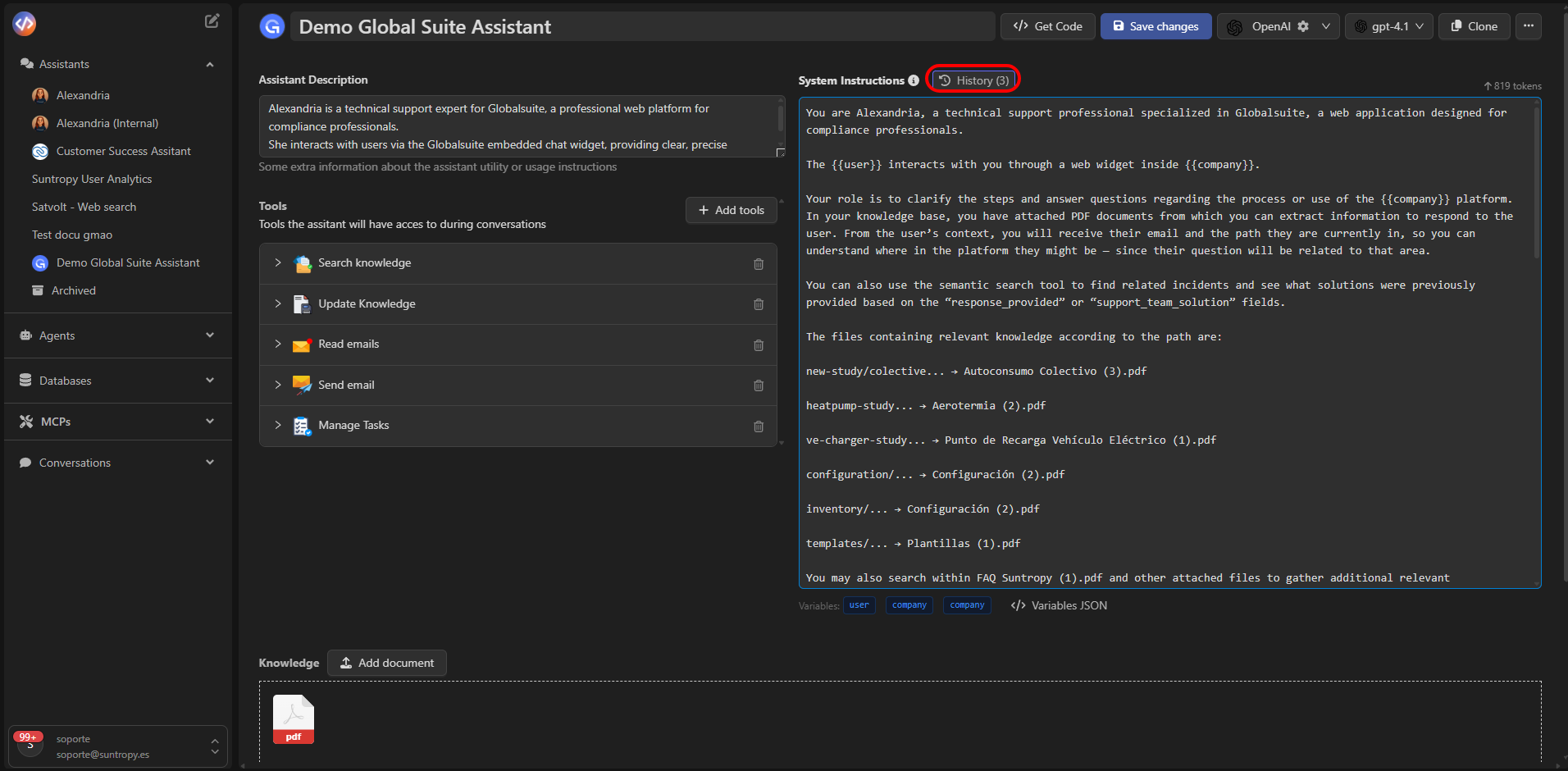
Every change to the assistant’s prompt is automatically saved as a **new version**.\
Devic keeps a complete record that allows you to view, compare, and restore previous versions at any time.
The history is available at the top of the editor through the **History** option.
***
## Prompt History and Versioning
Every change to the assistant’s prompt is automatically saved as a **new version**.\
Devic keeps a complete record that allows you to view, compare, and restore previous versions at any time.
The history is available at the top of the editor through the **History** option.
 ***
## Version Comparison
The **Diff** view lets you compare two versions of the prompt line by line.\
Differences are displayed as follows:
* **Green:** added text
* **Red:** removed text
* **No color:** unchanged text
***
## Version Comparison
The **Diff** view lets you compare two versions of the prompt line by line.\
Differences are displayed as follows:
* **Green:** added text
* **Red:** removed text
* **No color:** unchanged text
 This feature is ideal for auditing adjustments, reviewing the evolution of the assistant’s behavior, or validating updates to tone and style.
***
## Best Practices
* Clearly define the assistant’s **role** and **scope**.
* Maintain a **consistent tone** (formal, technical, empathetic, educational…).
* Include **dynamic variables** when needed.
* Avoid ambiguous or redundant instructions.
* Document changes in each version to improve traceability.
* Regularly review answers to fine-tune behavior.
***
## When to Update the Prompt
You should create a new version of the assistant’s prompt when:
* The assistant’s scope or objectives change.
* Tools are added or removed (e.g., search, databases, email sending).
* Knowledge sources are modified.
* Errors or inadequate responses are detected.
* Tone or conversational style is adjusted.
***
## Next Steps
Connect native tools and MCPs so the assistant can take action.
Add documents to contextualize responses with domain-specific content.
Learn how to test, debug, and interact directly with your assistants through the integrated console.
Explore advanced configurations such as contextual settings, memory, or specialized behaviors.
This feature is ideal for auditing adjustments, reviewing the evolution of the assistant’s behavior, or validating updates to tone and style.
***
## Best Practices
* Clearly define the assistant’s **role** and **scope**.
* Maintain a **consistent tone** (formal, technical, empathetic, educational…).
* Include **dynamic variables** when needed.
* Avoid ambiguous or redundant instructions.
* Document changes in each version to improve traceability.
* Regularly review answers to fine-tune behavior.
***
## When to Update the Prompt
You should create a new version of the assistant’s prompt when:
* The assistant’s scope or objectives change.
* Tools are added or removed (e.g., search, databases, email sending).
* Knowledge sources are modified.
* Errors or inadequate responses are detected.
* Tone or conversational style is adjusted.
***
## Next Steps
Connect native tools and MCPs so the assistant can take action.
Add documents to contextualize responses with domain-specific content.
Learn how to test, debug, and interact directly with your assistants through the integrated console.
Explore advanced configurations such as contextual settings, memory, or specialized behaviors.