> ## Documentation Index
> Fetch the complete documentation index at: https://docs.devic.ai/llms.txt
> Use this file to discover all available pages before exploring further.
# Conversation Console
> Discover how to test, debug, and analyze the behavior of your assistants using Devic’s conversation console.
Interact directly with an assistant inside Devic to **test its behavior**, **see which tools it uses**, and **perform troubleshooting**.
This is not the final interface for end users or clients —that is handled through an **API endpoint** or an **embedded widget**, explained in the sections [API Execution](./api-execution) and [Other options](./other-options) respectively.\
This console is designed for **development and fine-tuning environments**.
***
## Accessing the Console
To access it:
1. Open the assistant from Devic’s sidebar.
2. Navigate to the **Conversations** tab.
3. Select an existing conversation or create a new one.
 Each conversation displays the **message history** exchanged between the user and the assistant, along with the technical details of each interaction.
***
## Main Interface
The console provides a complete view of the conversation and all events generated during it.
Each conversation displays the **message history** exchanged between the user and the assistant, along with the technical details of each interaction.
***
## Main Interface
The console provides a complete view of the conversation and all events generated during it.
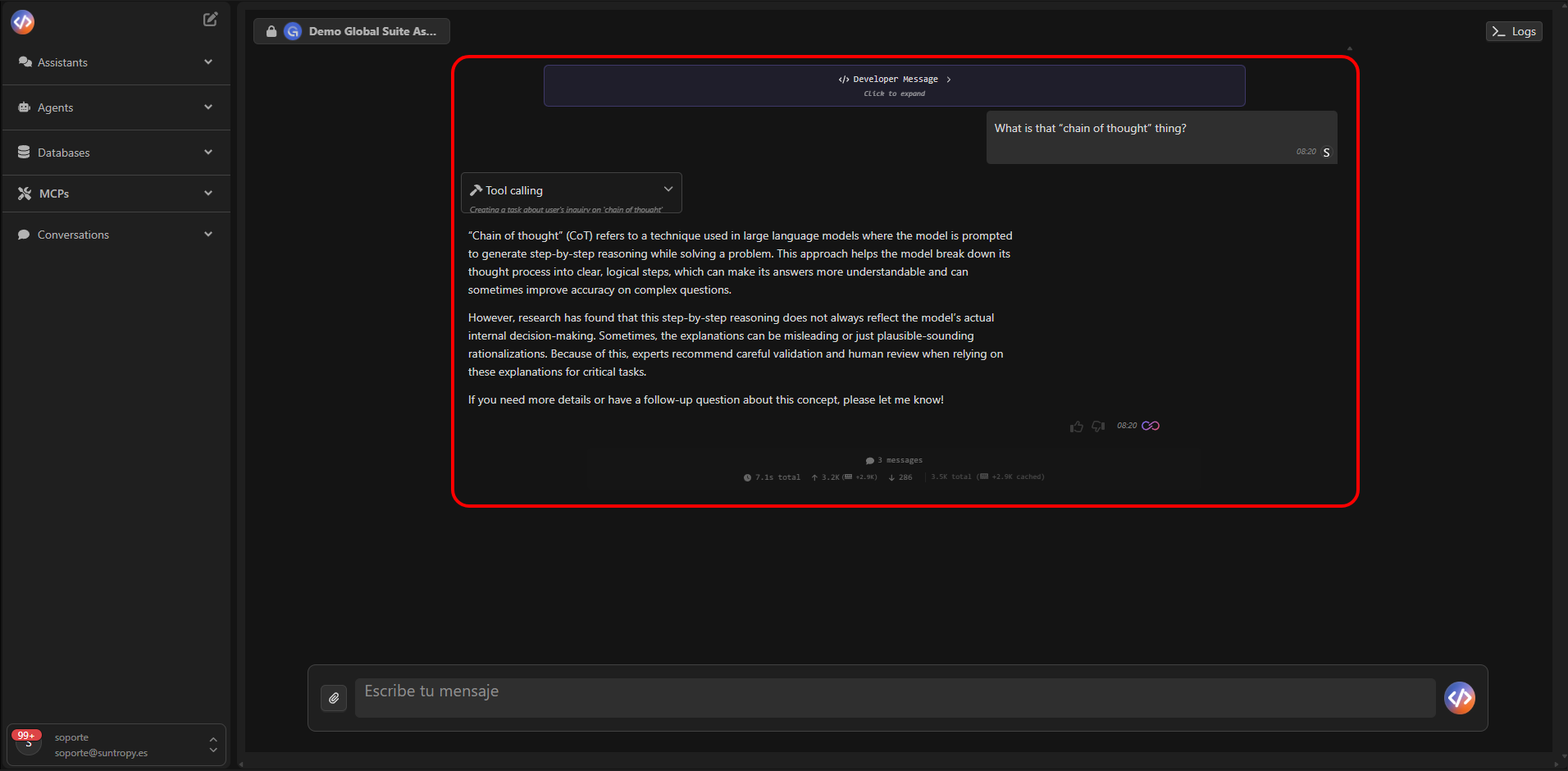 From here you can:
* Send test messages to the assistant.
* Observe how it responds and which tools it uses.
* Analyze the model's internal processes in detail.
* Access the **Chat Log** to see system events.
***
## Tool Calls
When the assistant performs an action (for example, querying a database, performing a web search, or sending an email), Devic displays it through a **Tool Call Card**.\
These cards show which tool was invoked, with what arguments, and what the response was.
From here you can:
* Send test messages to the assistant.
* Observe how it responds and which tools it uses.
* Analyze the model's internal processes in detail.
* Access the **Chat Log** to see system events.
***
## Tool Calls
When the assistant performs an action (for example, querying a database, performing a web search, or sending an email), Devic displays it through a **Tool Call Card**.\
These cards show which tool was invoked, with what arguments, and what the response was.
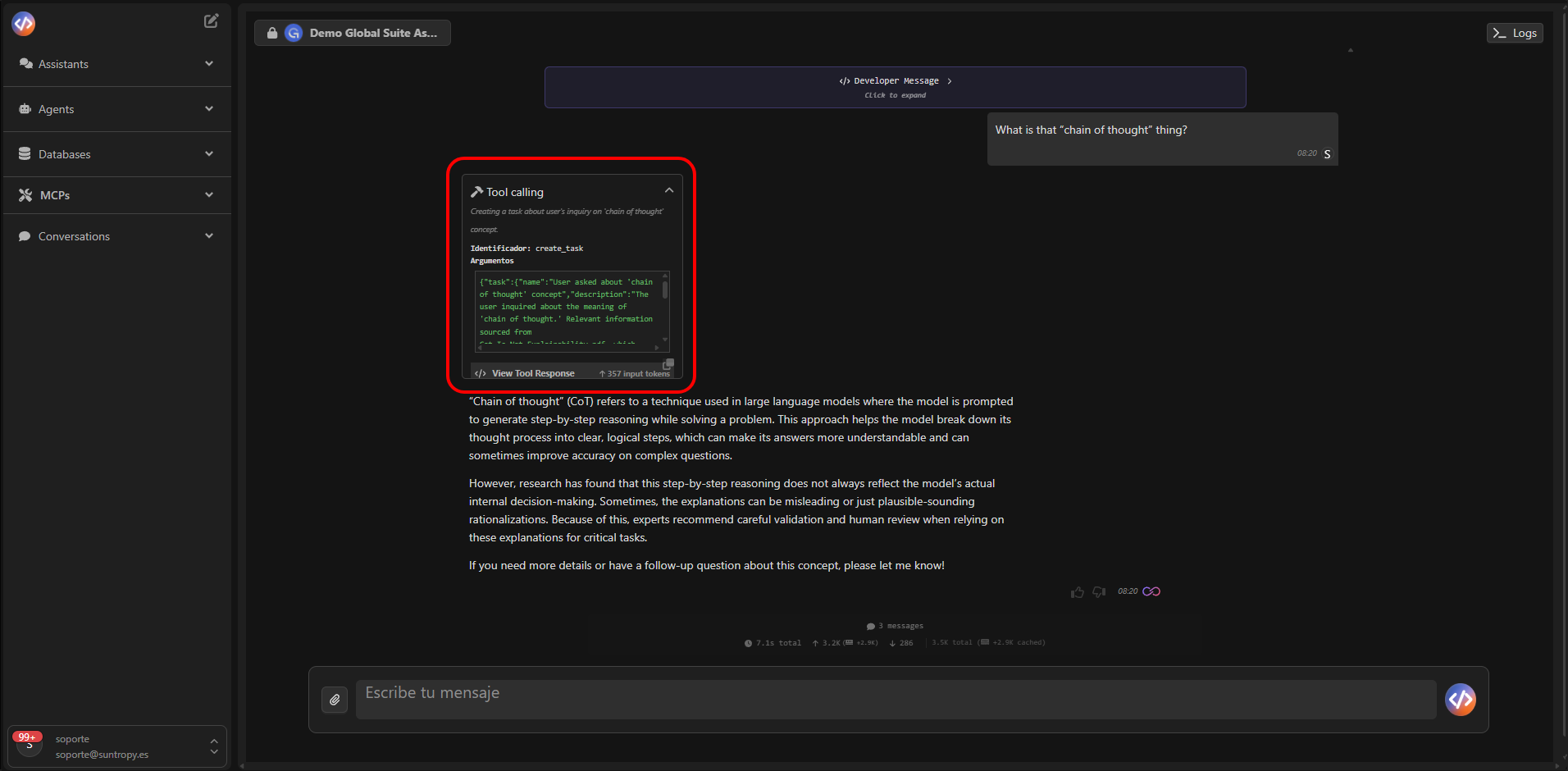 You can expand each card to see the full event information, including the arguments sent and the results returned.
***
## Logs and Debugging
The **Logs** tab provides a detailed view of all events recorded during the conversation, including model API calls, tool calls, partial responses, and errors.
You can expand each card to see the full event information, including the arguments sent and the results returned.
***
## Logs and Debugging
The **Logs** tab provides a detailed view of all events recorded during the conversation, including model API calls, tool calls, partial responses, and errors.
 ##
##
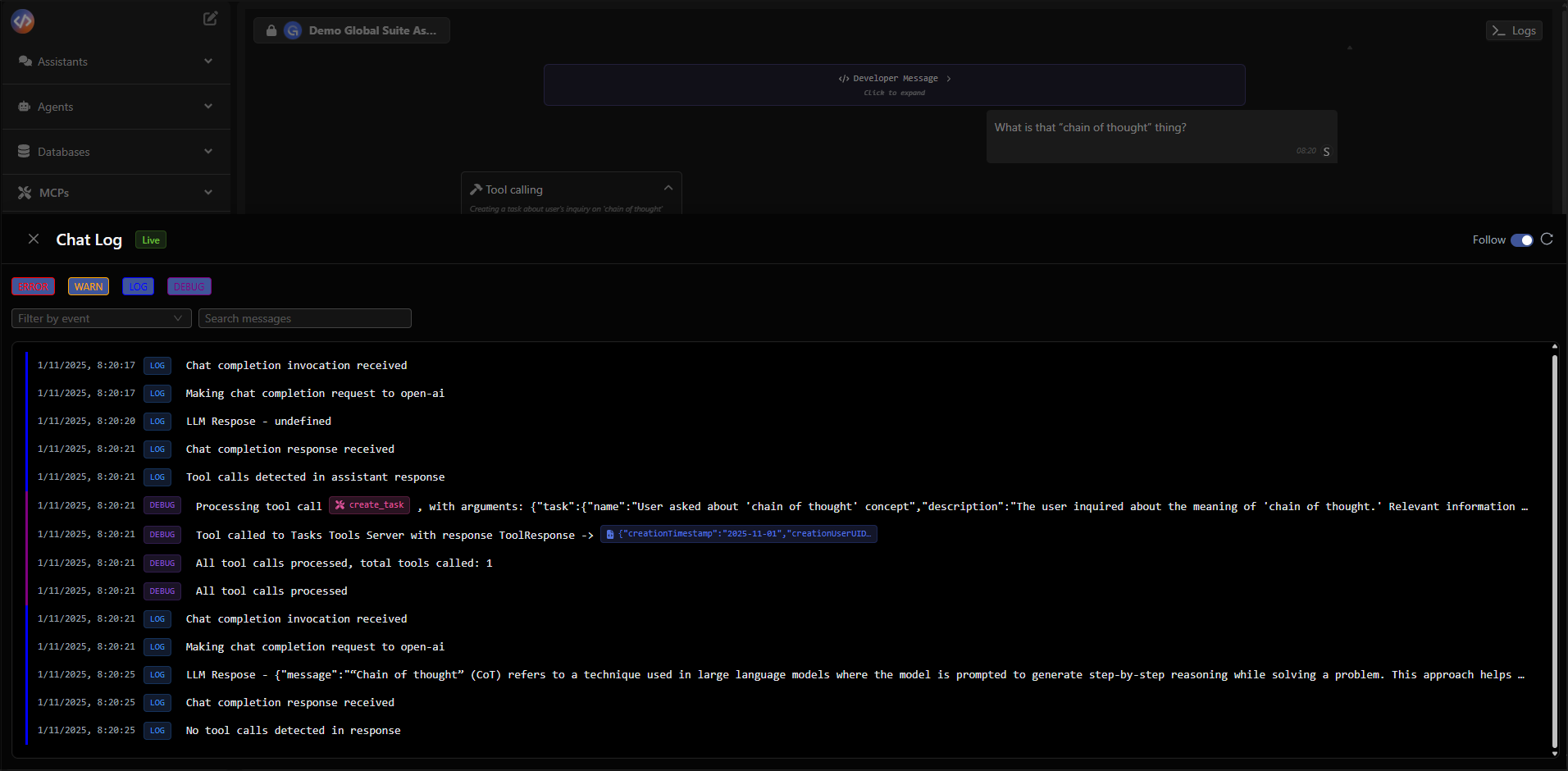 From this view you can:
* Filter by event type (`LOG`, `WARN`, `ERROR`, `DEBUG`).
* Follow the chronological order of execution.
* Analyze response times, internal messages, and processed content.
* View the exact parameters of each **tool call**.
This helps easily identify:
* Why a tool didn't return the expected result.
* Whether the assistant is correctly interpreting the prompt.
* When the LLM intervenes and when an external tool is used.
***
## Message Analysis
You can inspect every message exchanged (both from the user and the assistant) to review its full JSON structure, including inputs, outputs, and metadata.
From this view you can:
* Filter by event type (`LOG`, `WARN`, `ERROR`, `DEBUG`).
* Follow the chronological order of execution.
* Analyze response times, internal messages, and processed content.
* View the exact parameters of each **tool call**.
This helps easily identify:
* Why a tool didn't return the expected result.
* Whether the assistant is correctly interpreting the prompt.
* When the LLM intervenes and when an external tool is used.
***
## Message Analysis
You can inspect every message exchanged (both from the user and the assistant) to review its full JSON structure, including inputs, outputs, and metadata.
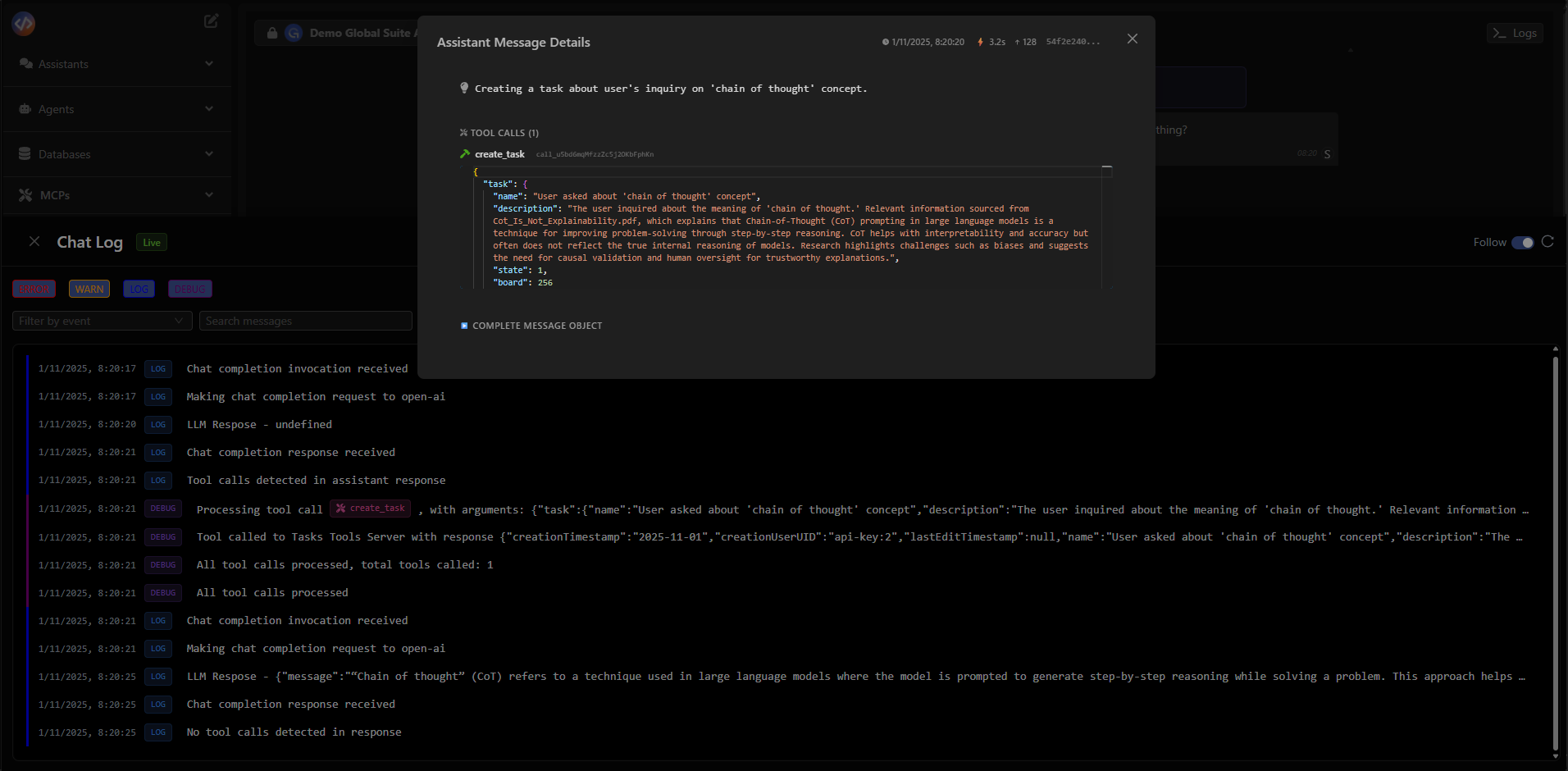 This feature is essential to understand how the assistant:
* Processes the received context.
* Decides which tool to use.
* Generates the final response shown in the conversation.
***
## Troubleshooting Best Practices
* **Review the Logs** after every test to identify possible errors in tool calls or MCP configurations.
* **Validate the arguments** sent to each tool before deploying to production.
* **Use short and direct conversations** during initial tests.
* **Evaluate performance**: monitor response times and token usage in each execution
***
## Next Steps
Explore advanced configurations such as contextual settings, memory, or specialized behaviors.
Discover how to launch and manage interactions with your assistants directly through Devic’s public API.
This feature is essential to understand how the assistant:
* Processes the received context.
* Decides which tool to use.
* Generates the final response shown in the conversation.
***
## Troubleshooting Best Practices
* **Review the Logs** after every test to identify possible errors in tool calls or MCP configurations.
* **Validate the arguments** sent to each tool before deploying to production.
* **Use short and direct conversations** during initial tests.
* **Evaluate performance**: monitor response times and token usage in each execution
***
## Next Steps
Explore advanced configurations such as contextual settings, memory, or specialized behaviors.
Discover how to launch and manage interactions with your assistants directly through Devic’s public API.