> ## Documentation Index
> Fetch the complete documentation index at: https://docs.devic.ai/llms.txt
> Use this file to discover all available pages before exploring further.
# Launch Your First Agent
> Step-by-step guide to creating and configuring your first agent in Devic: model, prompt, tools, and knowledge.
Agents are the core of intelligent automation within **Devic**.\
They combine reasoning, tools, and knowledge to autonomously execute tasks until they reach an objective.
In this guide, you’ll learn how to create your first agent and configure the elements that make it work: the **model (LLM)**, the **prompt**, the **tools**, and **RAG (knowledge)**.
***
## What Is an Agent in Devic?
An agent is an intelligent entity capable of making decisions on its own.\
Unlike traditional workflows —where actions are represented with boxes and arrows— in Devic the agent decides which steps to take and when to stop.
Each agent is built by combining:
* A **language model (LLM)**, which reasons and generates actions.
* A **prompt**, which defines its purpose and rules.
* A set of **tools**, which allow it to act on data or systems.
* And optionally, a **RAG space**, where it stores reference information.
***
## Step 1: Create a New Agent
In Devic’s sidebar, open the **Agents** section and select **New Agent**.\
Start by assigning a **name** and a **description** that clearly define its function.
| Field | Description |
| --------------- | ----------------------------------------------------------------------------------------------------- |
| **Name** | Main identifier of the agent. Use something descriptive, such as *Order Manager* or *Ticket Analyst*. |
| **Description** | Brief explanation of the agent’s purpose or context. Visible to other users in the project. |
**Example:**
> “Agent specialized in processing orders received by email and registering them in the sales database.”
 ***
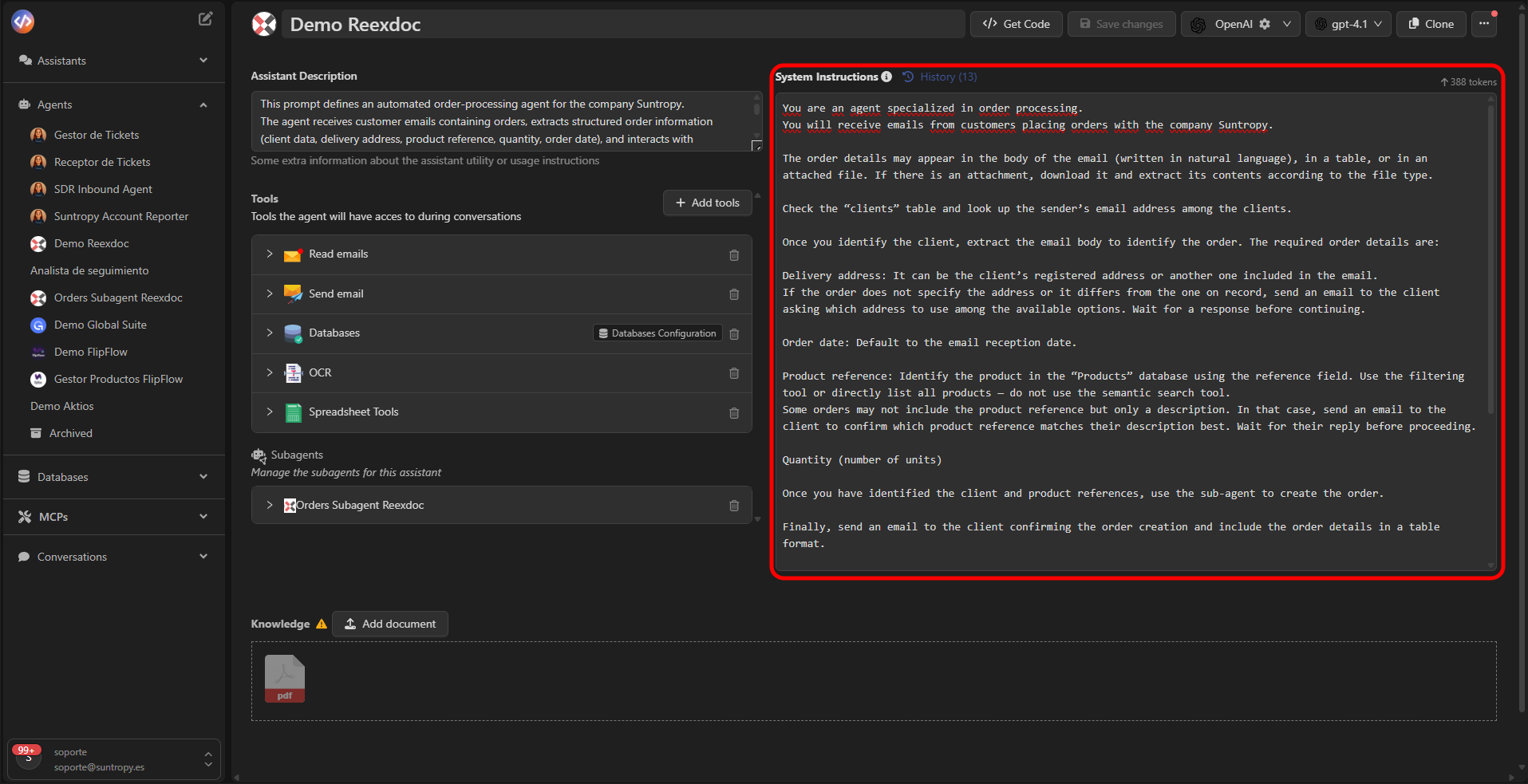
## Step 2: Define the Prompt
The **prompt** is the core of the agent.\
It describes how the agent should behave, what objective it must fulfill, and under what conditions it must operate.
A good prompt should include:
* The agent’s **role**.
* The **objective** or expected outcome.
* The **rules or limits** it must respect.
* The **success criteria**.
**Example prompt:**
You are an agent specialized in processing orders.
You will receive emails from customers with purchase requests.
Your task is to identify the customer, product, and requested quantity,
and update the order database.
***
## Step 2: Define the Prompt
The **prompt** is the core of the agent.\
It describes how the agent should behave, what objective it must fulfill, and under what conditions it must operate.
A good prompt should include:
* The agent’s **role**.
* The **objective** or expected outcome.
* The **rules or limits** it must respect.
* The **success criteria**.
**Example prompt:**
You are an agent specialized in processing orders.
You will receive emails from customers with purchase requests.
Your task is to identify the customer, product, and requested quantity,
and update the order database.
 ***
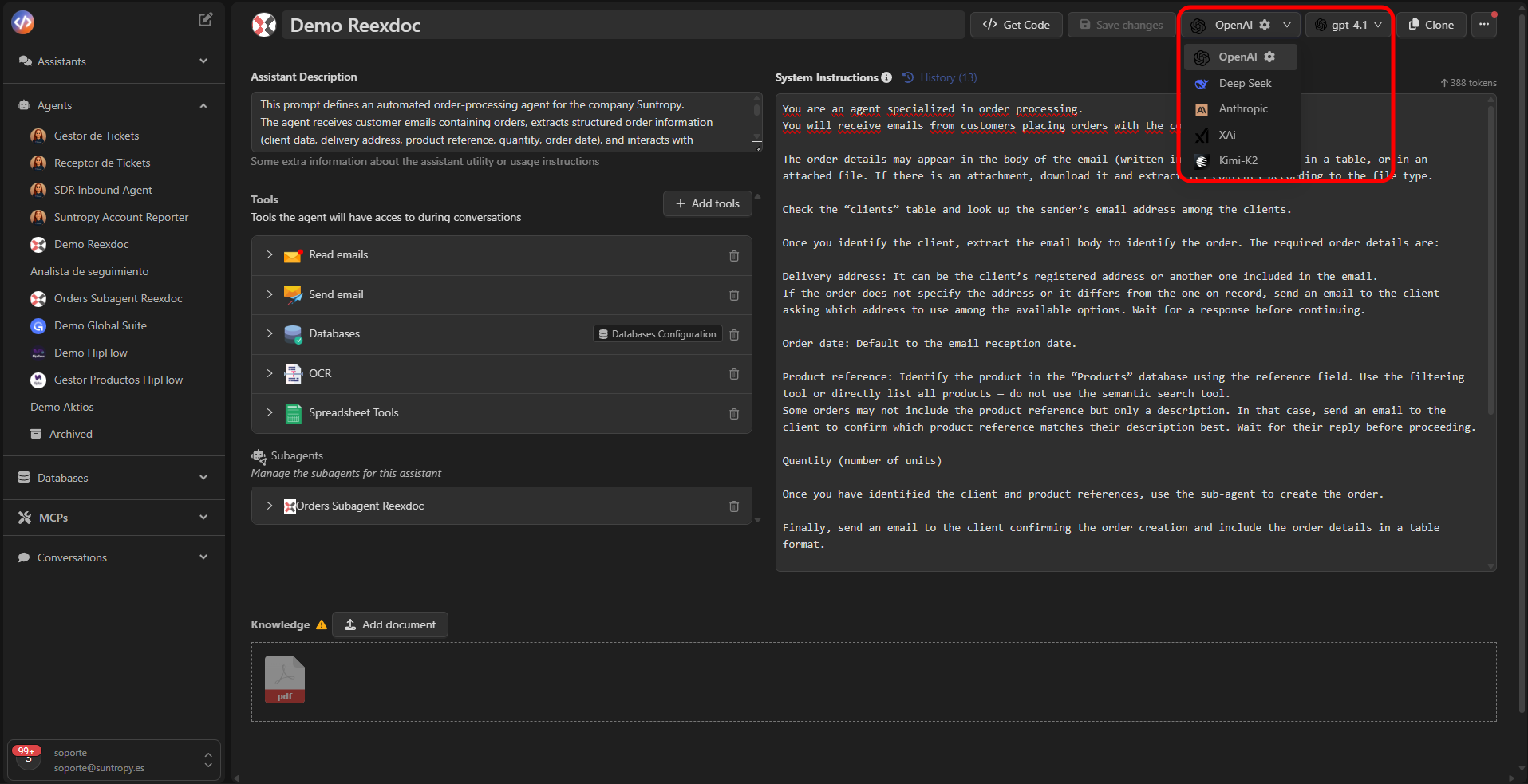
## Step 3: Choose the Model (LLM)
The **model** is the reasoning engine of the agent.\
Devic allows choosing between different **providers and models**, depending on your needs for performance, cost, or privacy.
### Available Providers
* **OpenAI** — GPT-4 and GPT-4o models.
* **DeepSeek** — Fast, cost-optimized models.
* **Anthropic** — Claude models, excellent at reasoning tasks.
* **XAi** — Grok models, general-purpose.
* **Kimi / K2** — Alternative models compatible with Devic.
### On-Premise Models
You can also deploy your own **on-premise** models, which allows:
* Full control over data handling.
* Meeting privacy or compliance requirements.
* Avoiding dependencies on external services.
***
## Step 3: Choose the Model (LLM)
The **model** is the reasoning engine of the agent.\
Devic allows choosing between different **providers and models**, depending on your needs for performance, cost, or privacy.
### Available Providers
* **OpenAI** — GPT-4 and GPT-4o models.
* **DeepSeek** — Fast, cost-optimized models.
* **Anthropic** — Claude models, excellent at reasoning tasks.
* **XAi** — Grok models, general-purpose.
* **Kimi / K2** — Alternative models compatible with Devic.
### On-Premise Models
You can also deploy your own **on-premise** models, which allows:
* Full control over data handling.
* Meeting privacy or compliance requirements.
* Avoiding dependencies on external services.
 ***
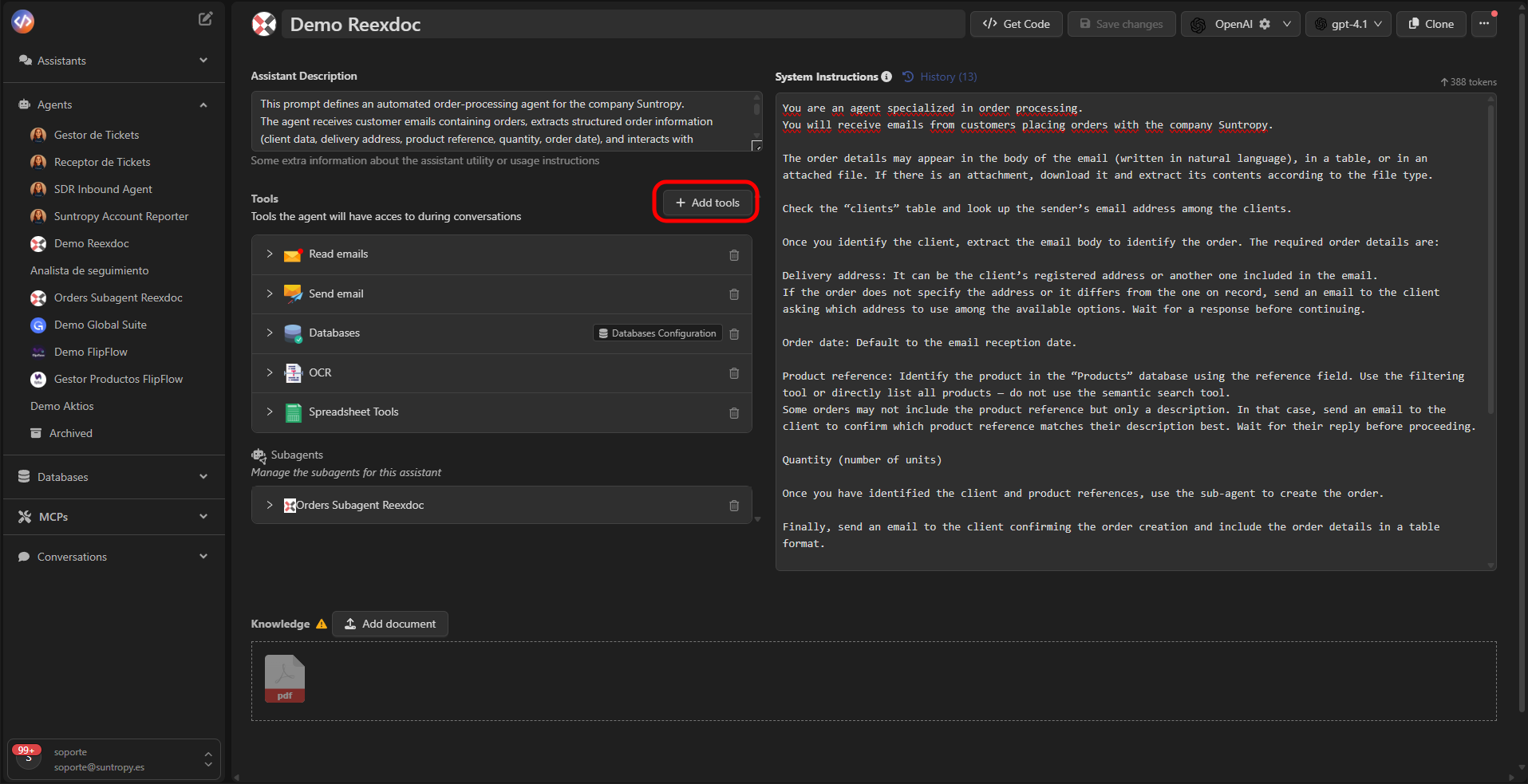
## Step 4: Add Tools
**Tools** are the agent’s execution capabilities.\
They allow it to interact with emails, databases, documents, or external services.
You can add tools from **Tools → Add tools**.
| Tool | Description |
| --------------------- | ----------------------------------------------- |
| **Read Emails** | Reads emails and extracts their content. |
| **Send Email** | Sends messages or automated notifications. |
| **Databases** | Allows creating, querying, or updating records. |
| **OCR** | Extracts text from documents or images. |
| **Spreadsheet Tools** | Reads data from spreadsheets or CSV files. |
***
## Step 4: Add Tools
**Tools** are the agent’s execution capabilities.\
They allow it to interact with emails, databases, documents, or external services.
You can add tools from **Tools → Add tools**.
| Tool | Description |
| --------------------- | ----------------------------------------------- |
| **Read Emails** | Reads emails and extracts their content. |
| **Send Email** | Sends messages or automated notifications. |
| **Databases** | Allows creating, querying, or updating records. |
| **OCR** | Extracts text from documents or images. |
| **Spreadsheet Tools** | Reads data from spreadsheets or CSV files. |
 **Tip:**\
Configure only the tools you need.\
For example, a support agent may need `Read Emails`, `Databases`, and `Send Email`, but not `OCR`.
***
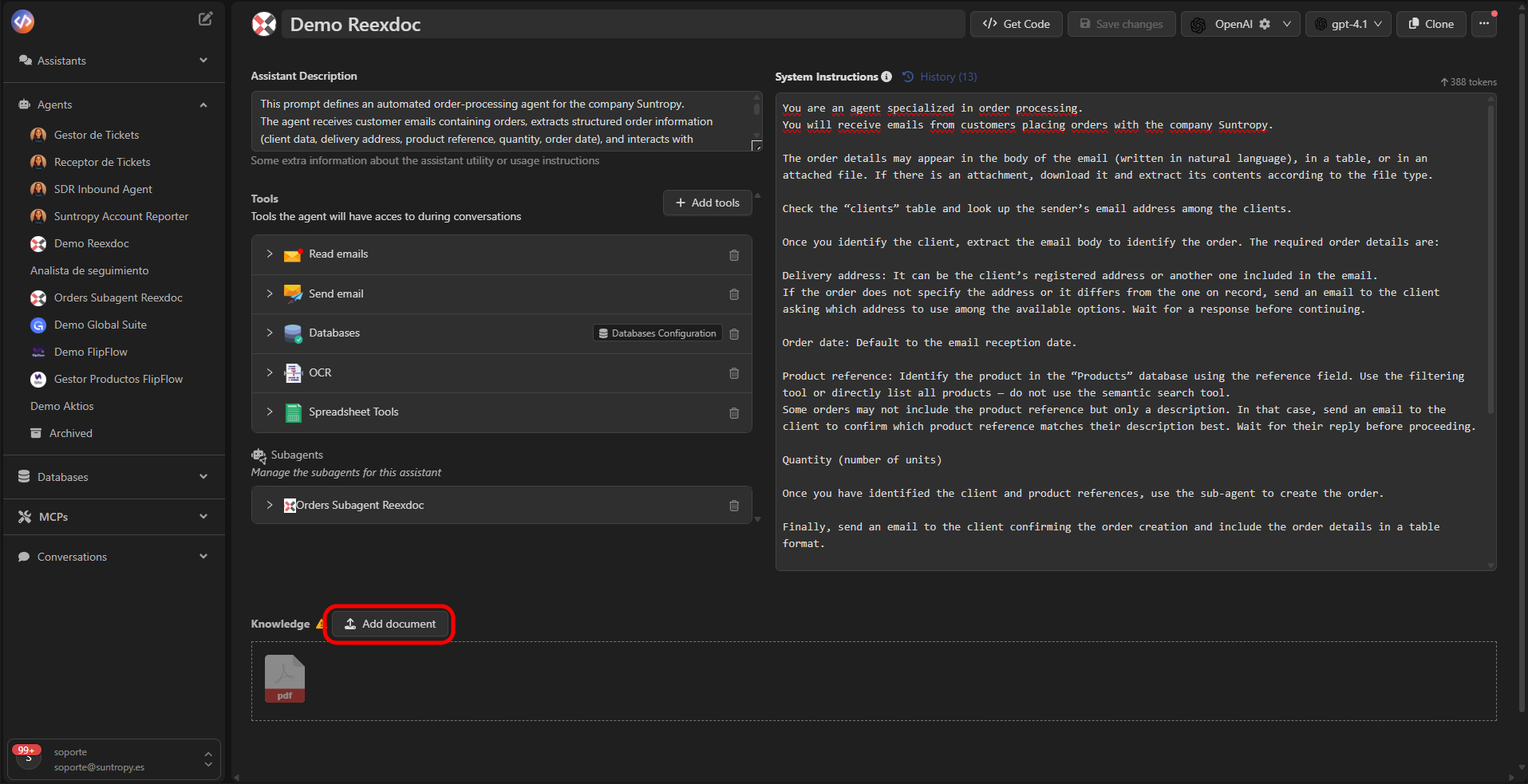
## Step 5: Add Knowledge (RAG)
**RAG (Retrieval Augmented Generation)** serves as the agent’s memory.\
It allows the agent to consult documents or external files to obtain contextual information during execution.
You can upload files in formats such as:
* `.pdf`
* `.docx`
* `.txt`
* `.csv`
**Example use cases:**
* A legal agent consults contracts or laws uploaded as PDFs.
* A sales agent looks up information in catalogs or price lists.
* A technical agent accesses manuals or internal guides.
**Tip:**\
Configure only the tools you need.\
For example, a support agent may need `Read Emails`, `Databases`, and `Send Email`, but not `OCR`.
***
## Step 5: Add Knowledge (RAG)
**RAG (Retrieval Augmented Generation)** serves as the agent’s memory.\
It allows the agent to consult documents or external files to obtain contextual information during execution.
You can upload files in formats such as:
* `.pdf`
* `.docx`
* `.txt`
* `.csv`
**Example use cases:**
* A legal agent consults contracts or laws uploaded as PDFs.
* A sales agent looks up information in catalogs or price lists.
* A technical agent accesses manuals or internal guides.
 ***
## Step 6: Save and Execute
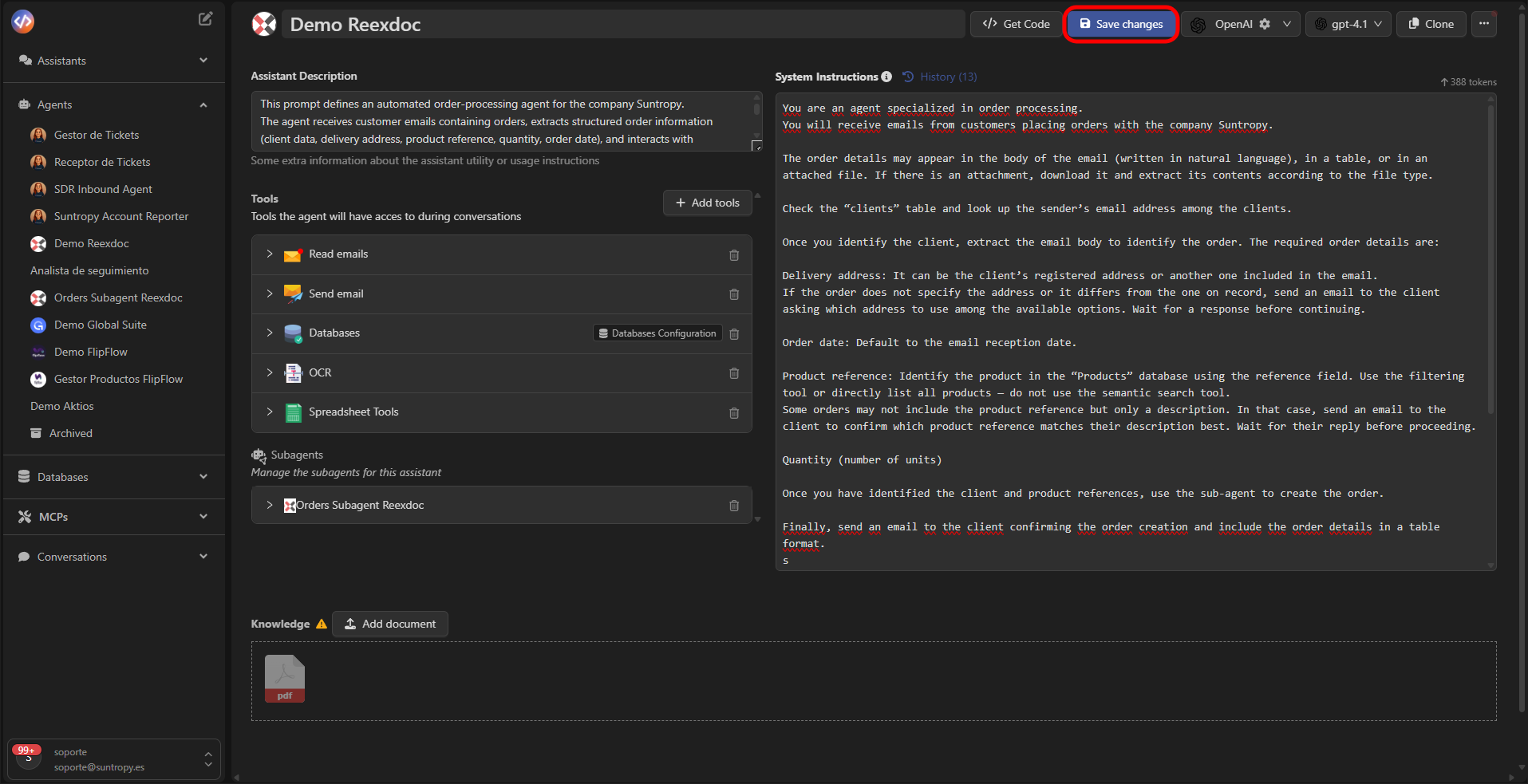
Once you've configured the name, prompt, model, tools, and RAG, click **Save changes**.\
The agent will be ready to run manually, via **webhooks**, or scheduled periodically.
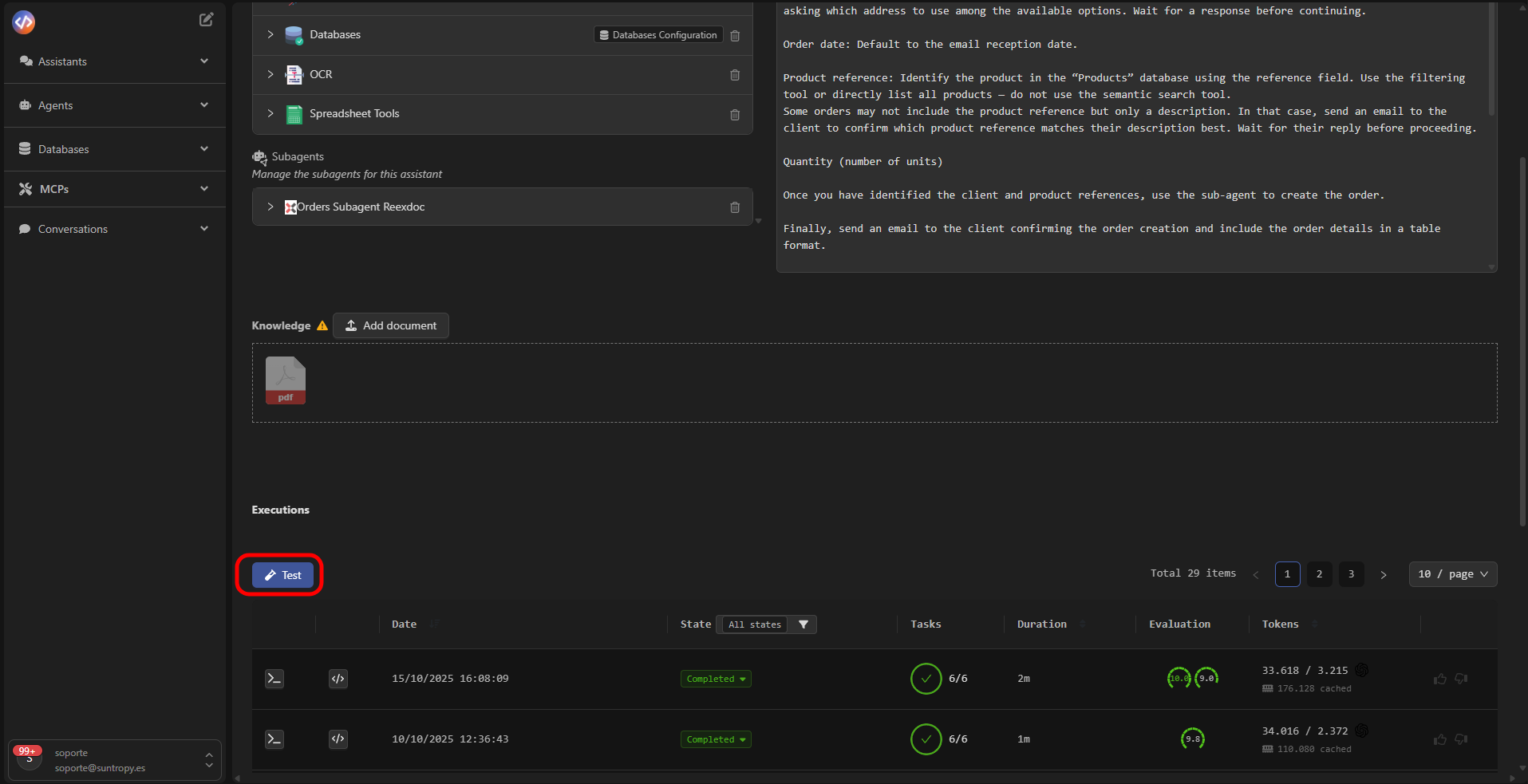
You can test it directly from the interface using the test button.
***
## Step 6: Save and Execute
Once you've configured the name, prompt, model, tools, and RAG, click **Save changes**.\
The agent will be ready to run manually, via **webhooks**, or scheduled periodically.
You can test it directly from the interface using the test button.
 ##
##
 ***
## Component Summary
| Element | Purpose |
| ---------------------- | ------------------------------------------------------ |
| **Name & Description** | Identify the agent and explain its role. |
| **Prompt** | Defines its behavior and rules. |
| **Model (LLM)** | Acts as the reasoning engine. |
| **Tools** | Allow executing actions and accessing services. |
| **RAG** | Extends its knowledge with documents or external data. |
***
## Next Steps
Learn best practices for structuring prompts that precisely guide your agents’ behavior and decisions.
Explore the tools available for your agents and how they can be used to execute real actions within Devic.
Discover how to integrate knowledge bases and semantic search using Devic’s native RAG system.
Learn how to improve your agents’ performance through automatic evaluations, human feedback, and iterative tuning.
***
## Component Summary
| Element | Purpose |
| ---------------------- | ------------------------------------------------------ |
| **Name & Description** | Identify the agent and explain its role. |
| **Prompt** | Defines its behavior and rules. |
| **Model (LLM)** | Acts as the reasoning engine. |
| **Tools** | Allow executing actions and accessing services. |
| **RAG** | Extends its knowledge with documents or external data. |
***
## Next Steps
Learn best practices for structuring prompts that precisely guide your agents’ behavior and decisions.
Explore the tools available for your agents and how they can be used to execute real actions within Devic.
Discover how to integrate knowledge bases and semantic search using Devic’s native RAG system.
Learn how to improve your agents’ performance through automatic evaluations, human feedback, and iterative tuning.